Page Indicator
A row of dots marking your place among a Level Set's peer screens, and what makes a screen swipeable.
About 3 minutes
A row of dots that shows where you are among a set of screens, like the dots under swipeable pages on a phone. It reads a Level Set, draws one dot per entry, and lights the dot for the screen it's on. Adding it to a screen also lets the player swipe left and right to move between those screens. It's for games and apps (it isn't offered in watch face projects).
Settings
| Setting | What it does |
|---|---|
| page set | The Level Set to read. One dot per entry. A Level Select or Layout can point at the same Level Set. |
| Edit level set | Button. Opens that Level Set in the Level Set editor. |
| New level set… | Button. Makes a new Level Set and points this indicator at it. |
| wrap | wrap round: swiping back on the first page goes to the last, and forward on the last goes to the first. stop at the ends: those swipes do nothing. |
| active colour | The colour and opacity of the lit dot (the current screen). |
| dimmed colour | The colour and opacity of the other dots. |
| dot size | Each dot's radius, in pixels. 0 sizes them from the box. The lit dot always draws a bit larger (about 1.4 times) so the current page is easy to spot. |
| spacing | The gap between dot centres, in pixels. Low values (down to 1) overlap the dots. |
| curve | Bends the row of dots into an arc. 0 is straight. The number is the arc's radius in pixels, so smaller means more bend. A positive number lifts the ends (to follow the bottom edge of a round watch); a negative one drops them (to follow the top edge). About half the watch width, minus a little, hugs the edge. Make the box tall enough to fit the bend. |
Under the settings, a line tells you how many dots there are and which entry this screen is (or that it isn't one of them).
How to use it
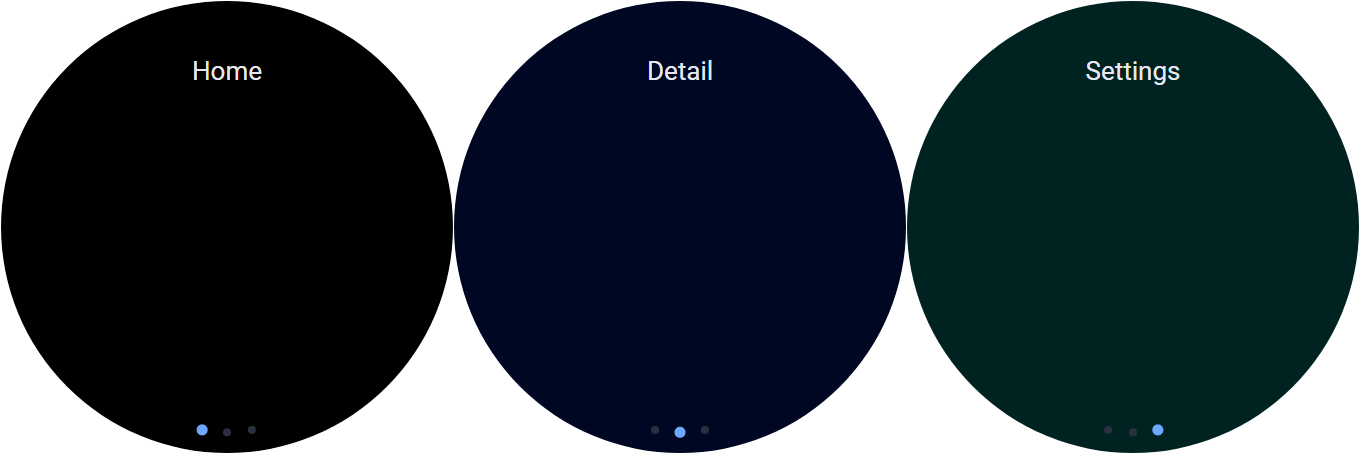
- Make a Level Set with one entry per screen (for example Home, Detail and Settings), each pointing at its screen.
- Put a Page Indicator on each of those screens, all pointing at the same page set.
- Press Play and drag left or right to page through them. Dragging works in the editor's Preview too.
Adding this component to a screen is also what turns on the swipe. Showing the dots and allowing the swipe are the same step, not two separate switches.
Good to know
- A screen that isn't one of the Level Set's entries shows every dot dimmed.
- Runs on both Wear OS and Apple Watch builds, including the swipe, wrap and curve.
Every object also has the shared rows (position, size and more), explained once in Settings Every Object Shares.