Bind Frame
Swaps an object's picture based on your variables: pick it by rules (if / else) or by a number.
About 4 minutes
Bind Frame swaps an object's picture on its own, based on your variables. Use it for a door that shows open or closed, a weather icon, a mood face, a locked or unlocked level button, or a number shown as a digit from a sheet.
It has two modes. Pick by rule works like if / else if / else: show this picture when these checks pass, otherwise that one. Pick by number lets a number variable pick a frame of a sliced sheet.
Add it from Add Component ▸ Bind Frame, or with + binding: Frame on an existing Bindings card. The object needs an Image.
Pick by rule
This is where new Bind Frames start. You build a list of rules, and each rule pairs a picture with the checks that show it.
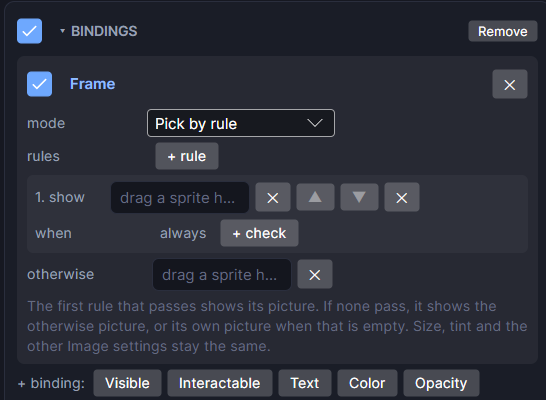
| Setting | What it does |
|---|---|
| mode | Pick by rule. |
| + rule | Adds a rule to the bottom of the list. |
| show | The picture for this rule. Drag in an image file, or one frame of a sliced sheet, from the Project panel. Click it to find the file in the Project panel; ✕ clears it. |
| ▲ / ▼ | Moves the rule up or down. Order matters (see below). |
| ✕ (on the rule row) | Removes the rule. |
| when | The checks for this rule: always, all of these or any of these, then + check to add one. These are the same checks as Bind Visible: a number, Bool, option or text variable, an Input Field's text, or whether another object is visible. |
| otherwise | The picture to show when no rule passes. Leave it empty to keep the object's own picture. |
| On/off checkbox | Turns this binding off without removing it. |
How it picks
- Rules are checked from the top. The first rule that passes shows its picture, and the rest are skipped. Put your most specific rules first.
- A rule with no checks always passes, so it works as a catch-all. A rule with no picture is skipped.
- If nothing passes, the otherwise picture shows. If otherwise is empty, the object shows its own picture, as you set it on the Image (an animating sheet keeps animating).
- Only the picture changes. The Image's size, tint and other settings stay the same.
- Pictures don't need to come from the same sheet. Mix separate files and single frames freely.
Example: a door
- Give the door object an Image with the closed door picture.
- Add Bind Frame. In the first rule, drop in the open door picture and add a check:
doorOpenis on. - Leave otherwise empty. The door shows closed until
doorOpenturns on.
For three or more states, add a rule per state. For a weather icon: weather = 1 shows the cloud, weather = 2 shows rain, weather = 3 shows snow, and otherwise shows the sun.
Pick by number
Use this when the frame number itself is the data: a digit 0 to 9, a hearts strip showing 0 to 5 hearts, or the portrait of hero number 3.
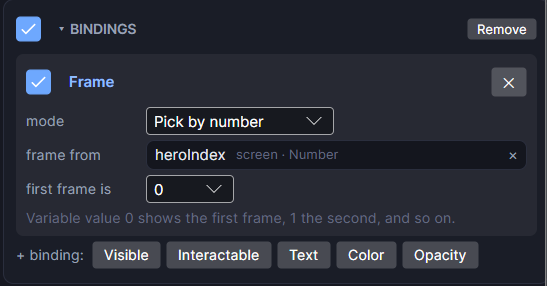
| Setting | What it does |
|---|---|
| mode | Pick by number. |
| frame from | The number variable that picks the frame. |
| first frame is | Which value shows the first frame: 0 or 1. Pick 1 if your variable counts from 1 (level 1 shows the first frame). |
| On/off checkbox | Turns this binding off without removing it. |
With first frame is set to 0, a value of 0 shows the first frame, 1 the second, and so on.
This mode needs a sliced image: an Image whose sheet is cut into frames in the Sprite Editor. Until it has one, the card shows a warning.
Good to know
- Bind Frame only changes the picture while the game runs. In the Scene you always see the picture you set on the Image, and your saved project isn't changed.
- Bind Frame wins over a Set image action on the same object. For a picture you only change now and then, use the action instead (see Cycling art with Set Frame).
- Projects made before Pick by rule existed keep working: their Bind Frames open in Pick by number, with first frame is matching the old setting.
- On a real watch, a rule's picture always draws as a plain (Simple) image, even if the Image is set to Sliced or Tiled.
- Works in Game and App projects, in Preview and on both Wear OS and Apple Watch. Not offered on watch faces; use Frame Animation there.