Camera
The screen's one camera: Follow, Static, or Scripted.
About 3 minutes
Adding a Camera turns its object into the game's camera. Where the object sits is where the camera looks, so a level bigger than the watch screen can scroll. Use one camera per game. Games only.
The quickest way to get one is Add Object ▸ Camera. It follows the player when there is one, and stays put otherwise.
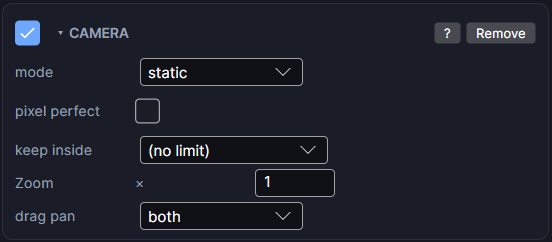
Settings
| Setting | What it does |
|---|---|
| mode | follow tracks a World object, usually the player. static stays wherever you placed it. scripted only moves when Camera actions tell it to, which suits cutscenes. |
| pixel perfect | Makes every art pixel a whole number of watch pixels (1x, 2x, 3x...), so pixel art never has uneven pixels. Your zoom rounds to the nearest of those sizes, and the card tells you how many art pixels the watch will show. Affects Preview and the watch, not the Scene view. |
| follow | Shown in follow mode. The World object the camera tracks. |
| keep inside | The camera never shows past this object's edges, usually your ground tilemap. At an edge the camera stops and the player keeps walking toward the side of the screen. If the object is smaller than the screen in one direction, the camera centres on it that way. (no limit) turns this off. |
| edge padding | Shown once keep inside is set. Pixels trimmed off every side of that area. A positive number hides a border (like an outer wall row). A negative one lets the camera go that far past the edge. |
| Zoom | 1 is 1. Higher numbers zoom in. |
| drag pan | Lets the player drag empty space to look around. both allows any direction, horizontal and vertical limit it to one axis, and off turns it off. |
Camera actions
Any action list can control the camera. Pick the Camera object as the target and you'll find these under its Camera heading:
- Shake: a quick screen shake for hits and explosions.
- Zoom To: zoom in or out.
- Move To: glide to a spot.
- Follow: start following an object.
- Stop: stop following and hold still.
- Keep Inside: change the keep inside area while playing, for example when the player walks into a building.
One camera for every screen
To keep the same camera across all your level screens, right-click its object in the Hierarchy and choose Make Always Active. keep inside goes by the object's name, so give each level's ground map the same name and the camera picks up the right one on each screen. A screen with no object of that name has no limit.
Good to know
- On a round watch the corners of a map fall outside the circle, so keep important things away from the very corners.
- Only World objects can be followed or used as the keep inside area. HUD and UI objects stay fixed on screen and don't scroll with the camera.
- Works on both Wear OS and Apple Watch.
- Cameras are a Game feature. They don't appear in App or Watch Face projects.
- Pair it with a Tilemap for a scrolling level.