Play Animation
A stoppable clip built from a hand-picked list of separate image frames, no sheet, no slicing.
About 2 minutes
Plays a list of frames you pick yourself, in the order you set: an attack swing, a door opening, a coin flourish. Each frame can be its own image or one cell of a sliced sheet. It can loop forever, or play once, stop, and run actions when it reaches the end.
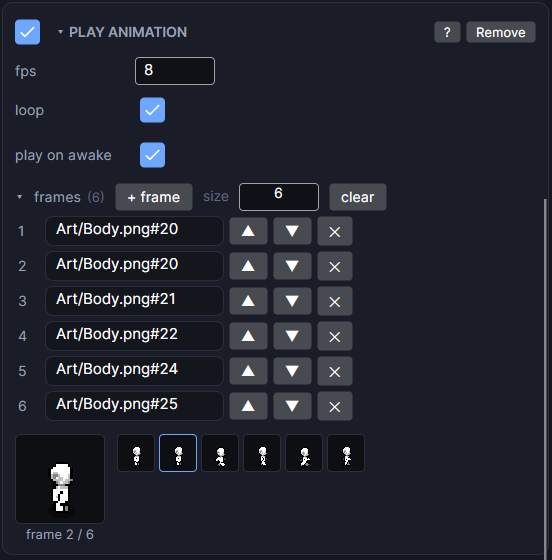
Settings
| Setting | What it does |
|---|---|
| fps | Frames per second. How fast it steps through the list. |
| loop | On: goes back to the first frame and plays forever. Off: plays once and runs the on end actions when it gets to the last frame. |
| reset on finish | Shown when loop is off. On: after the last frame, it jumps back to the first (a door that closes again). Off: it holds the last frame. |
| reverse on finish | Shown when loop is off. On: after the last frame it plays backward to the first and stops there (a door that opens, then swings shut). Wins over reset on finish. |
| play on awake | On: starts playing as soon as the screen starts. Off: waits on the first frame until an action plays it. |
| frames | The pictures, in play order. Press + frame and drop an image or a single sheet cell from the Project panel into each row, or drag several images onto the list at once. A small preview plays below the list. |
| on end | Actions that run once, when a non-looping clip reaches its last frame. With loop on they never run, and a warning says so. |
Playing it from an action
Pick the object in any action list:
- Play Animation ▸ Restart plays it again from the first frame.
- Play Animation ▸ Play backward plays it from the last frame to the first and stops (a door closing). The on end actions don't run for this.
- Enable component on a stopped Play Animation also starts it from the first frame. It never resumes from the middle.
Example: a chest that opens once
- Add frames of the lid opening, set loop off.
- Set play on awake off so it stays closed.
- On the chest's Tappable or On Event, add Play Animation ▸ Restart.
- In on end, give the player their reward.
Good to know
- Add it alongside a Sprite or Animator if you like. While Play Animation is on, it wins over both.
- Games and apps only. On a watch face use Frame Animation.
- Runs in Preview and on both Wear OS and Apple Watch.