Image
A picture on the face: backgrounds, icons, hand art. Tint it, tile it, give it a shadow, or let the wearer pick it.
About 3 minutes
Shows a picture from your project: a background, an icon, a decoration. Drag an image from the Project panel onto its slot. Left empty, it shows a plain placeholder box so you can still see and place it.
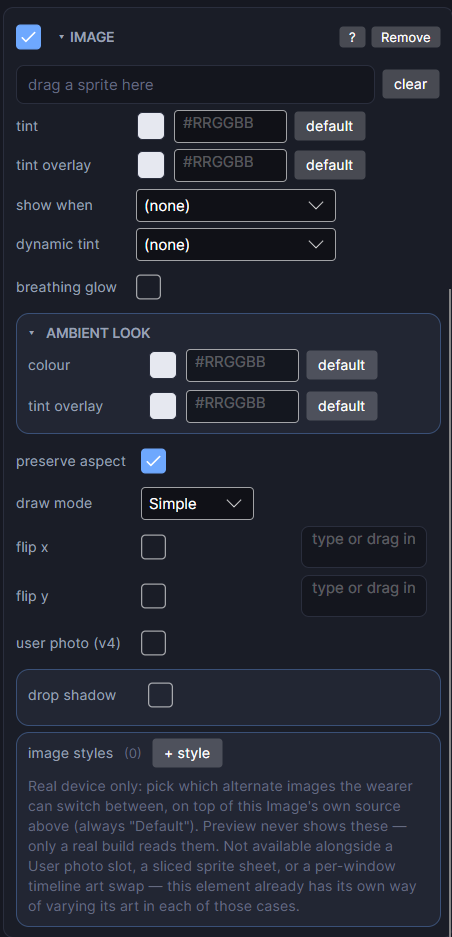
Settings
| Row | What it does |
|---|---|
| source | The picture. Drag one from the Project panel onto the slot. A single frame of a sliced sheet works too. |
| tint | A colour laid over the picture. White leaves it unchanged. Great for recolouring white icons. |
| preserve aspect | Keeps the picture's shape instead of stretching it to fill the box. |
| draw mode | Simple stretches or fits the picture to the box. Sliced keeps the corners and stretches only the middle (nine-slice), for panels that resize cleanly. Tiled repeats the picture across the box. |
| flip x / flip y | Mirrors the picture left to right, or top to bottom. |
| user photo (v4) | Lets the wearer choose their own photo from their phone. Single photo uses this picture as the default. Pick a gallery to let them cycle through several. See Photo Slot. |
| image styles | Alternative pictures the wearer can choose between on the watch, like a set of backgrounds. Add styles here and set which is the default. |
| drop shadow | A soft shadow under the picture. See the shared settings below. |
Animating a picture
Add the Frame Animation component to play a list of frames on this Image: a spinning gear, a blinking eye. See Frame Animation. For a picture that changes through the day, drop pictures onto its windows in the Timeline. See Time-of-Day Windows.
Pictures, especially backgrounds and photos, light up lots of pixels. Most should stay hidden in ambient.
Every object also has the shared rows (position and size, ambient look, show when, Color Style and more), explained once in Settings Every Object Shares.