List Entry
Connects a list row to its entry: which Text shows the name, which Image shows the icon, which bar fills from a number.
About 4 minutes
A Layout that fills from a list makes one copy of your row for each entry. List Entry is what tells each copy what to show. Without it, every row would look exactly like the template you built.
You build one row (a Text for the name, an Image for the icon, a bar for HP), and List Entry connects each of those objects to a part of the entry. Showing a List walks through the whole setup.
Where it goes
Put List Entry on the top object of the row: the one directly inside the Layout, with everything else in the row under it. One List Entry handles the whole row, so the objects inside don't need their own.
When you add it, it starts with a row ready for each Text, Image and bar it finds inside. Delete the ones you don't need with ✕, or add more with + Add row.
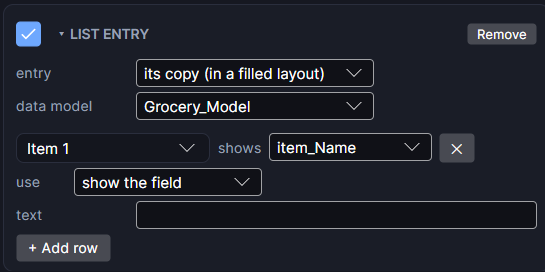
Rows
Each row reads as "this object shows this part of the entry".
- object: the top object or anything under it. Pick it from the list, or drag it in from the Hierarchy. Objects outside the row can't be picked.
- shows: which part of the entry. The choices depend on what the object is (below).
- text (Text only): words around the value.
{value}is where it goes:Lv {value},x{value}. Formats work too:${value:.00}for a price. Leave it blank to show the value alone. - full at (bars, arcs and circles only): the amount that means full. Pick a field like
maxHp, or leave it blank and type a number.
What a row can show
| Choice | What it shows |
|---|---|
| name | The entry's name. For a Data Object, its name field if it has one, otherwise the object's own name. |
| value | The entry itself, for a plain Text, Number or Bool list (Milk, 5). |
| count | How many of that entry the list holds, like 3 potions. Always 1 in a plain list. |
| position | Where it sits in the list: 1, 2, 3... |
| object | The Data Object's own name, even when it has a name field. |
| score | The score, in a list filled by Get leaderboard. |
| a field | Any field of the Data Model, like price or hp. |
Which choices you get depends on the object:
- Text: anything above. Left blank, it shows name.
- Image: only picture (Sprite) fields. Left blank, it uses the first one.
- Bar, arc or circle: only numbers (count, value or a number field). Pick one, or it has nothing to fill from.
- Anything else (a Shape, a Group): nothing to show, but you can still use show only when on it.
If a number field on the Data Model has per copy ticked (the small checkbox at the end of its row; hover it to check), like a monster's level or a sword's tier, each entry in the list keeps its own value, and the row shows that copy's value. Other fields show the Data Object's value.
Show only when
Set use to show only when to turn a row into a show or hide test instead. The object keeps its own picture or text, and only shows while the test passes.
- A star that shows when
stars ≥ 2. Make three stars, test 1, 2 and 3. - A lock icon that shows when
open < 1. - A "NEW" badge that shows when
count = 1.
You can test value, count, position or any number field, against a number you type.
Settings
- entry: which entry the row shows.
- its copy (in a filled layout): the usual. Each copy shows its own entry.
- selected in a list: the list's selected entry, anywhere on any screen. Tapping a row in a filled layout selects it, so a details screen with a List Entry set to selected in Monsters shows the one that was tapped.
- data model: only narrows the field pickers to that model's fields. When the list already has a model, its fields show without it.
When there's no entry to show (nothing has been selected yet, for example), the objects in its rows hide.
Good to know
- In the Scene you only see your template. The copies, with their real names and values, appear when you press Play and on the watch.
- List Entry works the same on Wear OS and Apple Watch.