Slider
Slider turns an object into a draggable slider: the player drags (or taps) along it to pick a number.
About 2 minutes
Slider turns an object into a draggable slider: the player drags (or taps) along it to pick a number. It's made for settings screens, like music volume or text size.
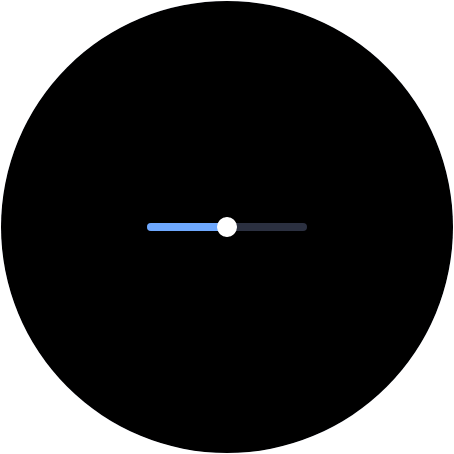
The easiest way to get one is Add Object ▸ Slider. It builds three objects already wired together:
- Slider: the drag area, carrying the Slider component.
- Fill: a Progress Bar whose fill follows the value. Its own track is the background.
- Handle: a round Shape that slides along with the value.
Restyle each part on its own card. Swap the Handle for an Image if you want a picture knob.
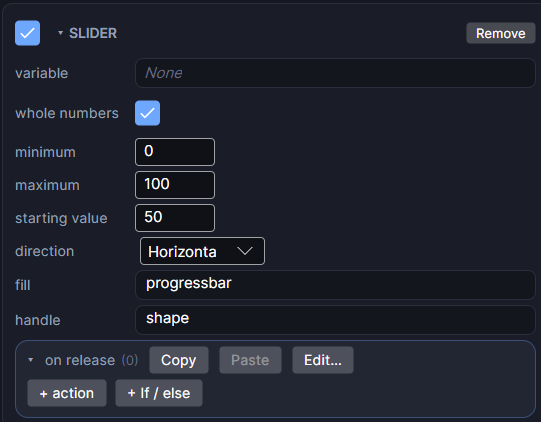
Settings
| Setting | What it does |
|---|---|
| variable | The number variable the slider changes while it's dragged. Its current value also sets where the knob starts, so a saved setting is remembered. Leave it blank and the slider keeps its own value. |
| whole numbers | On: snaps to 0, 1, 2 and so on. Off: any value in between. |
| minimum | The value at the left end (bottom when vertical). |
| maximum | The value at the right end (top when vertical). |
| starting value | Where the knob starts when no variable is picked. |
| direction | Horizontal (minimum on the left) or Vertical (minimum at the bottom). A linked Progress Bar turns with it. |
| fill | Optional. A Progress Bar, Arc or Circle whose fill follows the slider. |
| handle | Optional. Any object to use as the knob. It slides along this object's box, children and all. |
| on release | Actions that run once, when the finger lets go. Click + action to add a row. |
Example: music volume
- Add Object ▸ Slider.
- Set variable to
MusicVolume, minimum to0, maximum to1. - Optional: add a Send an event action to on release, and let a Sound or Haptic listen for it, for a little feedback.
Because MusicVolume is one of the Audio Manager's saved variables, the volume changes live and is remembered next launch.
Good to know
- The variable changes continuously while dragging. on release runs once at the end, which is the right place for saving or a sound.
- The Slider draws nothing itself. The drag area is the object's own box, so give it an Image or Shape if you want a visible background.
- With Bind Interactable failing, the slider greys out and ignores the finger.
- Works in Game and App projects on both watches. Not offered on watch faces.