Dialogue (Component)
The shared conversation box a Start Dialogue action shows and hides.
About 3 minutes
The Dialogue component turns a prefab into your game's conversation box. It tells the box which of its own objects show the speaker's name, the line, a portrait and the choice buttons. One box shows every conversation in your project. Games only.
You rarely add this by hand. Install the Dialogue Box package (or use Add Object ▸ Dialogue Box) and you get ready-made boxes that already have it set up. Then pick your box in Window ▸ Project Dashboard… under DIALOGUE. The Adding a Dialogue Scene tutorial walks through it.
How it works
The box stays hidden until a Talk action starts a conversation. You can put that action anywhere: an NPC's Tappable, a "Talk" button, an Interactable, a tile event. The box appears, shows each line in turn, and closes when the conversation ends. While it's open, everything else on the screen pauses.
You write the conversations themselves in the Dialogue Editor.
Settings
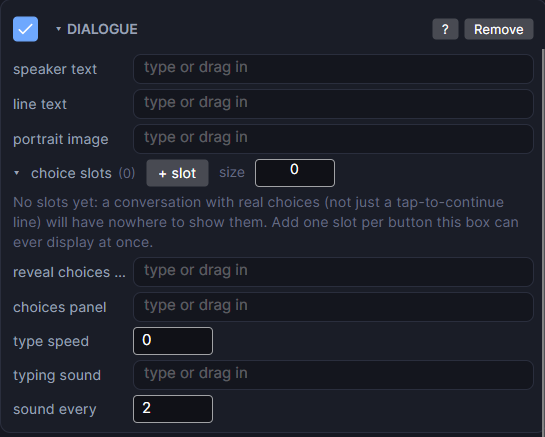
Drag objects from the Hierarchy onto these fields. They should be objects inside the box prefab.
| Setting | What it does |
|---|---|
| speaker text | Optional. A Text that shows who's talking on each line. |
| line text | The Text that shows the words of each line. |
| portrait image | Optional. An Image that shows each line's picture (a face, an item, a place). You set the picture per line in the Dialogue Editor. A line with no picture hides this Image. Give it any placeholder picture so it has a size. |
| choice slots | The box's choice buttons, in order. Click + slot to add one. Add as many as the most choices a line will ever show. Slots a line doesn't need stay hidden. Put them in a Scroll and Layout for a scrolling menu. |
| reveal choices on tap | Optional. Leave it blank and choices always show. Set an object here (like a "tap to choose" label) and the choices stay hidden until it's tapped, then hide again once one is picked. |
| choices panel | Optional. The background behind the choices. It only shows when a line has choices, and stays hidden on plain lines and while text is typing. |
| type speed | Letters per second as each line types out. 0 shows the whole line at once. Around 30 feels right for most games, 15 is slow and dramatic. Tapping while it types shows the rest of the line. |
| typing sound | A short blip played as letters appear. Keep it very short (under 0.1 s). A line can use its own voice sound instead, set in the Dialogue Editor, so each character can sound different. |
| sound every | Plays the typing sound on every Nth letter. 1 is every letter, 2 or 3 sounds more like talking. Spaces and punctuation never make a sound. |
Choices
A line with choices shows one button per choice that passes its condition. A choice with no label shows no button: the player taps anywhere on the box to continue instead. That's how a plain, non-branching line works.
In the Dialogue Editor, each choice can lead to another line, have a condition, and run actions with + Action (give an item, take gold, play a sound). The actions run on the object that carries this Dialogue component.
Good to know
- You only need one box for the whole project. You don't need one per character.
- Text typing pauses briefly after . ! ? and commas, so sentences read naturally.
- Works on both Wear OS and Apple Watch.
- Dialogue is a Game feature. It doesn't appear in App or Watch Face projects.