Audio Manager
The game's one mixer: Master, Music, SFX, and UI volume, backed by real persisted variables.
About 1 minutes
The mixer for your whole game: master, music, sound effect and interface volume in one place. You only need one. Its position on screen doesn't matter.
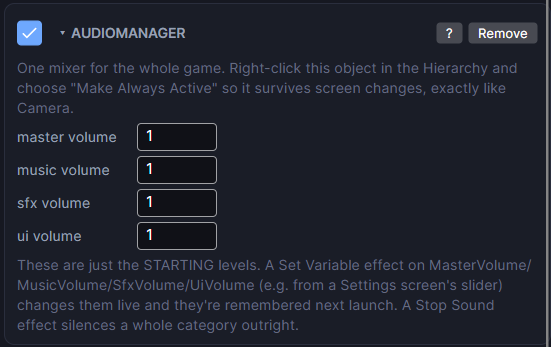
Settings
| Setting | What it does |
|---|---|
| master volume | Multiplies every category below. 1 is full volume, 0 is silent. |
| music volume | Volume for music sounds, 0 to 1. |
| sfx volume | Volume for sfx sounds, 0 to 1. |
| ui volume | Volume for ui sounds, 0 to 1. |
These are the starting levels. Each one is really a saved project variable: MasterVolume, MusicVolume, SfxVolume and UiVolume. Adding the Audio Manager creates them for you (and puts back any you delete).
Setting it up
- Add Audio Manager to any object.
- Right-click that object in the Hierarchy and choose Make Always Active, so it keeps working on every screen.
Volume sliders on a settings screen
Because the levels are variables, anything that changes those variables changes the volume right away, and the new level is remembered next time the game opens.
- Point a Slider at
MusicVolume(or any of the four). - Or use Set variable on one of them, or pick the object in an action list and choose Audio Manager ▸ Set master volume (or music, SFX, UI).
- To cut a whole category right now, use the Stop sound action.
Good to know
- Add a Mute Toggle for mute buttons. Sound is what plays the clips.
- Games only. Works in Preview and on both Wear OS and Apple Watch.