Camera View
Camera View adds a second, picture-in-picture window onto your game world.
About 2 minutes
Camera View adds a second, picture-in-picture window onto your game world. The object's box becomes the window. It follows one World object at its own zoom: a slingshot's landing spot, a boss on the far side of the level, the player while the main camera looks elsewhere.
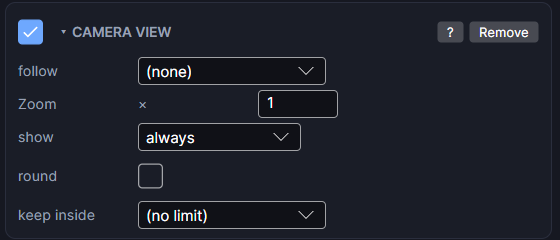
Settings
| Setting | What it does |
|---|---|
| follow | The World object the window centres on. |
| Zoom | How big the world looks in the window. 1 is the same size as the main view at zoom 1. Higher zooms in. |
| show | always, or while aiming: only while a slingshot on this screen is being pulled. |
| round | Makes the window a circle instead of the object's box. |
| keep inside | Optional. An object (usually your ground or level bounds) the window never shows past. If the object is smaller than the window, the window centres on it. (no limit) turns it off. |
| edge padding | Shows when keep inside is set. Pixels trimmed off each side of that area. Negative lets the window go that far past the edge. |
Where to put it
Camera View needs three things:
- A level screen with a Camera.
- An object in UI space on that screen (not in the World, and not on a separate HUD screen). Its box is the window.
- A World object to follow.
The window draws first, then the object's own art and children on top, so you can add a frame or border image to the same object.
A landing preview for a slingshot
- On your slingshot's Control, make an empty World object and pick it as landing marker.
- Make a small UI object in a corner and add Camera View.
- Set follow to the landing marker, Zoom to
2, show to while aiming, and turn on round.
Now, while the player pulls, a little round window shows where the shot will land.
Good to know
- The window shows the world only. It never takes taps.
- You can have more than one Camera View on a screen.
- Games only. Works in Preview and on both Wear OS and Apple Watch.