Sprite
Steps through a sliced sheet at a fixed fps, forever or once: the simple animation loop.
About 2 minutes
Turns an Image's picture into a looping animation. Sprite cuts the sheet into a grid of equal cells and plays them in order, over and over: a flickering torch, a spinning coin, an idle bob. Add it to an object that already has an Image showing the sheet.
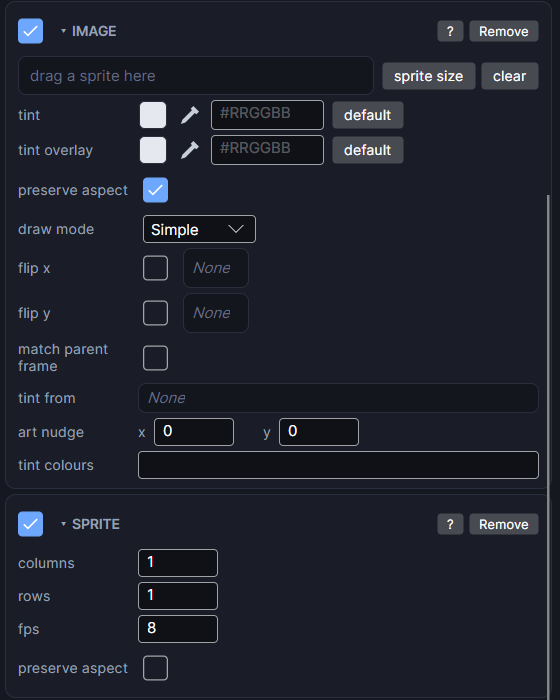
Settings
| Setting | What it does |
|---|---|
| preview strip | A small moving preview of the sheet, cut the way the fields below say. |
| columns | How many cells across the sheet. |
| rows | How many cells down the sheet. |
| fps | Frames per second. How fast it steps through the cells. |
| preserve aspect | Fits each cell's own shape inside the object's box instead of stretching it. |
The cells play left to right, top to bottom, and then start again. Sprite always loops.
Older sheets and preserve aspect
If a note says the sheet was sliced before its pixel size was tracked, open it once in the Sprite Editor and slice it again. Then preserve aspect can fit it.
Which one should I use?
- Sprite: one sheet, one loop that never stops.
- Animator: several loops (idle, walk, attack) that switch as your variables change.
- Play Animation: your own hand-picked list of frames that can play once, stop and run actions when it ends.
- Set Frame: you pick the exact frame yourself from an action.
If an object has more than one of these, Play Animation wins, then Animator, then Sprite.
Good to know
- Games and apps only. On a watch face use Frame Animation.
- Runs in Preview and on both Wear OS and Apple Watch.