Adding a Dialogue Scene
Give a character branching lines the player can respond to.
About 15 minutes
A dialogue scene is a short branch in your game: a character says a line, the player picks a response, and that choice leads somewhere. This tutorial installs the ready-made dialogue box, writes one small branching conversation, and wires a button to start it.
Install the dialogue box
In the Project panel, switch its header toggle from Assets to Packages. Find Dialogue Box under Available and click Install. This adds three ready-made dialogue box designs to your project. You haven't put one on screen yet, just made them available.
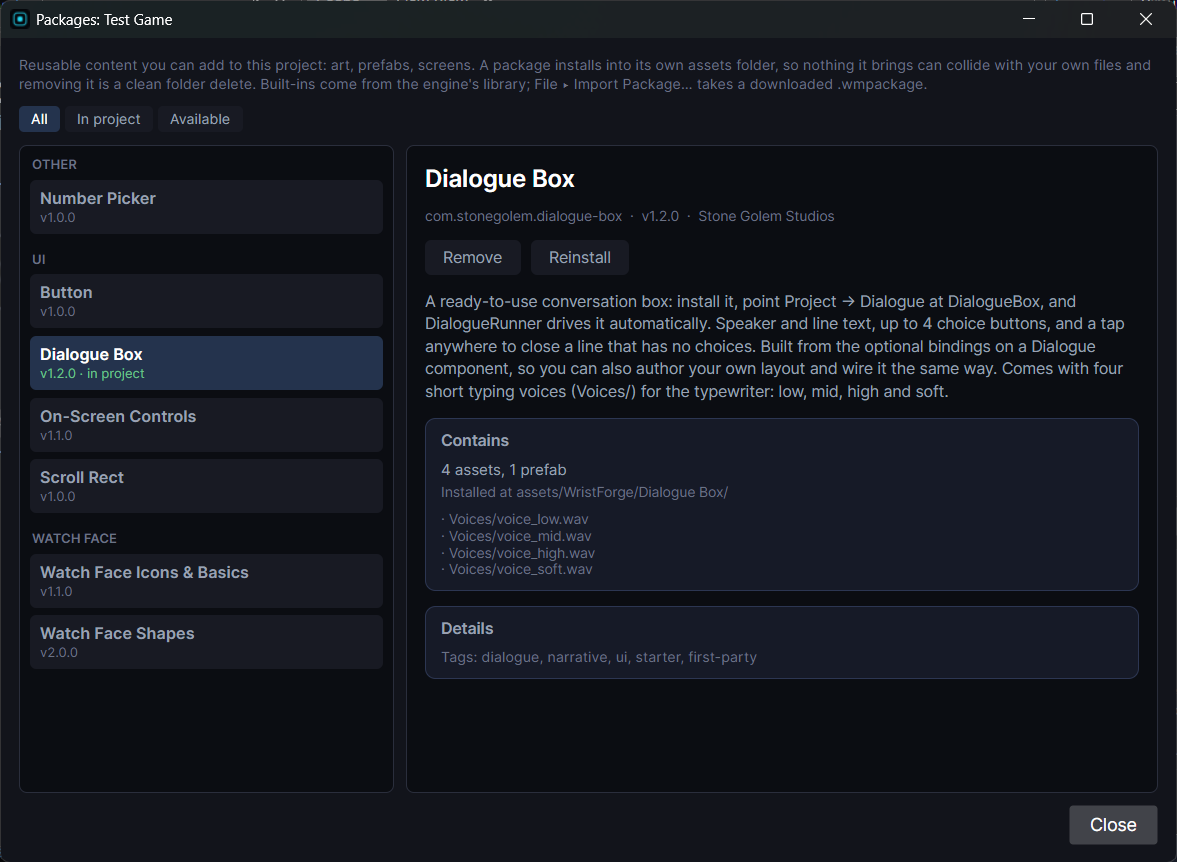
Choose a box style
Open Window ▸ Project Dashboard… and find the DIALOGUE section. Drag one of the three installed dialogue box prefabs onto its picker field (or type its path directly). This sets the one shared box every conversation in your project uses:
DialogueBox puts the line on top with a scrolling list of choices below it; DialogueBox_ChoicesOnTop puts up to four choice buttons above the line instead; and DialogueBox_PopupChoices shows a centered box where tapping it opens a choice popup that closes once you pick one. Any of the three works for this tutorial. Pick whichever fits your game's shape.
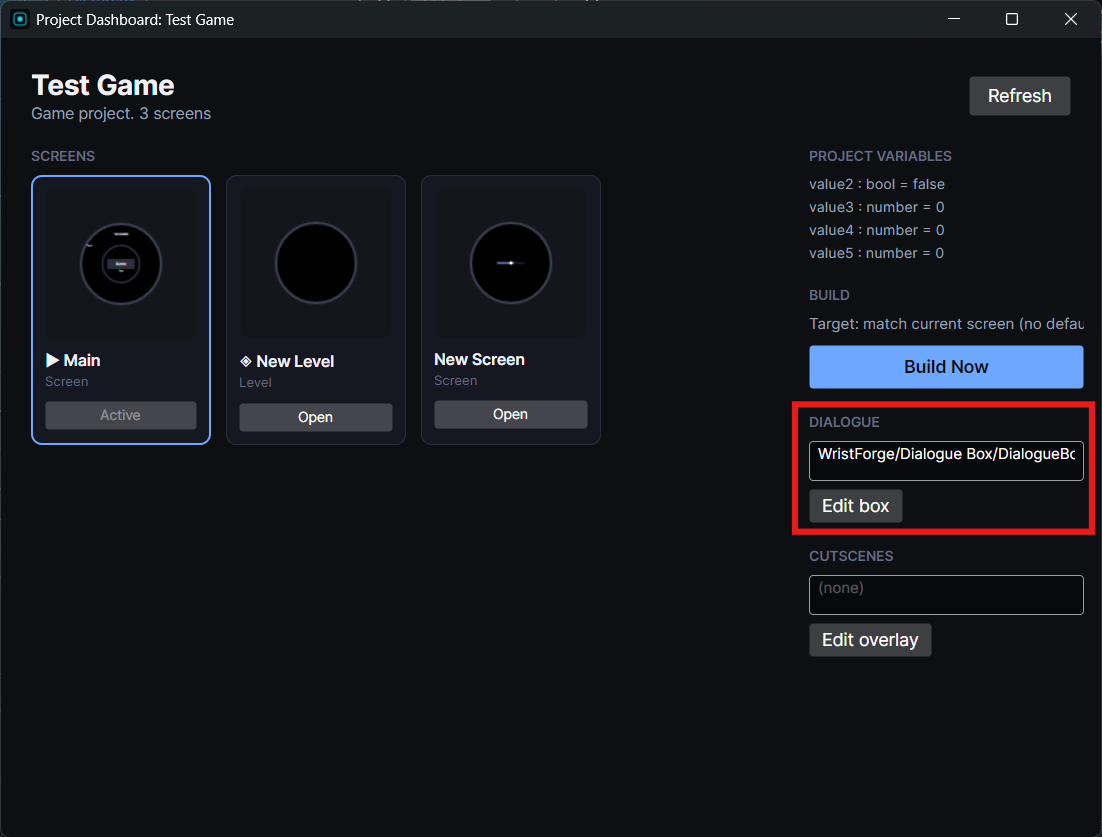
The box is an ordinary prefab, not a fixed style card. Click Edit box next to the picker to open it and change its look (fonts, colors, portrait art, whatever the project needs) the same way you'd edit any other screen.
Write a conversation
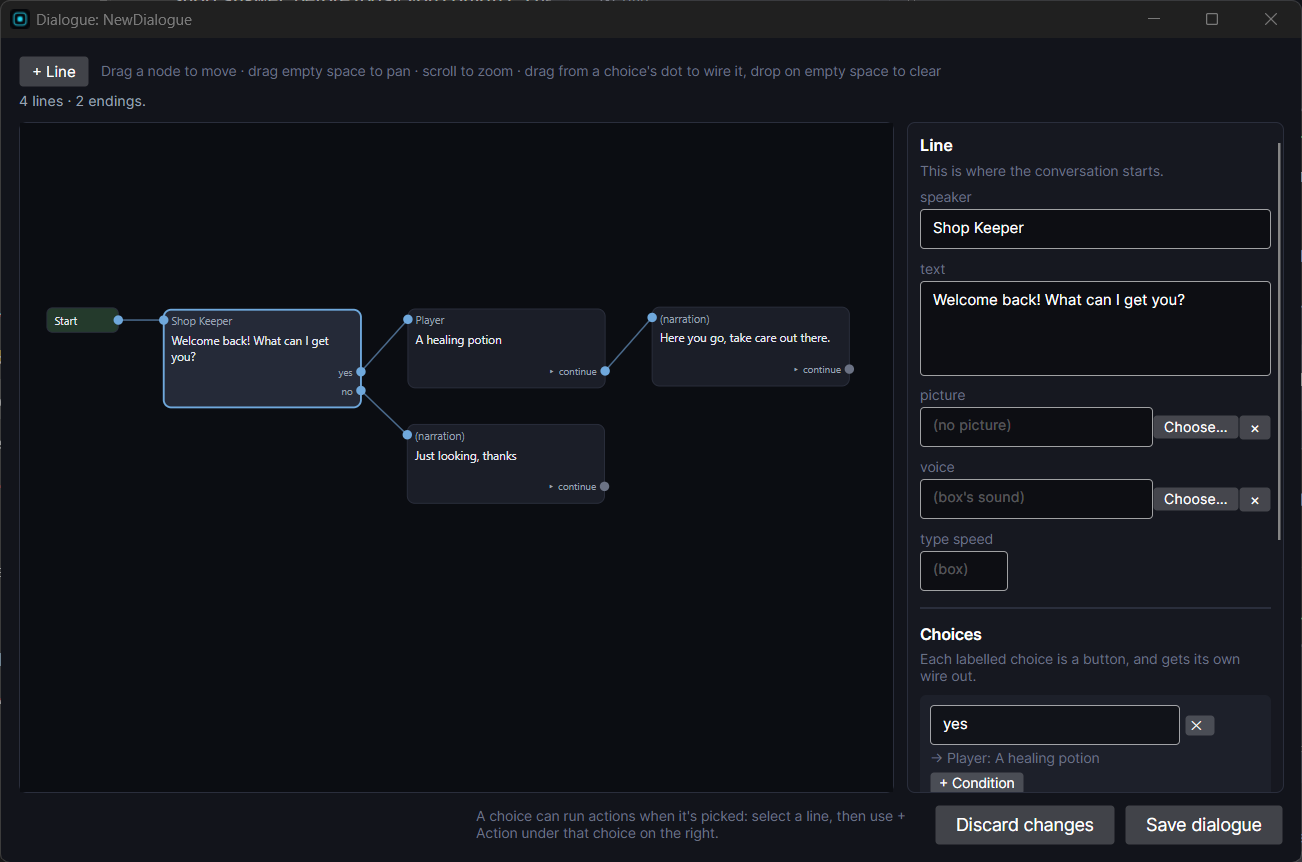
In the Project panel, right-click and choose New data ▸ Dialogue. This creates a new dialogue asset and opens the Dialogue editor. Build a tiny two-line branch:
- Click
+ Line. SetSpeakertoShopkeeperand the line toWelcome back! What can I get you? - On that line, click
+ Choicetwice. Set one choice's label toA healing potionand the other toJust looking, thanks. - Click
+ Lineagain for a second line: SpeakerShopkeeper, textHere you go, take care out there.Drag from your first choice to this new line so picking it leads here. - Leave the second choice,
Just looking, thanks, unconnected: a choice with nothing wired after it simply ends the conversation. - Click
Save dialogue.
A choice with no label (its placeholder reads (continue)) doesn't show as a button at all: the whole line just advances on any tap. That's how a non-branching beat, a joke, or a bark is authored: one line, one blank choice.
Trigger it from a button
Select whichever object should start this conversation: an NPC, a "Talk" button, a hotspot, and find its Tappable component. Under actions, click + action and choose Talk, then point its field at the dialogue asset you just saved.
Try it
Press F5 to Preview and tap the object. The shared dialogue box appears, shows the Shopkeeper's line, and offers both choices. Picking the potion continues to the second line, and the other closes the box.
Each choice has its own + Condition, so it only shows when a variable meets a rule (say, only offering the potion once the player has enough gold). See Variables: Giving Your Game Memory for making a variable like gold. To make an answer change something, press + Action under the choice and add what should happen: for a shop, Add to variable to give a potion, then another to take away the gold.