Dialogue Editor
Write conversations as lines joined by choices: speakers, portraits, voices, conditions and wiring.
About 5 minutes
The Dialogue Editor is where you write conversations: who says what, and which answers the player can pick. A conversation is a map of lines joined by choices, so it can branch and come back together.
For a short exchange you don't need it. The Talk action's Quick mode lets you type a few lines and answers right in the action. Use the editor for longer conversations that branch. For the whole setup (the dialogue box, writing, starting it), see Adding a Dialogue Scene.
Opening a dialogue
- In the Project panel, right-click and choose New data ▸ Dialogue, then double-click it.
- On a Start dialogue action set to Full, click New to make one and open it, or Edit to open the one it uses.
- A Quick dialogue is a dialogue file too, so you can open it here later to add branches.
Dialogue is a game feature.
The canvas
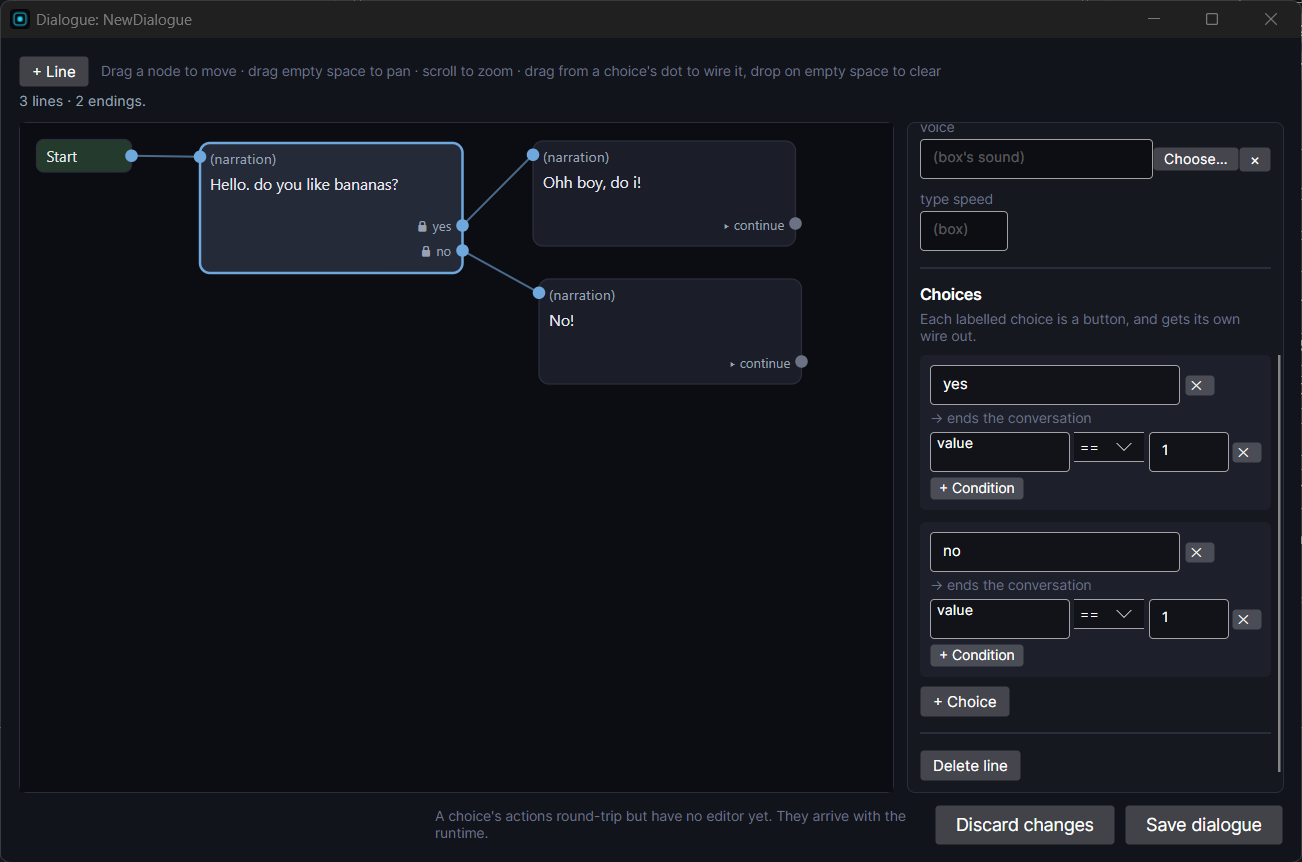
The middle of the window is a map of the conversation. Each box is a line, with its choices listed under it.
- + Line adds a line.
- Drag a line to move it. Drag empty space to move around, and scroll to zoom.
- Wire a choice by dragging from the dot beside it onto the line it should lead to. Drop it on empty space to clear the wire.
- Start marks where the conversation begins. Drag from its dot onto your first line.
The line at the top tells you if something's wrong. ⚠ Start isn't wired means the conversation has nowhere to begin and won't play. It also warns about lines nothing leads to, since the player can never reach them.
Lines
Click a line to edit it in the panel on the right.
- speaker: the name shown in the dialogue box. Leave it blank for narration.
- text: what they say. It can be several lines long, and it can include variables, like
You have {gold} gold.The speaker name can too. - picture: a face or picture shown with this line, in the dialogue box's portrait. Click Choose… to pick one, × to clear it.
- voice: the blip sound this line makes as its letters type out, so each character can sound different. Blank uses the dialogue box's own sound.
- speed: how many letters appear per second, for this line only. Lower it for a slow, dramatic line. Blank uses the box's speed.
- Delete line removes it.
Choices
Under Choices on a line, + Choice adds an answer. Each choice has:
- A label: the button the player taps. Leave it blank (it shows
(continue)) and there's no button at all: the player taps anywhere to move on. That's how a line that doesn't branch works. - Where it leads: shown as "→ the next line", or "→ ends the conversation" when it isn't wired to anything.
- + Condition: only offer this choice when a check passes, like "gold ≥ 10". A choice whose check fails is hidden, not greyed out. With two or more checks, pick all of or any of.
- ✕ removes the choice. Every line keeps at least one way out, so the last choice comes back as a blank continue.
Each choice can run actions when the player picks it. Under the choice, press + Action to open the action editor, the same one you use everywhere else. Give the player a potion, take their gold, play a sound, go to another screen. Click ▸ 2 actions to see the list, or Edit… to change it. The actions run on the Dialogue box object, and they save with the dialogue.
Saving
Save dialogue keeps your changes, and closing the window any other way saves too. Discard changes closes without saving what you changed since you opened it.
Good to know
- Every conversation shows in the one shared dialogue box, picked in Window ▸ Project Dashboard…. See Dialogue (Component).
- While a conversation is open, the rest of the screen pauses. It carries on when the conversation ends.
- Dialogue works the same in Preview and on Wear OS and Apple Watch.