Sprite Editor
Cut an image into frames for animations, tiles and icons: slicing modes, editing frames, pivots and 9-slice.
About 6 minutes
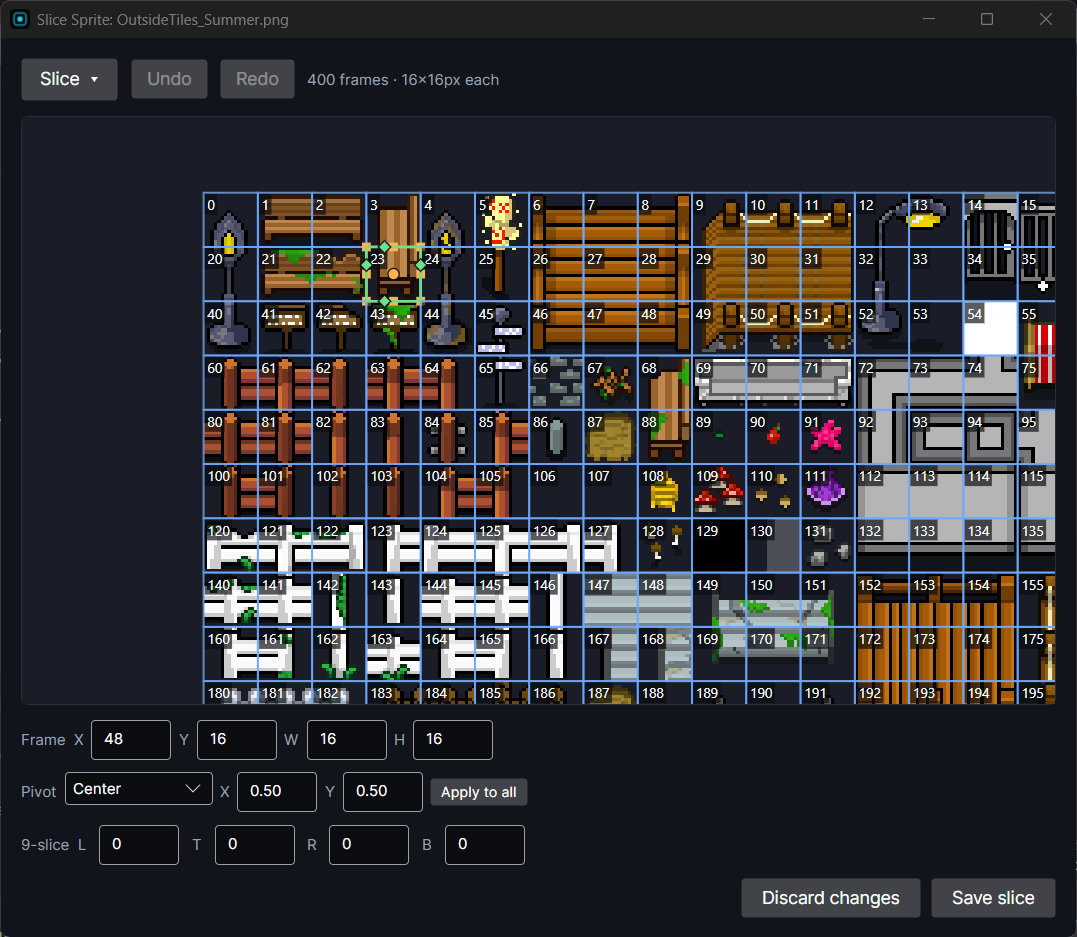
The Sprite Editor cuts one image into frames. A frame is one picture on a sheet: a step of a walk cycle, one tile, one icon. Once an image is sliced, everything that uses it can show any of its frames, and it only has to be sliced once.
Open it by right-clicking an image in the Project panel and choosing Slice….
Why slice an image
- Animation: a sheet of frames played in order by a Sprite, Animator or Play Animation.
- Tiles: dropping a sliced sheet on the Tile Palette turns every frame into a tile.
- Many pictures in one file: icons, buttons or characters you switch between with Set Frame (see Cycling an Object's Art with Set Frame).
- Stretchy panels: a 9-slice (below) lets one small image stretch into a panel of any size without blurring its corners.
Slicing a whole sheet at once
Click Slice ▾ and pick how to cut it:
| Mode | How it cuts | Good for |
|---|---|---|
| Cell count | Into a number of Columns and Rows. | Sheets where you know the layout, like "8 across, 4 down". |
| Pixel size | Into cells of a fixed size, Cell W × H in pixels. | Tiles and pixel art, like 16 × 16. |
| Automatic | Finds each separate picture by looking for the see-through space around it. | Loose art that isn't on a grid. |
| Isometric | Into staggered diamond cells of the size you give. | Isometric tile sheets. |
Extra options under the mode:
- Offset X / Y: skip this many pixels from the top-left before the first cell, for sheets with a border.
- Padding X / Y: the gap between cells, for sheets with spacing between frames.
- Include empty cells: off by default, so cells with nothing in them are skipped. Turn it on to keep every cell, so frame numbers match the grid exactly. (Not used by Automatic.)
- Pivot: the pivot every new frame gets. See below.
Click Slice to cut. If the sheet already has frames, you're asked before they're replaced.
Working with frames by hand
Every frame is just a rectangle you can change, whichever way it was made.
- Add a frame by dragging on an empty part of the sheet.
- Move a frame by dragging its middle. Resize it with its orange dots. Edges snap to whole pixels.
- Delete the selected frame with Delete or Backspace.
- Type exact values in the Frame X / Y / W / H boxes, for nudging an edge by one pixel.
The editor also shows how many frames the sheet has. Use the mouse wheel to zoom and middle mouse drag to move around the sheet.
Pivot
The pivot is the point a frame is placed by and turns around: its "feet". A character standing on the ground usually wants Bottom, a spinning coin Center.
- Pick a preset (Center, Top, Bottom, the sides or a corner), or Custom and type X and Y from 0 to 1. Y = 1 is the top.
- Or drag the frame's round dot.
- Apply to all gives every frame the selected frame's pivot.
Giving every frame of an animation the same pivot stops it from wobbling as it plays.
9-slice
The green lines are the 9-slice. They split a frame into a 3 × 3 grid: the corners always stay their real size, the edges stretch one way, and the middle stretches both ways. That's how a small rounded panel can become a large one with crisp corners.
Drag the green lines, or type L, T, R and B (how many pixels from each side stay fixed). All four at 0 means no 9-slice. To use it, set the Image's Draw Mode to Sliced (see Image).
Saving
- Save slice saves the frames, pivots and 9-slices. Closing the window any other way saves too.
- Discard changes closes without saving what you changed since you opened it.
- Undo and Redo (or Ctrl+Z and Ctrl+Shift+Z) step through your changes.
The slice is saved next to the image, not inside an object, so every object that uses the image picks it up.
Using the frames
After slicing, the image in the Project panel gets a ▸. Click it to see every frame as its own small picture:
- Drag one frame onto an Image to show just that frame.
- Drag the whole sheet onto an object to make it an animated Sprite.
- Use a frame's number in Set Frame to switch pictures while playing. Frames are numbered from 0, in the order they were sliced.
Good to know
- Re-slicing replaces every frame, and frame numbers can change. If objects already use particular frames, check them after re-slicing.
- Sliced frames are always drawn crisp, so pixel art stays sharp. The image's filter setting (selected in the Project panel) only matters when the image is used unsliced.