Variables
Every kind of variable: Number, Bool, Text and Enum, screen and project scope, object variables, saving, and how to use them.
About 6 minutes
A variable is a named value your game or app remembers: a score, coins, whether a door is open, the player's name. Actions change variables, checks read them, and text, bars and lists show them. This page is the reference for every kind. For a hands-on start, see Variables: Giving Your Game Memory.
Where you manage them
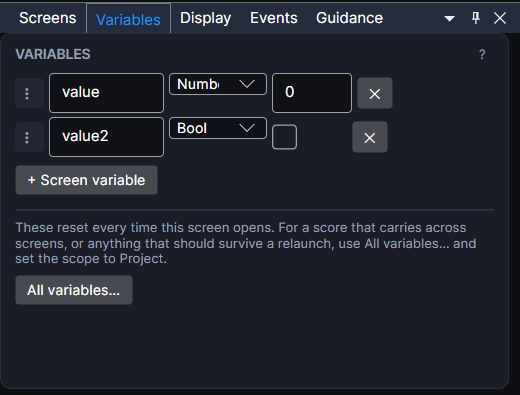
- The Variables panel (View ▸ Panels ▸ Variables) lists the screen variables of the screen you have open. Each row has its name, type, starting value and ✕ to delete it. + Screen variable adds one.
- Window ▸ Variables… (or All variables… in the panel) lists every variable in the project in one table. See Variables (Full Window).
- Window ▸ Save Data… is where saving is set up: save slots, auto save, and what gets saved. See Save Data.
Grab the ⠿ handle on a row and drop it onto any variable box in the Inspector to fill it in without typing.
Types
| Type | Holds | Use it for |
|---|---|---|
| Number | Any number, like 0, 250 or -3.5. | Scores, health, coins, counters, levels, timers. |
| Bool | Yes or no (true or false). Its starting value is a checkbox. | Flags: "has the key", "sound on", "tutorial done". |
| Text | Words. In the full window this type is called Text, in Save Data it's String. | A player's name, a status message, a label filled from the internet. |
| Enum | One option from a list you define, like Fire, Water or Grass. | Anything with a fixed set of choices: an element, a difficulty, a quest stage. |
A few extras on each type:
- Number: whole or decimal. A number that starts at a whole value (like 0) is stored as a whole number on the watch. If it needs fractions (money, distances), turn on the .00 toggle next to its starting value in the Variables window.
- Bool is stored as 1 for true and 0 for false. That's why you can add to a Bool, or test it with "= 1".
- Text: secrets. The 🔒 toggle in the Variables window marks a Text variable as secret, for things like a sign-in token. On the watch it's kept encrypted, and it's never saved with the game or sent by cloud save.
- Text: long text. In Save Data, right-click a Text variable and choose Long text to edit it in a bigger box that wraps. It only changes the editor.
- Enum. First make the list in Window ▸ Enums…. Then, in Save Data, set the variable's type to that enum. Its starting value becomes a pick from your options, and actions and checks show the option names instead of numbers. Underneath, it's a number.
Where a variable lives
| Kind | Lives | Resets | How you use it |
|---|---|---|---|
| Screen | One screen. | Every time that screen opens. | By name, like combo. Number, Bool or Text. |
| Project | Everywhere: every screen, action sheet and graph. | When the game starts, unless it's saved. | By name, like coins. Can be saved, and filed into a group to keep a long list tidy. |
| Object variable | One object. Each copy keeps its own value. | Lasts the whole run. | Inside that object's own actions, as self.name. Add them with the Object Variables card on the object. |
| Data and items | Made for you from Data Objects, Scriptables and Items. | Depends on how they're saved. | As Name.field, like Slime.hp, Potion.count or Potion.held. Shown read-only in the Variables window with the scope Per-object. |
Ask yourself: "If the user leaves this screen and comes back, should this still mean something?" If yes, make it a Project variable. If it only matters while the screen is up, a Screen variable keeps things tidy. See Screen Variables vs. Project Variables.
Move a variable between Screen and Project with its Scope in the Variables window. It keeps its type and starting value. Enum variables have to stay Project variables.
Saved variables
Tick Saved on a Project variable to keep its value when the game closes. Each save slot gets its own copy, and New Game puts it back to its starting value. When it actually gets written (as it changes, or only when you save) is set in Save Data. See Saving Data.
Screen variables are never saved: they reset when the screen opens anyway.
Using variables
- Change them with the Set variable and Add to variable actions. Add a negative number to take away.
- Check them with only if on any action, an If / else action, or a Graph.
- Show them in text with
{name}, likeCoins: {coins}, using Bind Text. Bars, arcs and circles fill from a number, and Bind Visible shows or hides an object from one. - Insert one into any text box with its { } button, which lists every variable, list field and watch reading you can use.
Variables made for you
Some variables appear by themselves:
- Locations:
resume.screen,resume.xand so on, made when you use a saved location. See Resuming Where the Player Left Off. listName.selected: the position of the row last tapped in a list. See Showing a List.- Watch readings (steps, heart rate, weather and more) are added when you pick them from the { } menu, along with what keeps them up to date.
Good to know
- Names can be anything, but keep them short and without dots or spaces (
bestScore, notbest score). A dot means "this field of that object", likeSlime.hp. - Renaming a screen or project variable doesn't update the places that already use it. After a rename, check its actions, checks and text. (Renaming a Data Object, Scriptable or Item does update its
Name.fielduses everywhere.) - Variables work the same in Preview and on Wear OS and Apple Watch.