Saving Data
What gets saved, how to choose it, and where each kind of saving lives.
About 7 minutes
Watch games and apps get closed all the time, by the wearer or by the system. Anything that should still be there next time (a high score, coins, a setting, where the player was) has to be saved. Everything about saving lives in one place: Window ▸ Save Data… (a tour of that window).
What do you want to keep?
| You want to keep | Use | Read more |
|---|---|---|
| A score, coins, a setting, an unlocked level | A Saved project variable | Below |
| Several separate saves or profiles | Save slots | Save Slots |
| Where the player was on the map | Locations | Resuming Where the Player Left Off |
| The player's level, or an account's settings | A Data Model | Saving Objects and Lists |
| An inventory, a collection, favourites, a history | A saved List | Saving Objects and Lists |
| Which chests are open, which doors are unlocked | Tile switches (automatic) | The Save Data Window |
Saved variables
Choose Window ▸ Variables… (or click All variables… in the Variables tab, bottom left). Tick Saved on a Project variable. That's all: its value is written as it changes and read back when the game or app starts.
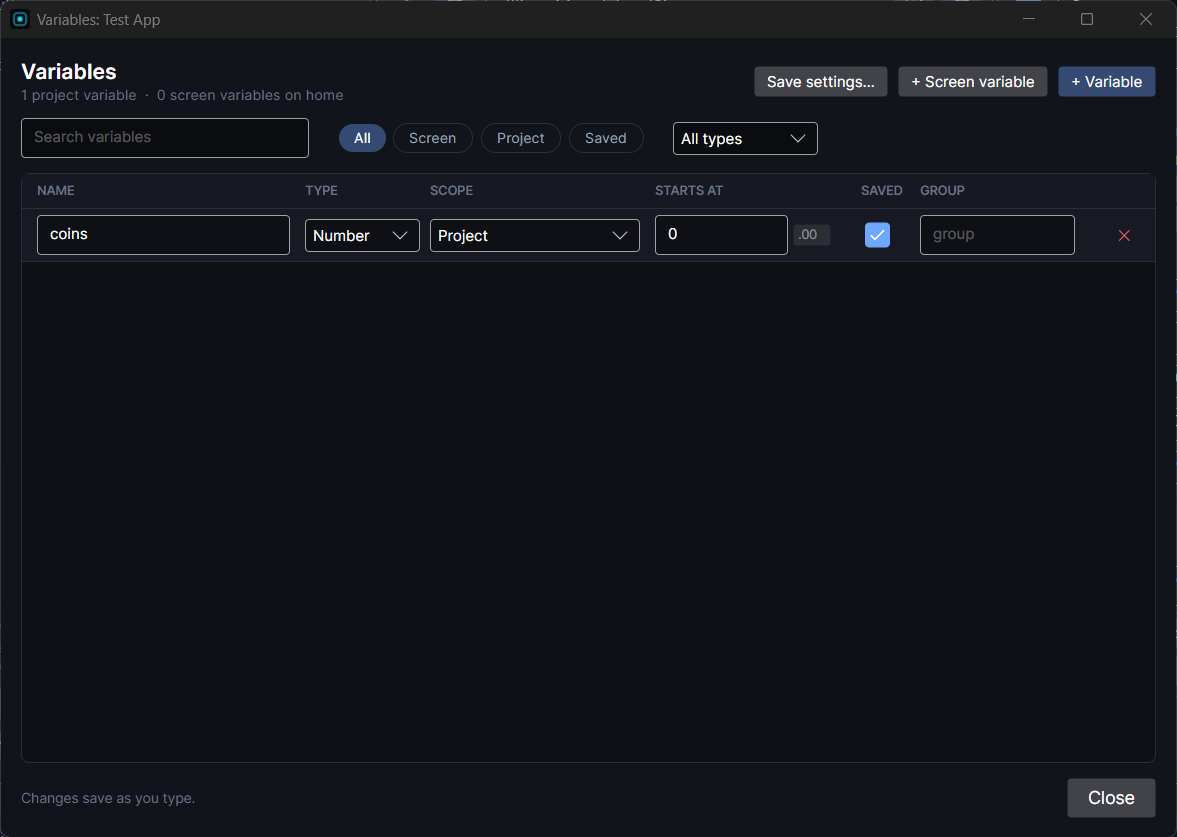
Screen variables are never saved: they reset each time their screen opens. That's what you want for a round in progress, a form being filled in, or a temporary counter.
When saving happens
By default it's automatic: Auto save progress writes saved values as they change, and Auto load progress reads them back the moment the game starts. Both are in Window ▸ Save Data… ▸ Saving. Turn them off only if you want to decide yourself, with the Save progress now and Load saved progress now actions (a save-slot picker is the usual reason).
Secrets
A Text variable with the lock turned on is a secret: a sign-in token or a password. Secrets are encrypted with the watch's own secure storage (the Android Keystore or the Apple Keychain), are never part of save data, and never leave the watch except where you send them in a Data Source.
Resetting
- New game (reset save) puts every saved variable in the current slot back to its starting value. Put it behind a "New game" or "Reset all data" button, ideally after a confirmation screen.
- In the editor, Edit ▸ Clear Saved Progress (or the button in Save Data… ▸ Saving) wipes Preview's own saved values so you can test a first launch. It never touches your project.
Saved data lives on the watch, so uninstalling removes it. To keep progress across watches or a reset, use cloud save, or keep it on your own server with Data Sources.