Resuming Where the Player Left Off
Bring the player back to the same spot after the game closes, or an app back to the same screen.
About 3 minutes
Watch games get closed constantly, often mid-step. A saved location brings the player back to the exact spot on the map they left. In an app, it brings the user back to the screen they were on.
What a location remembers
A location is a bookmark for one thing: where the player is standing. It holds exactly three things:
| Remembers | What that means |
|---|---|
| Map | The World screen that was showing. If a menu or pause screen was open on top, it's the map underneath, never the menu. |
| Tile | The column and row of the player's tile on that map's grid. |
| Facing | Which way the player was facing. |
"The player" is the object with Grid Move set to Player Input. There's no separate player tag.
In an app, or a game with no maps, there's no map or player, so a location remembers just one thing: the screen the user was on.
A location does not remember anything else:
- Progress, like coins, health, quest flags or the party. Those are saved variables. Auto save progress or Save progress now keeps them. See Saving Data.
- The rest of the map, like where NPCs stood, opened chests or beaten enemies. Keep those in saved variables or a tile event's self-switches.
- What was happening, like an open menu, a dialogue line, a cutscene or a battle. The player comes back standing on the map.
Where it's kept
Each location is four saved variables in the Locations group of the Variables window. They're made for you the first time you use a name. For resume (an app only uses resume.screen):
resume.screen: the map. Empty until something is saved.resume.xandresume.y: the tile.-1means no tile saved.resume.facing: the facing.
They belong to the current save slot, so a three-slot game has three resume spots, and New Game empties them. You can read them like any variable, for example to only show Continue when resume.screen isn't empty.
The easy way: save on close
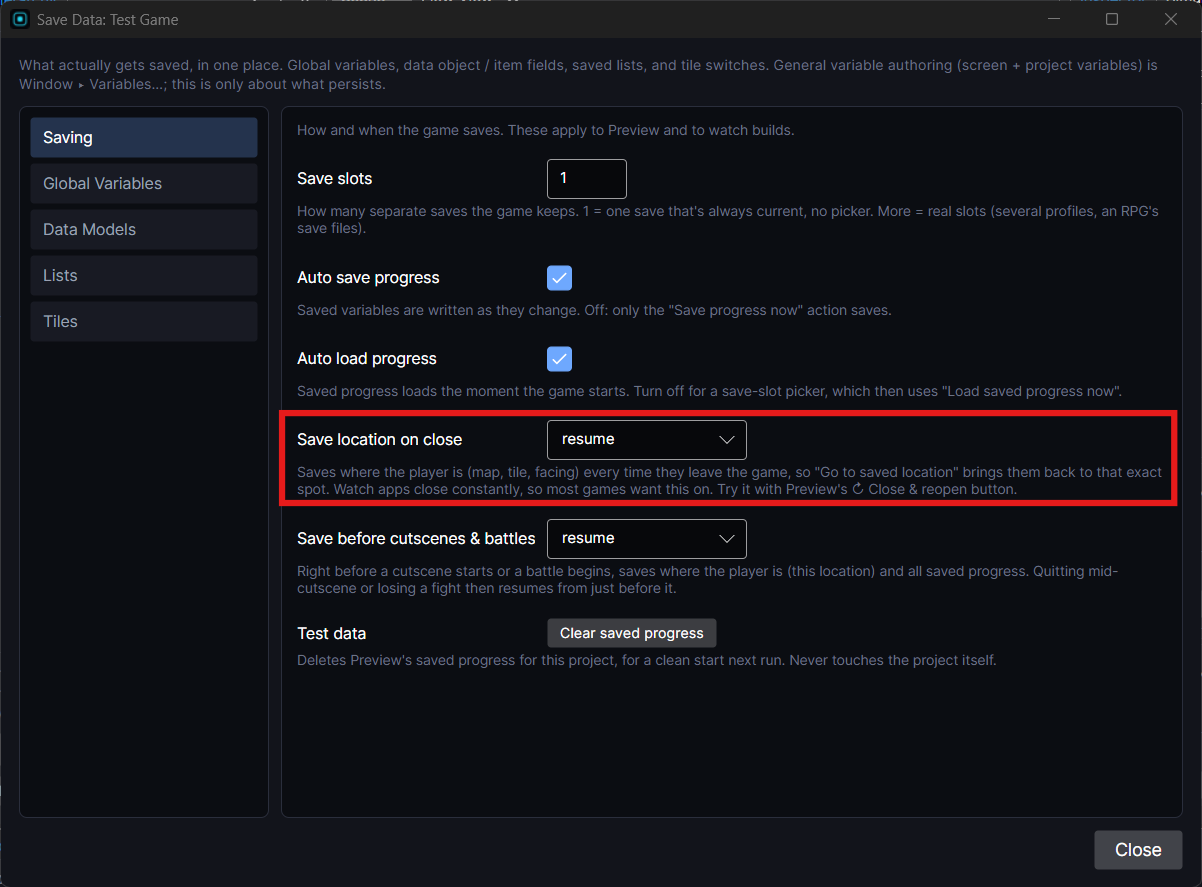
In Window ▸ Save Data… ▸ Saving, set Save location on close to resume. Now every time the player leaves, their spot is saved under that name.
This saves the location only. Progress is saved on close when Auto save progress is on.
Then put Go to saved location (resume) on your start screen's Continue button, or its open event. With nothing saved yet it goes to the fallback screen you pick, so a first launch still works.
To test it, press ↻ Close & reopen in Preview.
Safety net before cutscenes and battles
Save before cutscenes & battles saves the player's spot and all progress right before either starts. If they quit mid-cutscene or lose a fight, they're back just before it.
Saving a spot yourself
- Save location saves where the player is under a name. Put it on a save point, in a pause menu, or in a map's On Enter.
- Go to saved location takes them back. Choose where they land: the saved tile and facing, a spawn point on that map, or where the player is placed in the editor.
- You can keep several names, like
resumeandlastTown.
When the saved spot can't be used
- The screen was renamed or deleted: they go to the fallback screen.
- The saved tile is now a wall or off the map: they land where the player is placed in the editor.
- The player doesn't use Grid Move (for example, moves with physics): only the map is saved, and they land where the player is placed in the editor.
Some spots make no sense to come back to, like the inside of a fake elevator. Use Pause / allow location save on close around that moment: pause it before, allow it again after.
In an app
New app projects come set up for this. Save location on close is set to resume, and a Resume on open object on the Home screen runs Go to saved location when the app opens. Back from the reopened screen returns to Home.
It runs once per launch: the resumed variable isn't saved, so it starts at 0 each time the app opens. That way, coming back to Home later doesn't send the user away again.
To add it to an app made before this, build the same thing on your start screen: On Event open → If resumed is 0 → Set variable resumed to 1, then Go to saved location (resume). Then turn on Save location on close.