Variables: Giving Your Game Memory
Make a number the game remembers, add to it on a tap, and show it on screen.
About 12 minutes
A screen full of objects that just sit there isn't a game yet. It needs something that changes and something that remembers the change. That's a variable: a named value the whole project can read and write. This tutorial makes one number, adds to it on a tap, and shows it on screen: the same pattern behind a score, a health bar, or an inventory count.
It picks up wherever you have a screen with a tappable button: the Title screen from Your First Game works fine, or any button on any screen.
Create a variable
- Choose
Window ▸ Variables…(or clickAll variables…in theVariablestab, bottom left). - Click
+ Variable. A new row appears named something likevalue. Double-click itsNAMEcell and rename itscore. - Leave
TYPEasNumber. LeaveGROUPblank, or typePlayerto file it under a heading. Groups are just labels for tidying a long list, nothing more.
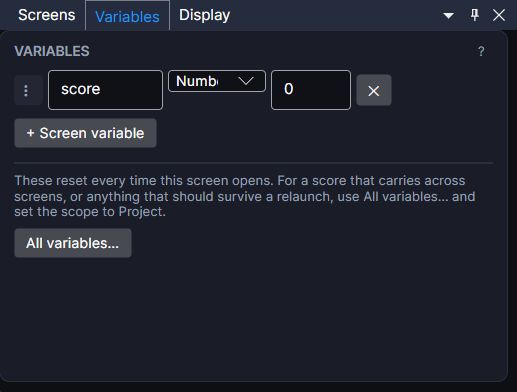
Every variable is a Number, a Bool (shown as a checkbox. True/false, like "has the key"), or a String (free text: a player's chosen name). This tutorial only needs a Number.
The SAVED checkbox controls whether this variable's value survives after the game closes, using the project's save system. Leave it unchecked for now: an unsaved variable still works perfectly during Preview, it just resets back to its INITIAL value the next time the game starts.
Add to it on a tap
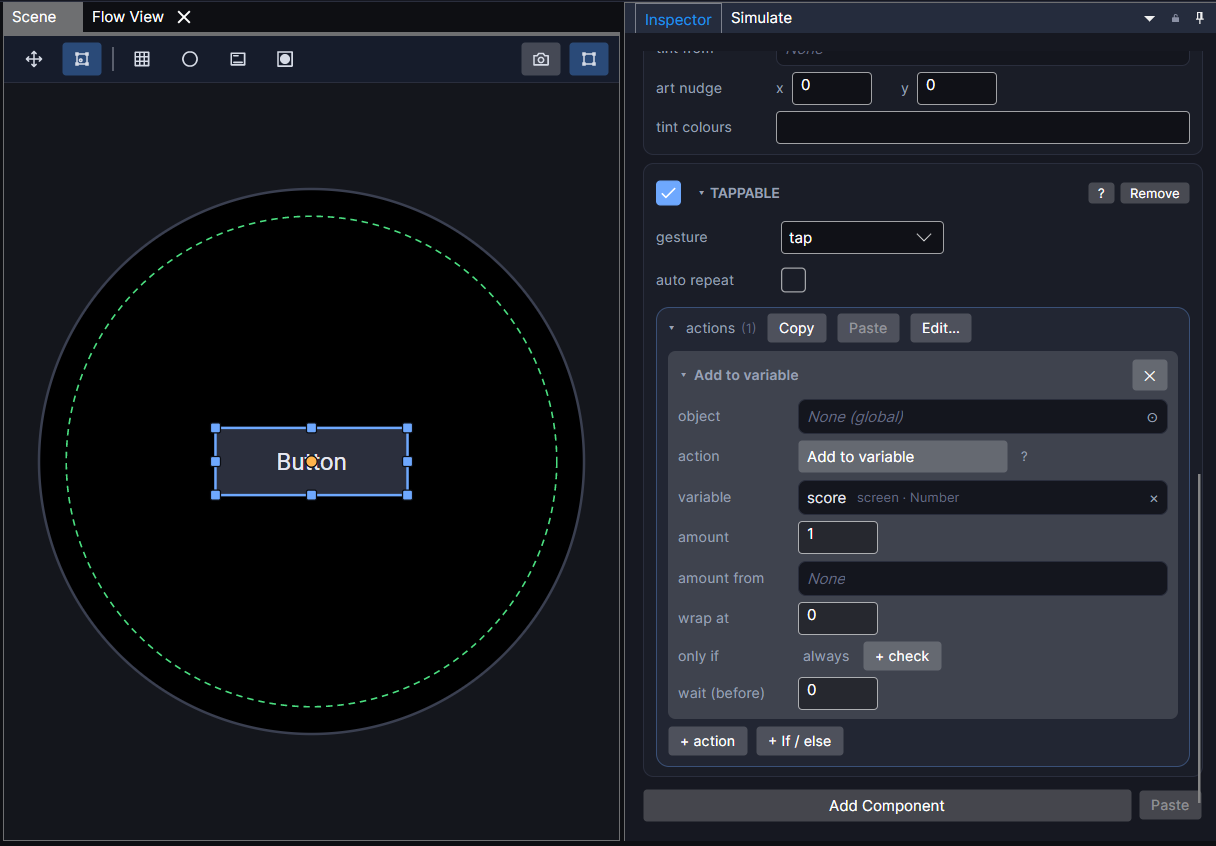
Select your button and find its Tappable component in the Inspector. Under actions, click + action and choose Add to variable. Set its variable field to score (start typing and pick it from the list, or drag the score row straight from the Variables window onto the field) and set Amount to 1.
Show it on screen
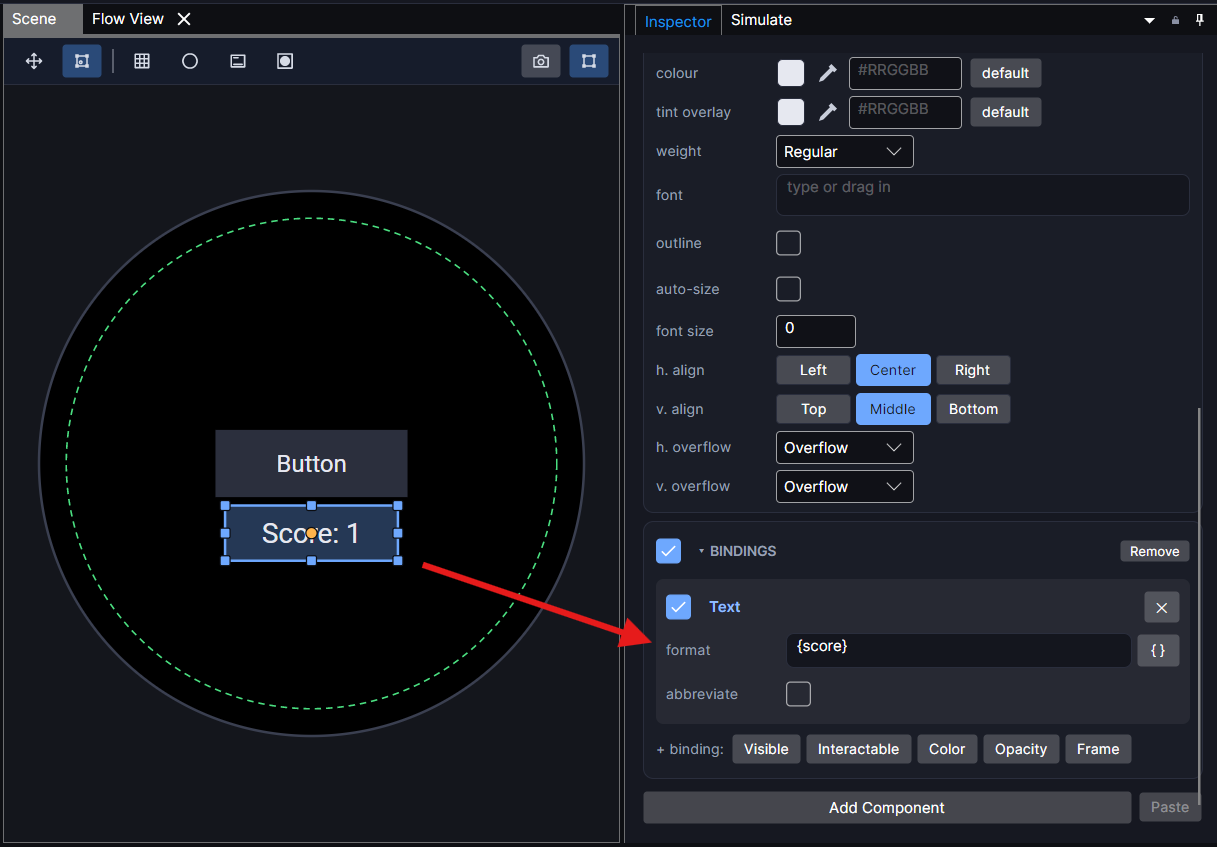
A variable is invisible until something displays it. Right-click the Hierarchy and choose Add Text, then with it selected, open Add Component in the Inspector and choose Bind Text. A Format field appears: type:
Score: {score}
Anything in { } is read as a variable name and swapped for its live value: the rest of the text is shown exactly as typed.
Try it
Press F5 to Preview and tap the button a few times: the text updates on every tap. That's the full loop: a variable holds the number, an action changes it, and a binding displays it. Health, ammo, currency, and quest flags are all this same shape with a different name and a different action attached to it.
Bind Text is the general-purpose one. A progress bar or ring uses Bind Fill instead (a variable plus a goal), and something that should only appear once a threshold is reached: a "You win" banner. Uses Bind Visible. Both read a variable the same way Bind Text does.
Keep values between launches with Saving Data, and format numbers, times and lists with Showing Data.