Display
Which watch a screen is for, its size and shape, and in an app, a separate layout for each watch.
About 5 minutes
The Display panel sets which watch a screen is built for, its size and shape, and a few Scene settings. In an App project, it's also where you switch between watches to give each one its own layout. That's the part most worth learning, so it gets its own section below.
Open it from View ▸ Panels ▸ Display. What it shows always belongs to the screen you have open.
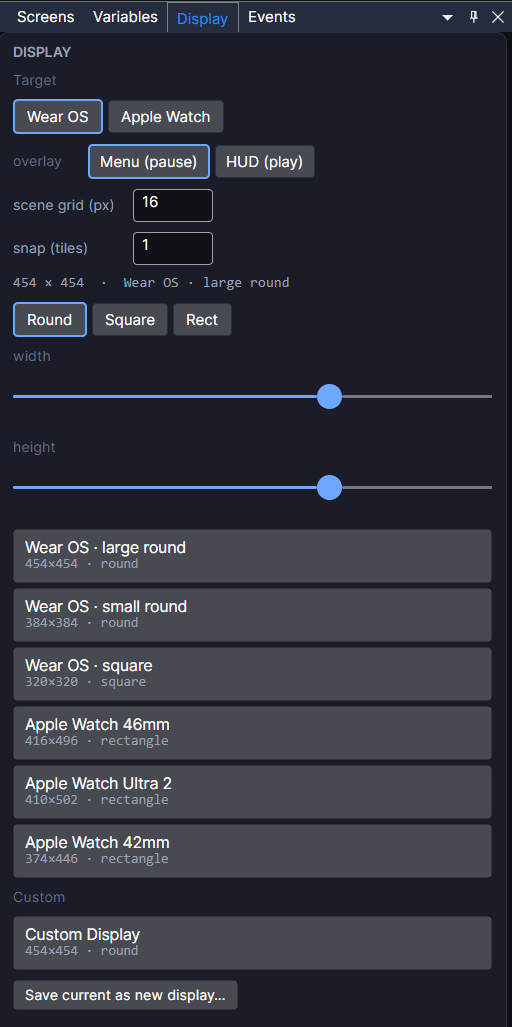
What's in the panel
| Setting | What it does |
|---|---|
| Target | Wear OS or Apple Watch. In a game, this picks the watch the screen is built for and resizes the canvas to match. In an app, it switches which watch's layout you're looking at and editing (see below). In a watch face, the choices are Wear OS and Amazfit, and each keeps its own layout (see Amazfit Watch Faces). |
| overlay | UI screens only. It matters when the screen opens over a map: Menu (pause) pauses the map underneath while it's open, HUD (play) lets the map keep running behind it. |
| scene grid (px) | The size of one grid cell in the Scene, which is also the tile size for tilemaps. It applies to the whole project. |
| snap (tiles) | Hold Ctrl while dragging an object on a level screen and its pivot snaps to tile centres, in steps of this many tiles. 1 snaps to the middle of each tile, 0.5 to middles and edges. |
| Size and shape | The current size and display name, then Round, Square or Rect, and width and height sliders. Round and Square are Wear OS. Rect is Apple Watch. |
| Display list | Ready-made sizes for real watches. Click one to use it. |
| Custom | Your own saved sizes. Set a size and shape, then Save current as new display…. Right-click one to rename or delete it. They're saved in the editor, so every project can use them. |
The built-in displays are:
- Wear OS: large round (454 × 454), small round (384 × 384), square (320 × 320).
- Apple Watch: 46mm (416 × 496), Ultra 2 (410 × 502), 42mm (374 × 446).
- Amazfit Bip Max (432 × 514).
Build your layout at the larger size of each watch (Wear OS large round, Apple Watch 46mm). Screens are scaled to fit smaller watches of the same kind when they run.
One app, a layout for each watch
A Wear OS watch is round and an Apple Watch is a rounded rectangle, so the same screen rarely looks right on both. In an App project you don't build two apps. You build one, then adjust how it looks on the other watch.
How it works
- Build your screen as normal. This is the base layout, usually Wear OS.
- Click Apple Watch under Target. The Scene switches to the Apple Watch canvas, and every object is placed for it automatically:
- Objects that fill the screen (or sit in a group that does) stretch to the new shape.
- Everything else keeps its proportions and scales evenly.
- A yellow note in the Display panel says which watch you're editing. Anything you change now only changes that watch.
- Click Wear OS to go back to the base. Your Apple Watch changes are kept.
What each watch keeps for itself
- Where an object sits and how big it is: position, size, anchor, pivot, rotation and stretch.
- Whether it's shown at all. Untick an object on one watch to hide it only there, like a "turn the crown" hint on Apple Watch.
- How its components look: colours, text, fonts, images, ring shape and thickness, sizes of marks and so on.
- The screen's own size and shape on that watch.
What's always shared
- What things do: actions, events, conditions and what each component is.
- Variables, lists, data and the list of screens.
So you build the logic once. Fix a bug in an action and it's fixed on both watches.
Anything you haven't changed on the other watch keeps following the base. Move a button on Wear OS and it moves on Apple Watch too, unless you've already moved it there yourself.
Seeing and undoing changes
- In the Hierarchy, an amber ◆ after an object's name means it's been changed on the watch you're viewing.
- Right-click an object and choose Revert Apple Watch Layout to put it back to its automatic place and the base look.
- Revert Every Object's Apple Watch Layout does that for the whole screen.
On the other watch, the shape buttons and display list only offer that watch's sizes, so you can't move a screen to the wrong watch by accident. When you build for a watch, it uses that watch's layout.
New screens are copied from the base watch, never from the one you're viewing. And prefabs have one layout, shared by both watches.
Good to know
- In a game, the Target buttons don't keep separate layouts. They set which watch the screen is for. Per-watch layouts are for App projects.
- Watch faces are Wear OS only, so they have Round and Square but no Rect.
- A screen's background is set in Flow View: select the screen there.