Data Tables
A small spreadsheet in your project: rows and columns of values you look up by name or by a variable, like prices and level curves.
About 5 minutes
A Data Table is a small spreadsheet inside your project: rows of things, columns of values. Use one for numbers you want to look up rather than hard-code: the gold needed for each level, a shop's prices, enemy stats, damage per weapon tier. Change a number in the table and every place that reads it uses the new value.
Making a table
- In the Project panel, right-click and choose New data ▸ Data table.
- Or open Window ▸ Data Tables… and click + New data table.
The table's file name is its name everywhere else, so call it something short like Shop or Levels. Double-click it in the Project panel to open the editor.
The table editor
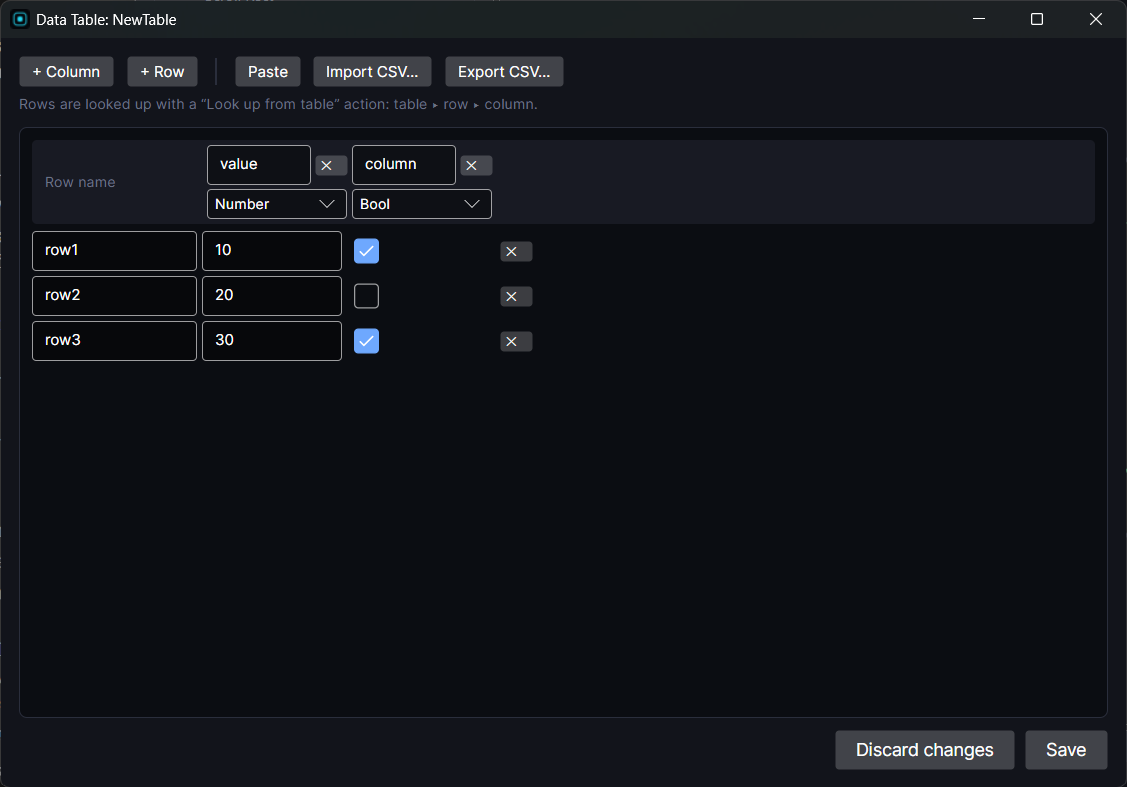
- + Column adds a column. Type its name at the top, pick its type under it (Number, Bool or Text), and use ✕ to delete it. Changing a column's type keeps what you typed, so switching back brings the old values back.
- + Row adds a row. Its row name goes in the first box, and ✕ at the end deletes it.
- Cells take a number, a checkbox for Bool, or text.
- Tab moves to the next cell and Enter to the cell below, like a spreadsheet.
- Paste (or Ctrl+V when you're not typing in a cell) adds rows copied from a spreadsheet. Pasting into an empty table uses the first line as the headers: the row name first, then one column per cell.
- Import CSV… and Export CSV… read and write a whole table, so you can do the work in Excel or Google Sheets.
- Save keeps your changes, and closing the window any other way saves too. Discard changes closes without saving what you changed since you opened it.
Spaces and dots in row and column names become _, because names are used in variable references (below).
Reading a table by name
Every Number and Bool cell is also a variable, named table.row.column. In a Shop table with a Potion row and a price column, the cell is Shop.Potion.price.
Use it anywhere a variable goes: show it with {Shop.Potion.price} in text, test it in an only if, or use it in a Graph. Text cells aren't offered as variables.
Looking up a row while playing
Often the row you need depends on the game, like "the row for the player's current level". Two actions in the Data group handle that:
- Look up from table: copies one cell into a variable.
- Store into table: writes a variable's value from it into a cell.
Pick the data table, the row and the column. Tick from variable on the row to use a variable's current value as the row name. That's why number-named rows (1, 2, 3...) work so well for curves.
Example: gold needed for the next level. Make a Levels table with rows 1, 2, 3... and a goldNeeded column. Then Look up from table: table Levels, row from variable level, column goldNeeded, into goldTarget. When level is 3, goldTarget becomes row 3's value.
If the row or column doesn't exist, the action leaves the variable as it was instead of resetting it to 0. The action also shows a ⚠ warning in the Inspector when the table, row or column it names can't be found, or when the column holds text.
Data Tables, Data Objects or Lists?
- Data Table: lots of numbers in the same shape, looked up by name. Prices, curves, stat sheets.
- Data Objects: things with art, names and links to other things, like monsters or items with an icon and a description.
- Lists: things the player collects or that change while playing, like a party, a bag or results from the internet. See Showing a List.
The Data Tables window
Window ▸ Data Tables… lists every table in the project with its folder, its columns and its size. Edit opens the same editor as double-clicking it in the Project panel. + New data table makes one.
Good to know
- Tables work the same in Preview and on Wear OS and Apple Watch.
- Watch faces don't have Data Tables, because watch faces can't run actions.