Save Data
A tour of Window ▸ Save Data…, the one place for everything that gets saved.
About 3 minutes
Window ▸ Save Data… is the one place for everything that survives the game closing. The left side lists the sections; click one to see it on the right. The Save settings… button in the Variables window opens it too.
Making variables (names, types, scope) happens in the Variables window. This window is only about what gets kept.
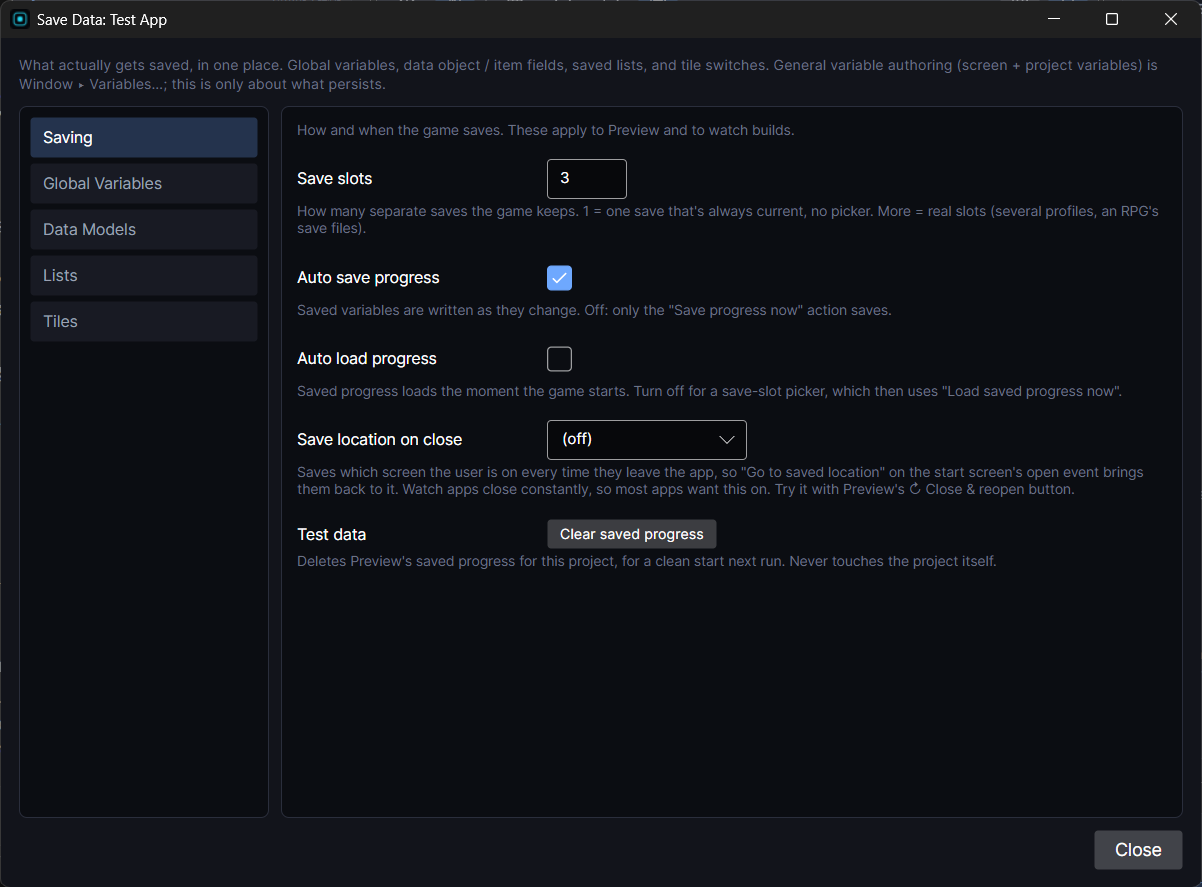
Saving
The project-wide settings:
- Save slots: how many separate saves the game keeps. 1 means one save that's always current, with no picker. See Save Slots.
- Auto save progress: saved values are written as they change. Off, only the Save progress now action saves.
- Auto load progress: saved progress loads the moment the game starts. Turn it off for a save-slot picker, which then uses Load saved progress now.
- Save location on close: remembers where the player is every time they leave, so Go to saved location brings them back. See Resuming Where the Player Left Off.
- Save before cutscenes & battles (games only): saves the player's spot and all progress right before either starts.
- Clear saved progress: wipes Preview's saved data for a clean test run. Never touches your project.
Global Variables
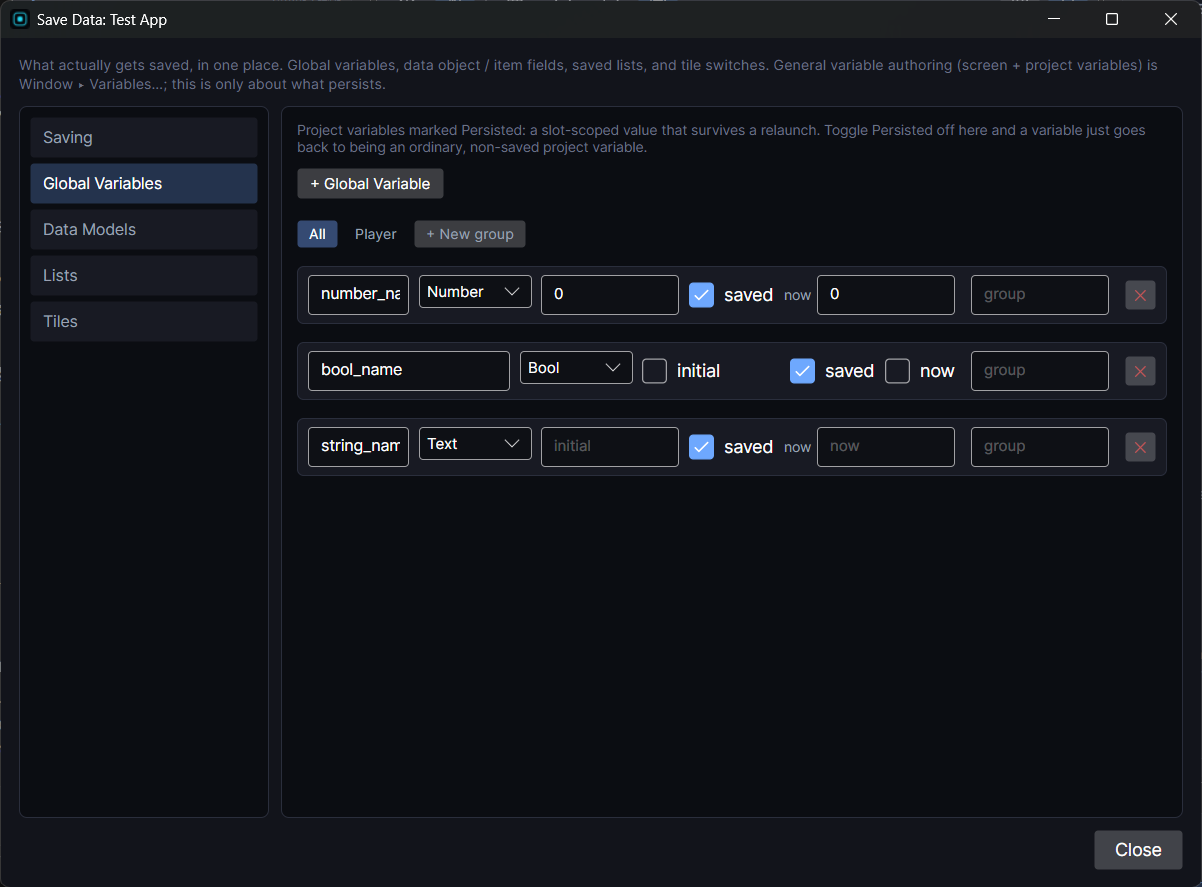
Every saved project variable, with its starting value and, while Preview runs, its value now. Untick saved and it goes back to being an ordinary project variable. + Global Variable adds one that's already saved. Use the tabs along the top to split them into groups like Settings or Progress (+ New group makes one).
Data Models
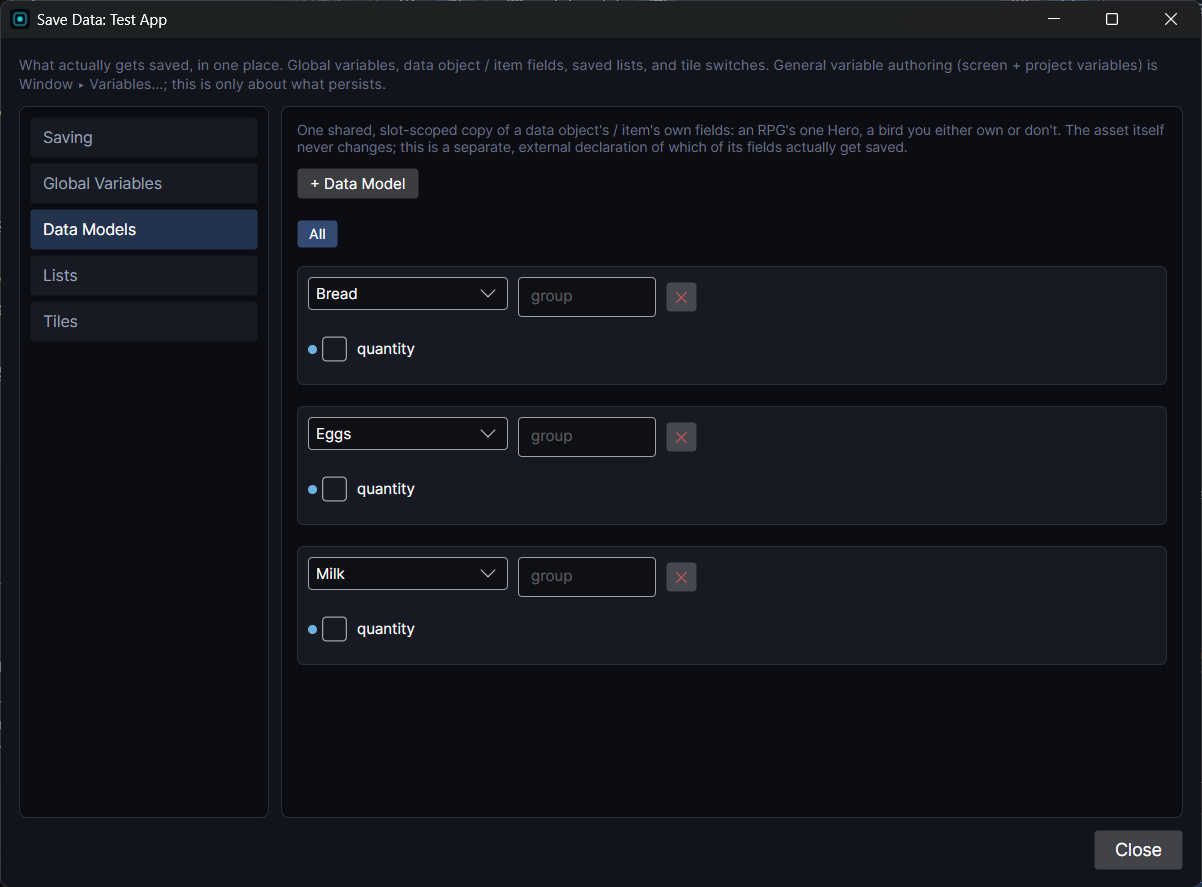
Saves the fields of a single Data Object or Item, for something your game or app has exactly one of: the player's character, an account's settings, an upgrade you either own or don't. Pick the asset, then tick only the fields that change while playing (a level or a progress count, say). Fields that never change, like a fixed price or description, don't need saving.
The asset itself never changes. This only says which of its fields are kept between launches. To save many entries of the same kind (a collection, a history, a party), use a saved List instead (below).
Lists
Every saved List (Window ▸ Lists…). Ticking Saved on a list there and adding it here with + List are the same setting. A Number or Bool list keeps its whole contents; a list of Data Objects keeps each entry, its count and its Per copy fields. See Saving Objects and Lists.
Tiles
Tile switches (a chest that's been opened, a door that's unlocked) save automatically as soon as a cell has a Tile Event. Nothing to set up; this section just shows you where they all are, screen by screen.