Guidance
Live advice on the open screen: what's off the edge, too close to the bezel or too small to tap, and what it skips.
About 3 minutes
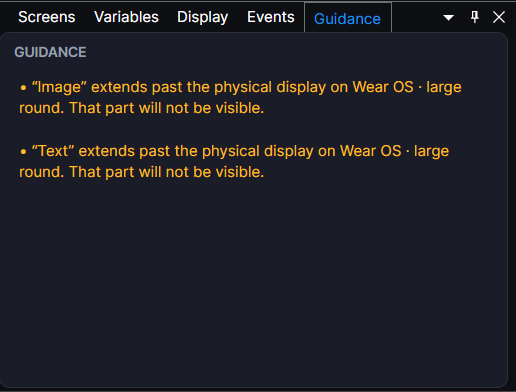
Guidance checks the screen you have open and tells you about anything that won't fit or work well on the watch: an object hanging off the edge, something crammed against the bezel, a button too small to tap. It updates as you work, and it never changes anything. It's advice only.
Open it from View ▸ Panels ▸ Guidance.
What it checks
Each object on the screen is checked against the display the screen is set to (see Display). An object gets at most one note, the most serious one that applies.
| Note | What it means |
|---|---|
| Extends past the physical display (warning) | Part of the object is off the edge of the screen, so that part won't be seen. |
| Crosses the circle a round display would impose (warning) | It fits on this square or rectangular screen, but would be clipped on a round watch. Only checked when View ▸ Round check is on. |
| Sits outside the comfortable margin | It's on screen, but very close to the edge, where the bezel and the screen's curve make it hard to read. On a round screen the margin is the outer 10% of the circle. |
| Below the touch target guidance | A button smaller than about 48 dp (96 × 96 in the editor). Small buttons are hard to hit on a wrist, and harder while moving. |
| Follows a circular path | An object that hugs the bezel (like a ring or curved text) on a screen that isn't round. It uses the largest circle that fits, so it sits inside the corners. |
When nothing needs flagging, the panel says so in green.
Warnings also put a red outline around the object in the Scene, so you can spot it without opening the panel. The outline only shows while editing, not in Preview.
What it leaves alone
Some things are meant to go past the edge, so Guidance skips them:
- Objects inside a Scroll. Scrolling content is supposed to run past the edge. The touch target check still applies to them.
- Objects marked Safe. Tick Safe in the Inspector, next to Active, for anything meant to bleed off the edges, like full-screen art or a background. It covers everything inside that object too. It only silences Guidance and the red outline. It never changes the game.
- Groups with no look of their own, because there's nothing to see.
- World objects on a map, which move with the camera rather than sitting on the screen. HUD objects on the same screen are still checked.
- Analog clock hands, which spin around the dial by design.
Good to know
- Guidance is about how things fit on the screen. For things that won't work at all, like a variable name that doesn't exist or an event nobody listens for, use Window ▸ Problems….
- In an App, it checks the layout of the watch you're viewing, so switch watches under Display to check each one.
- On watch faces, the red outlines are turned off while you place things. The panel still lists its notes.