Graphs
Logic as nodes and wires: branch, loop and do maths when an event fires. Every node, how pins connect, and an example.
About 7 minutes
A Graph does the same job as a row in Events: when an event fires, something happens. The difference is how you build it. Instead of a list of actions read top to bottom, you place nodes and connect them with wires, so the logic can branch, loop and do maths along the way.
Reach for a graph when an action list starts needing lots of only if checks to say "if this, do that, otherwise do something else". For a straight list of actions, Events is simpler.
Adding a graph
Open View ▸ Panels ▸ Advanced ▸ Graphs, then click + Graph. Each row has:
- on event: the event that runs this graph, like
tap,openor your ownlevelUp. - graph: (inline) keeps the graph inside this row, just for this screen. Or pick a shared graph asset to use one graph in several places.
- Edit ▸: opens the graph editor.
- Make reusable ▸: turns this row's own graph into a shared asset, so other screens can use it too.
Like Events, a screen's graphs only listen while that screen is open. Window ▸ Graphs… lists every graph in the project, grouped by screen, plus every shared graph and how many places use it.
The graph editor
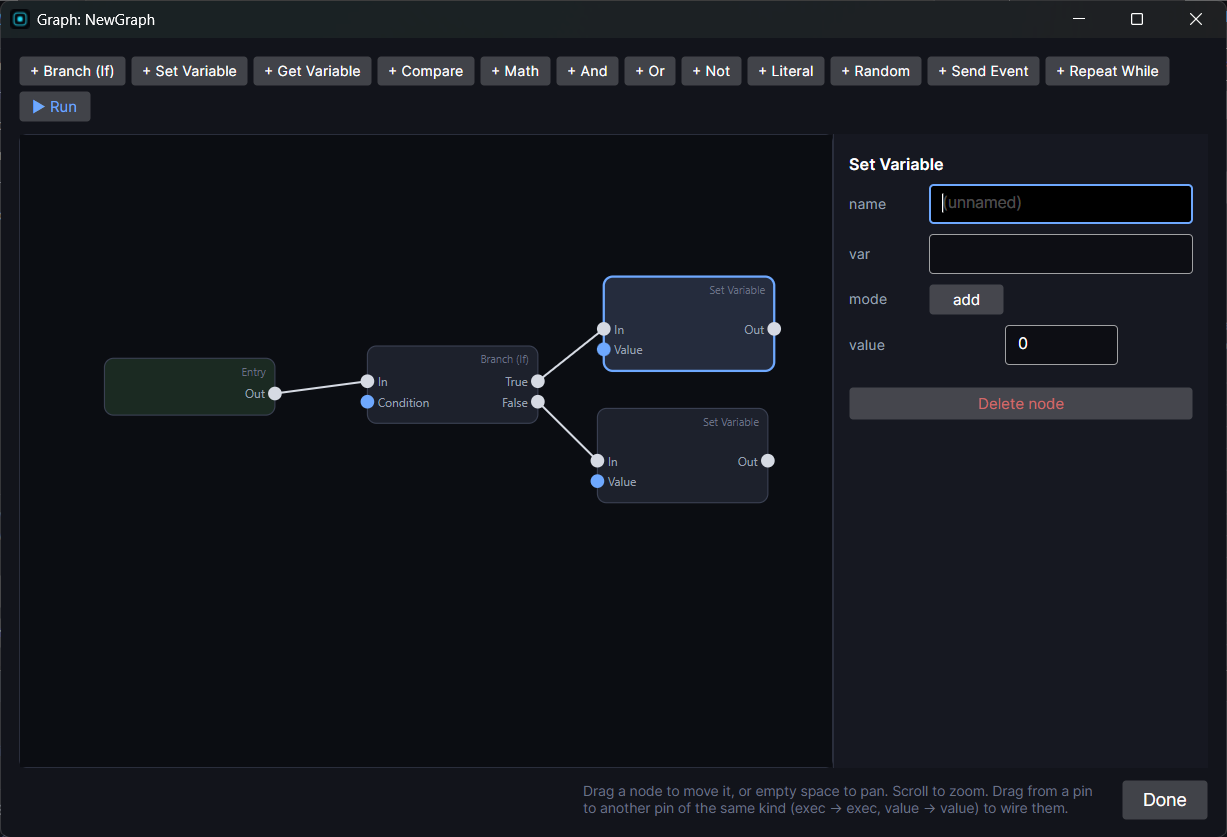
The editor has the canvas in the middle and a panel on the right that shows the settings of whatever you select.
- Add a node with the + buttons along the top. It appears on the canvas, ready to drag into place.
- Move a node by dragging it. Drag empty space to move around the canvas, and scroll to zoom.
- Select a node to edit it on the right. Every node can be given a name, so a graph with several Compare nodes reads at a glance. The name is only a label and changes nothing about how it runs.
- Delete a node with Delete node in its settings, or right-click it. Click a wire and use Delete wire to remove it. The Entry node can't be deleted.
- ▶ Run runs the graph once in Preview, right now, so you can watch your variables change without setting up the event.
Pins and wires
Every node has pins on its sides: inputs on the left, outputs on the right. There are two kinds, and a wire only connects two pins of the same kind.
- Exec pins (the lighter ones) carry "what happens next". Follow them from Entry and you're reading the graph in order.
- Value pins (in the accent colour) carry a number into or out of a node.
To connect two pins, drag from an output pin to an input pin.
- An input takes only one wire. Wiring something new into it replaces the old wire.
- An output can feed as many wires as you like. When an exec output has several wires, they all run, one after another, in the order you connected them.
- A value input with nothing wired to it uses the number typed into it in the node's settings. When it's wired, the right panel says so, and the wire's value is used instead.
Values are always numbers. Yes/no checks use 1 for true and 0 for false, the same as a Bool variable. Anything other than 0 counts as true.
The nodes
Flow
These have exec pins and decide what happens, and in what order.
- Entry: where the graph starts when its event fires. Every graph has exactly one. Wire its Out to the first thing that should happen.
- Branch (If): checks its Condition. If it's true, it carries on through True. If not, through False. Wire either side to whatever should happen in that case.
- Repeat While: runs whatever is wired to Body again and again, as long as Condition is true. The condition is checked before every pass. When it turns false, it carries on through Done. max× stops it after that many passes no matter what (20 by default), as a safety net in case the condition never turns false. A correctly built loop never reaches it.
- Set Variable: changes a variable, then carries on through Out. Pick the var, then the mode: add adds the incoming Value to it (use a negative number to take away), set replaces it.
- Send Event: sends an event by name, exactly like the Send event action, then carries on through Out. Anything listening for it runs, including other graphs and Events rows.
Values
These have value pins only. They don't run on their own. A node that needs a number asks for it, and they work it out at that moment.
- Get Variable: the variable's current value.
- Literal: a fixed number you type in.
- Random: a random number between min and max. Tick whole for a whole number with both ends included, like a die (1 to 6 can roll a 6). Leave it off for a fraction from min up to just below max, like 0 to 1 for a percentage roll.
- Math: combines A and B: +, −, ×, ÷, min (the smaller one), max (the larger one), mod (the remainder after dividing) or ÷ whole (divide and drop the remainder). Dividing by 0 gives 0 rather than an error.
- Compare: checks A against B (bigger than, smaller than, equal to and so on) and outputs 1 if it's true, 0 if not.
- And: 1 when both A and B are true.
- Or: 1 when either A or B is true.
- Not: flips A: true becomes 0, false becomes 1.
A Random node rolls a new number each time something reads it. If you wire it into two places, you get two different numbers. To use the same roll twice, store it with Set Variable first, then read that variable.
An example: a critical hit
When the attack event fires: roll a number from 1 to 100. If it's 90 or more, deal double damage, otherwise normal damage.
- Entry → Branch (If): wire Entry's Out to the Branch's In.
- Random (min 1, max 100, whole) → Compare A. Set Compare to ≥ and type 90 into B. Wire Compare's Out to the Branch's Condition.
- True → Set Variable:
enemyHp, mode add, value -20. - False → Set Variable:
enemyHp, mode add, value -10. - After either one, wire its Out to a Send Event
hitto play the hit effect.
Good to know
- Graphs run the same in Preview and on Wear OS and Apple Watch.
- A graph has its own safety limit, so an accidental loop (a wire that leads back to an earlier node, or two values feeding each other) stops instead of freezing the game.
- If a Get or Set Variable node names a variable that doesn't exist (say it was renamed), that node does nothing, so check the names after renaming a variable.
- Watch faces don't have graphs. Watch faces can't run logic.