Action Sheets
A list of actions you build once and run from anywhere, with inputs so one sheet can cover many cases.
About 4 minutes
An Action Sheet is a list of actions you build once and run from anywhere. If three buttons, a tile event and a cutscene all need "add 10 gold, play the coin sound, flash the counter", make that a sheet. Each place just runs the sheet, and when you change it, every place that runs it changes too. It's like a function in code.
Sheets can take inputs, so one sheet can do slightly different things each time it runs. "Add this much gold" or "damage this enemy" are one sheet with an input, not five near-copies.
Making a sheet
There are three ways:
- Window ▸ Action Sheets… ▸ + New action sheet makes an empty one and opens it.
- From actions you already have: right-click the actions title above any action list and choose Create Action Sheet from these…. The list becomes a new sheet, and the list itself is replaced by one action that runs it, so nothing changes in how it plays.
- In the Event Editor, Move these to a new Action Sheet… does the same for the actions shown there.
Sheets are saved as assets in the Project panel, so you can rename, move and organise them like any other file. Double-click one to open it.
The sheet editor
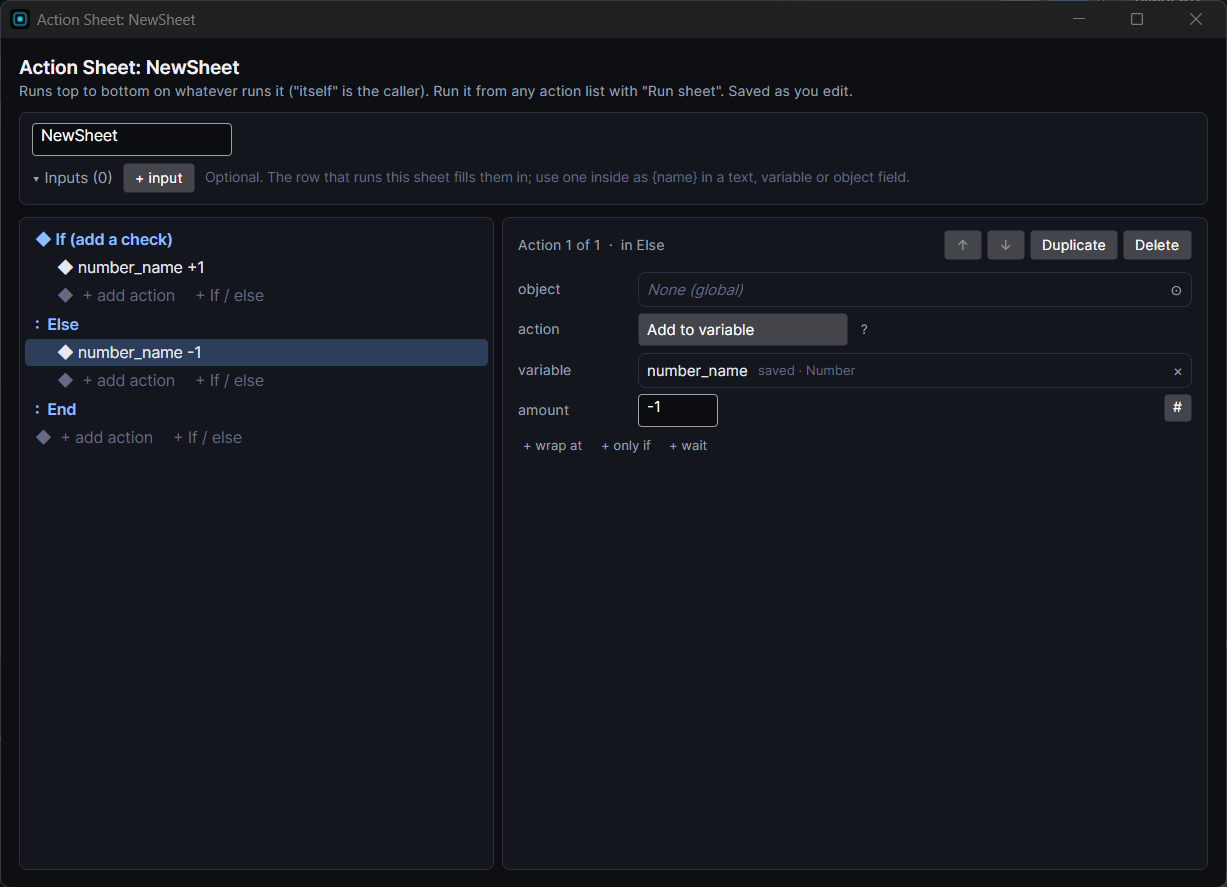
The editor has two parts.
Inputs are the values the sheet asks for each time it runs. Click + Input, give it a name and pick its kind:
| Kind | Holds | Example |
|---|---|---|
| Number | A number. | How much gold to add. |
| Text | Some text. | A message to show. |
| Target | An object. | Which enemy takes the damage. |
| Variable | A variable. | Which counter to add to. |
Each input has a default, used when the place running the sheet doesn't fill it in.
Actions run top to bottom, like any action list, with the same only if checks and repeat on each row. To use an input in an action, click the ⇠ toggle next to a field. The field then takes its value from that input instead of a fixed value.
Save keeps your changes. Closing the window any other way saves too. Discard changes closes without saving what you changed since you opened it.
Running a sheet
In any action list (a Tappable, a Ticker, an On Event, the Events panel, a tile event, a cutscene), click + action and look in the Action sheets group. Each sheet is listed as Run sheet: followed by its name. Pick one, then fill in its inputs.
To add the same sheet to several objects at once, select them all in the Scene, right-click and choose Apply Action Sheet.
A sheet can run other sheets, up to 8 deep, so you can build small sheets and combine them.
The Action Sheets window
Window ▸ Action Sheets… lists every sheet in the project with its inputs and how many places use it ("not used yet" for one nothing runs). Edit opens the same editor as double-clicking the asset. It's the quickest way to see what's reusable in a big project, and to spot sheets you can delete.
Good to know
- Sheets run the same in Preview and on Wear OS and Apple Watch.
- Watch faces don't have action sheets, because watch faces can't run actions.
- If a sheet is deleted or renamed outside the editor, the actions that ran it show as missing. Window ▸ Problems… lists them.
- You may still see "macro" in a few file names (sheets are saved as
.effectmacro.json). It's the same thing: macro was the old name.