Watch Face Projects
What a watch face can contain, what's different from a game, and where each tool lives.
About 6 minutes
A watch face project uses the same editor as a game, with the parts that only make sense for a running game put away. Faces are built in Google's Watch Face Format (WFF), which Google now requires for new Wear OS watch faces. A WFF face is a set of instructions rather than code: the watch draws it itself, which keeps it fast and light on the battery, including in always-on mode.
One face, one screen
A watch face is a single screen. Ambient mode (the dimmed always-on look) isn't a second screen you build separately: every object decides for itself whether it shows in ambient, and how it looks there. See Ambient Mode.
Faces made before this change had a separate Active and Ambient screen. WristForge converts them automatically the first time you open them and tells you it did. The face looks the same on the watch.
What you can put on a face
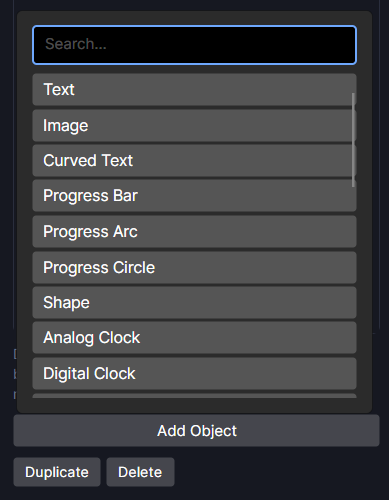
Add Object (above the Hierarchy) lists everything a watch face supports:
- Time and date: Analog Clock (with its own hands), Digital Clock, Date Text.
- Live data slots: five complication shapes, plus Edge Duo and Quad groups. See Complications.
- Readouts that aren't complications: Battery Level, Heart Rate, Step Count, Weather, Weather Sprite, Moon Phase, Notification Count.
- Gauges: Progress Bar, Progress Arc, Progress Circle and the stepped Segmented Arc.
- Dial pieces and art: Tick Ring, Shape, Text, Curved Text, Image, and Photo Slot for the wearer's own photo.
- Group: an invisible container to keep related objects together.
What's not here
WFF has nowhere for code to run, so game-only tools are hidden in a watch face project: the Events panel, Variables, and the Inspector's id and tag rows. Instead of a script deciding when something shows, an object can have a show when condition in the Inspector (for example, only when the battery is low). Anything more is done with the Timeline or with the wearer's own choices (Color Styles, Flavors, complications).
Where the tools live
- Window, then Timeline… (Ctrl+T): show objects at certain hours and animate them. See Time-of-Day Windows.
- Window, then Color Styles… / Flavors… / Photo Galleries…: choices the wearer makes on the watch. See Color Styles and Photo Slot.
- Window, then Problems…: checks the face for mistakes before you build.
- Background tab (next to the Inspector): the face's background, its ambient brightness, and the light for drop shadows.
- Simulate tab: test values like battery and weather. See The Simulate Tab.
- Help, then Tours: short guided tours of each of these.
Most ideas carry over: complications, color configurations, preview data. You can bring an existing face across with Import .wfs in WristForge Hub. WristForge builds the same Watch Face Format underneath, just authored differently.