Ambient Mode
How your face looks when the watch dims. You decide it object by object, with a dot in the Hierarchy.
About 6 minutes
When a watch isn't being looked at, it dims to save power and switches to ambient mode, the always-on display. Neither Wear OS nor Watch Face Format simplifies your face for you. You decide what stays lit, and designing that look well is a big part of a good face.
Preview it
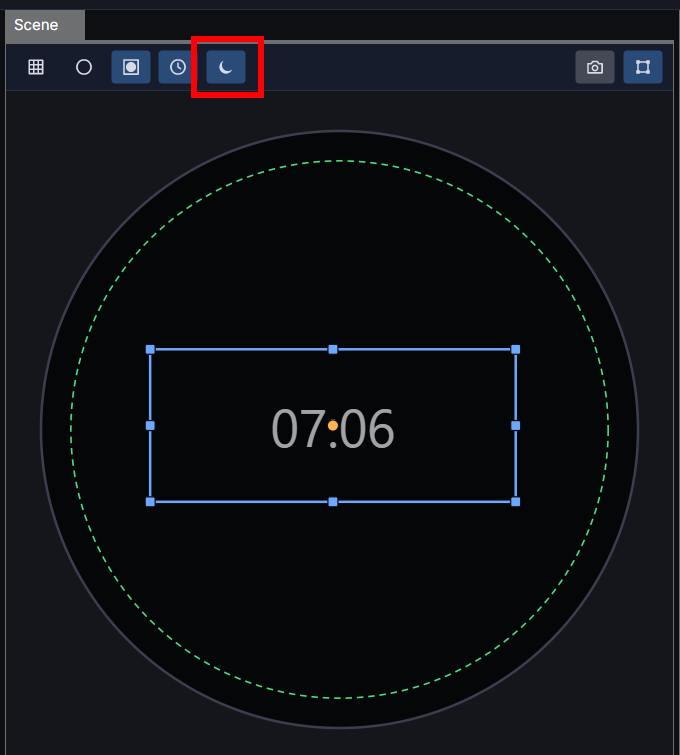
Click the moon button (Ambient) at the top of the Scene. The Scene switches to the ambient look; click it again to go back. Nothing about your face changes, it's only a view.
The Ambient dot
Every object has an Ambient dot in the Hierarchy:
- Filled dot: the object shows in ambient mode.
- Hollow ring: it's hidden in ambient mode.
Click the dot to switch. There's no second screen to keep in step: the face is one screen, and each object carries its own ambient setting.
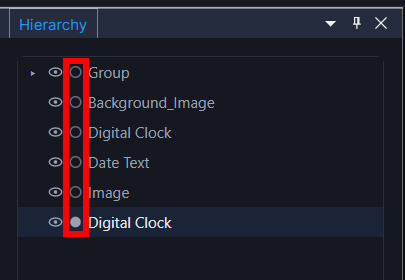
New objects start hidden in ambient, because ambient is about saving power. The exceptions are Analog Clock and Digital Clock (the one thing an always-on screen is for) and Groups, so a clock inside a new group doesn't vanish. Turn on anything else you want in ambient.
A different look in ambient
An object that stays on in ambient can also look different there. Its Inspector card has an ambient look section: an ambient colour, a tint overlay, and reset to match Active. A common pattern is a bright coloured clock in the normal view that turns plain grey or white in ambient.
The background
The face's background is hidden in ambient mode by default. To keep it, dimmed or at full strength, open the Background tab (next to the Inspector) and raise its ambient slider: 0 hides it, 1 leaves it unchanged, anything between dims it.
What belongs in ambient
Google's quality guidance keeps ambient faces to roughly 15 percent lit pixels, for battery life and to avoid screen burn-in. In practice:
- Keep the time. That's what an always-on display is for.
- Drop decoration: background art, labels, anything there for polish rather than information.
- Keep data sparse: one or two readouts at most, often none.
- Prefer outlines and thin shapes to big filled areas.
Per-second effects like a pulsing glow freeze in ambient, since the screen barely updates. A slow time-of-day change from the Timeline keeps working. See Animating with Property Tracks.
The ambient preview is close, but real screens dim differently. Glance at an actual watch before publishing. See Getting Your Face Onto a Real Watch.