Time-of-Day Windows
Show or hide anything for part of the day by dragging on a 24 hour bar, one row per object.
About 7 minutes
Many faces change through the day: a background that shifts from morning to night, an icon that only makes sense before noon. WristForge calls a stretch of time like that a window, and you make one by dragging on a 24 hour bar, not by typing hours into fields.
Opening the Timeline
Use Window, then Timeline… (Ctrl+T), or the ⧉ Timeline button on the Scene's time bar. It opens as its own window so you can keep the Scene in view beside it: the point of a timeline is watching the face react as you scrub.
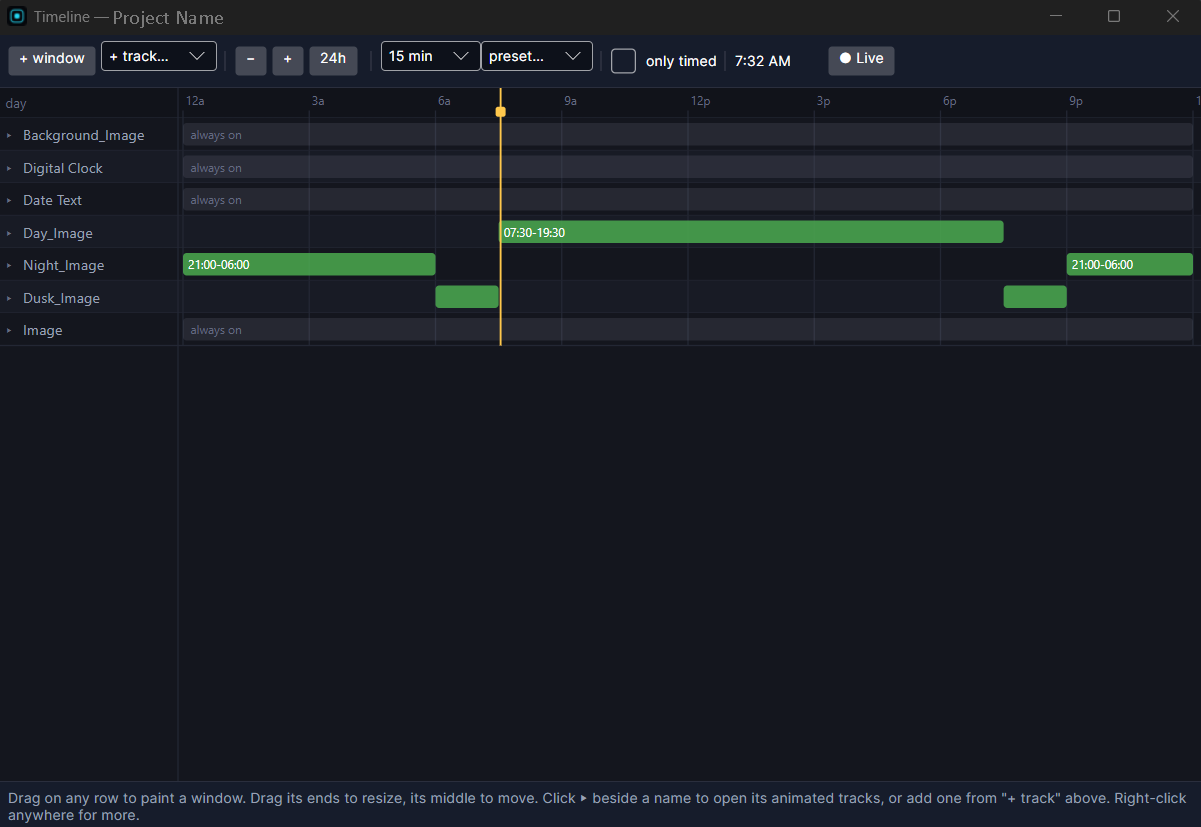
One row per object
Every visible object gets its own row, so you can see how a background's window lines up with an icon's without clicking back and forth. The bar area is the whole day.
Making a window
- Drag along an empty part of a row to paint a window, or select a row and click + window to add one around the playhead.
- Drag an end to resize it, or the middle to move it.
- Ctrl+drag duplicates it.
- Right-click for duplicate, split at the playhead, mute, snap to hours, delete, invert, or clear the row.
- Drags snap to 15 minutes, or 1 minute while holding Shift. Ctrl+scroll zooms around the cursor.
- Ctrl+Z undoes, right in the Timeline window.
A window can cross midnight, for example 22
to 04. Draw it like any other and it wraps.Swapping art
Drop a picture from the Project panel onto a window's bar to give that part of the day its own picture instead of hiding the object: a sun in the morning window and a moon in the evening one, all on the same object.
Invert (show outside the window instead of inside) is turned off for an object that swaps art in one of its windows, since the two conflict. If an object has several art-swap windows, the first one's fade timing applies to all of them.
Groups
A Group has nothing to draw, so it doesn't get a row. Put the window on each visible object inside it instead.
The Timeline's playhead, the Scene's time bar and the Simulate tab's time are the same clock: move one and the others follow. See Animating with Property Tracks to animate values through the day, and Watching and Testing the Timeline to check a whole day on a real watch.