Color Styles and Flavors
Let the wearer switch your face's colours on the watch, one set at a time or all at once with a Flavor.
About 7 minutes
A Color Style is a set of colour choices the wearer can pick from on the watch, like Ocean, Sunset or Mono. Everything on the face bound to that style changes together. Watch Face Studio calls the same idea a Color Configuration, and it's the same Watch Face Format feature underneath.
Make a style
Open Window, then Color Styles… and click + New style. Give it a clear name, then add options: each option is one choice the wearer sees, like a swatch. The default option is what a fresh install starts with.
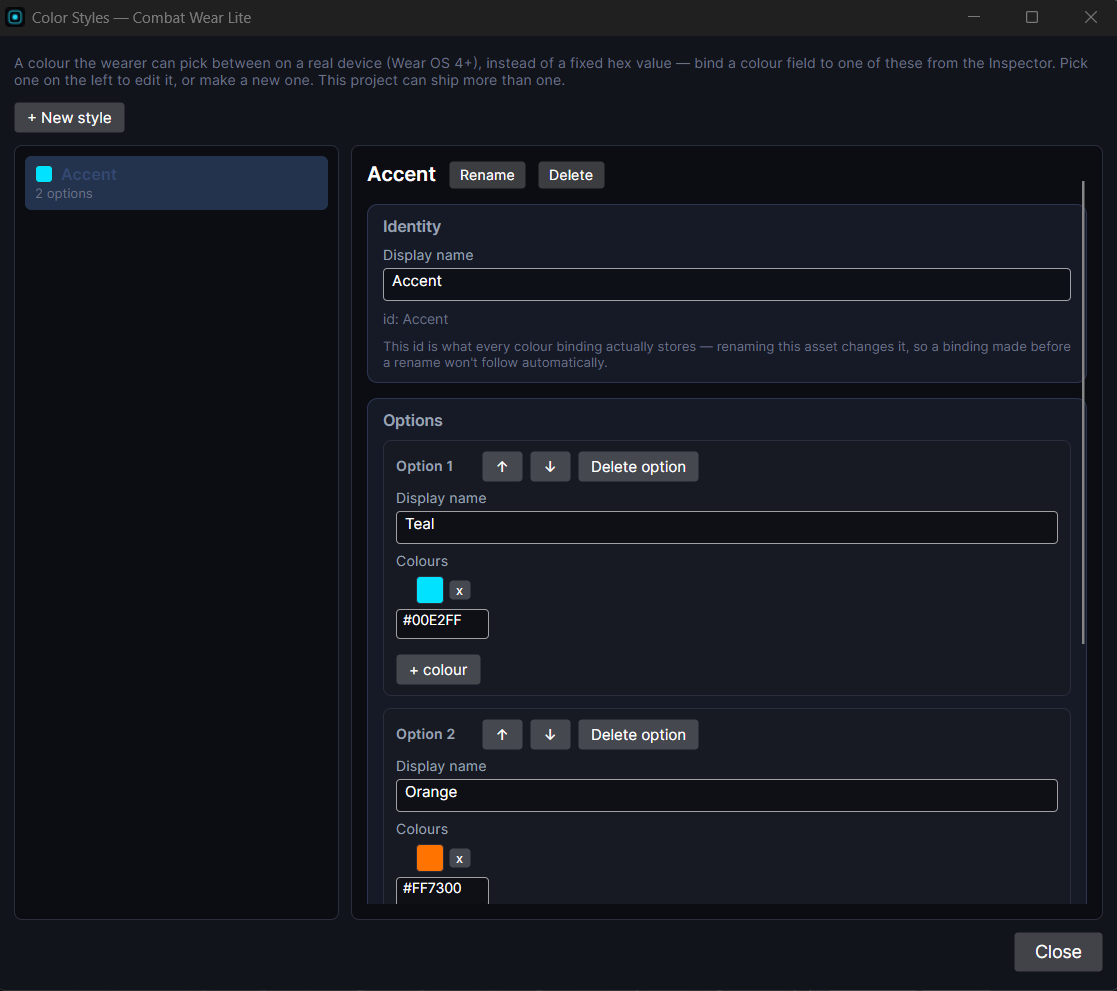
Bind colours to it
Select an object, find its colour field in the Inspector, and use the style row under it to bind that colour to your style. Bind as many objects as you like to the same style: the clock, a gauge, a tick ring. On the watch, one pick changes them all.
See it while you design
The Simulate tab has a row for each Color Style. Pick an option there and the Scene and Preview draw the face with it, so you can check every option without building. Simulate settings are never saved into the face.
Flavors: whole-face looks
A Flavor is a preset for the whole face: one tap sets several Color Styles at once. For example, a "Midnight" flavor might pick dark blue for your Accent style and silver for your Hands style. Wearers browse flavors in the companion app on their phone.
Open Window, then Flavors… and click + New flavor. For each Color Style, choose which option this flavor uses, or leave it not overridden to skip that style. The first flavor alphabetically is the default on a fresh install, and the names are what the wearer sees, so name them clearly.
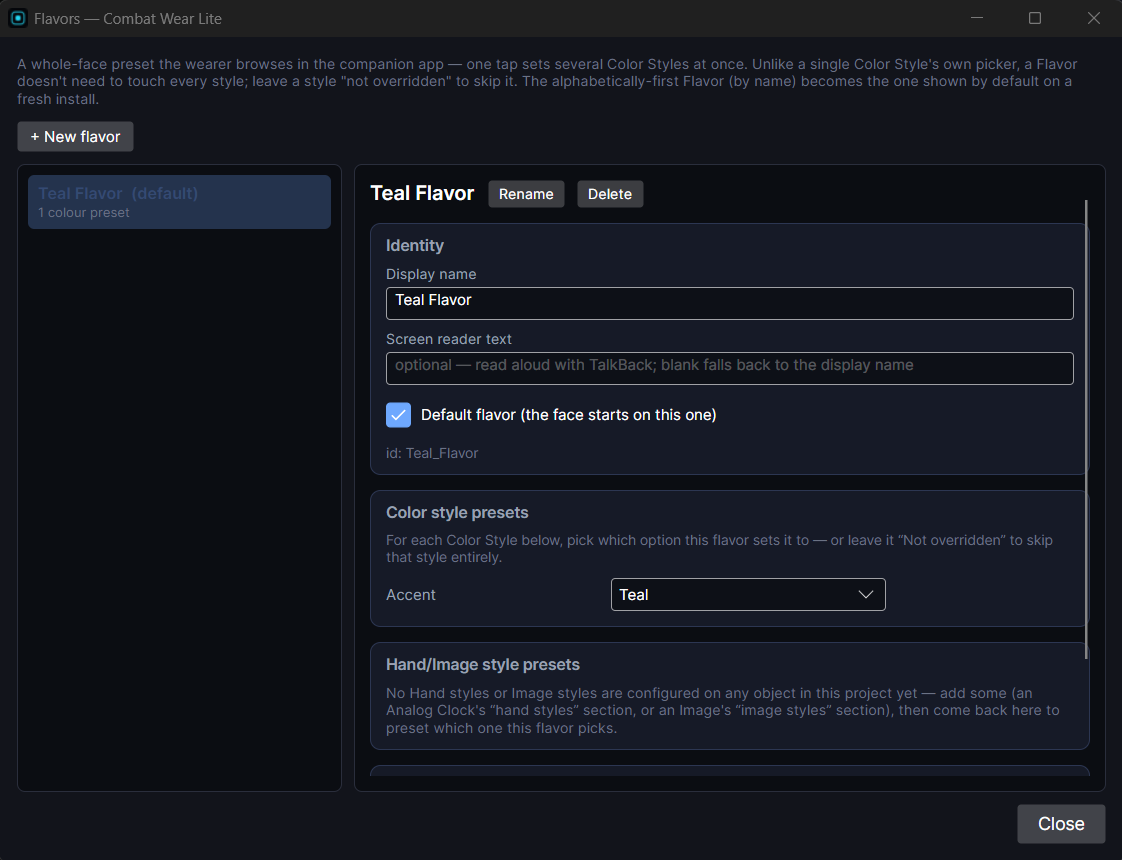
Flavors build on Color Styles, so make your styles first.
Page Indicator has an active dot colour and a dimmed dot colour, but only the active colour can be bound to a style today.
Help, then Tours has a Color Styles tour and a Flavors tour that walk through both windows.