Amazfit Watch Faces
Build the same face for Amazfit watches and put it on your wrist with a quick scan.
About 7 minutes
Amazfit watches run Zepp OS, and a WristForge watch face can build for them too. It's the same project as your Wear OS face: you design once, then adjust an Amazfit layout wherever the screen shape needs it. Putting the face on your own Amazfit is free on every plan.
Switch the Scene to Amazfit
In a watch face project, the Display card has a Target row. Click Amazfit and the Scene changes to an Amazfit screen. It starts on the Amazfit Bip Max; if you have a different model, pick its preset below the shape buttons.
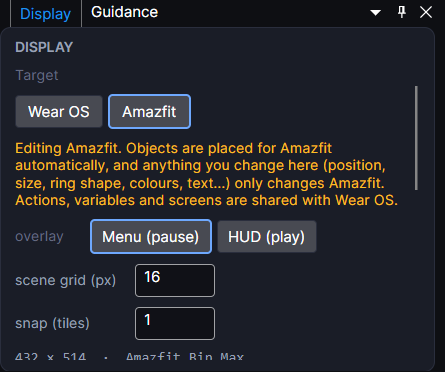
Your objects are placed for Amazfit automatically. Anything you change while Amazfit is showing (position, size, ring shape, colours, text) only changes the Amazfit layout, so your Wear OS face stays exactly as it was. Click Wear OS to go back at any time.
Square and rectangular screens
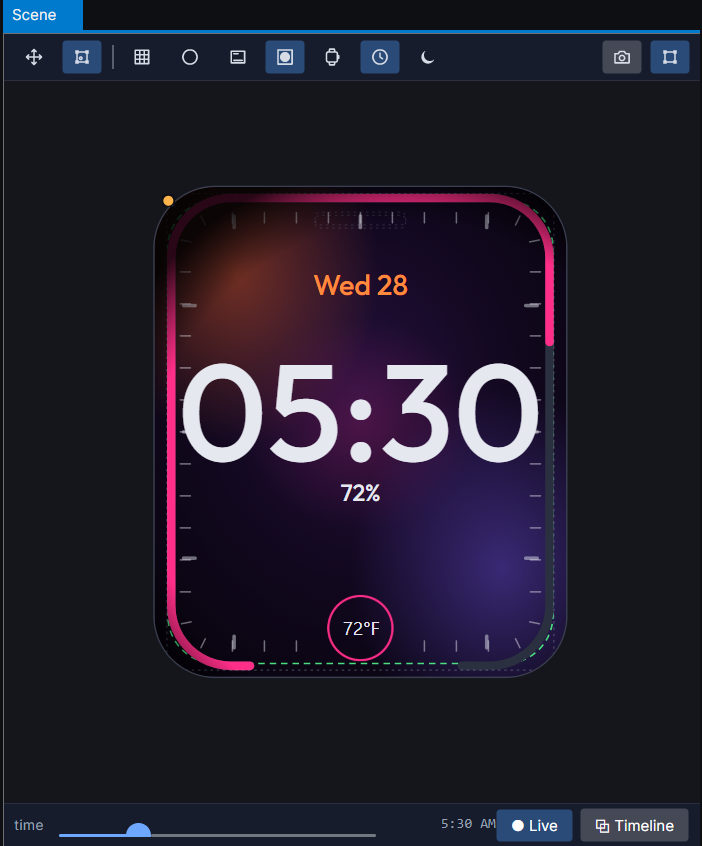
Many Amazfit watches are rectangles with rounded corners. While the Amazfit layout is showing:
- Tick Ring and Segmented Arc get a ring shape: Circle, Rounded rectangle, or Match screen, which follows the edge of the watch so the marks hug the screen.
- Window, then Problems… warns you when something reaches into a rounded corner and would be cut off on the watch.
First time: set up Amazfit
The first time you build for Amazfit, a short setup window opens. You only do this once:
- Zepp build tools. Click Install. It's a private copy inside WristForge's own folder (about 100 MB), and WristForge keeps it up to date for you.
- Your Zepp account. Your browser opens Zepp's sign-in page. Use the same account as the Zepp app on your phone, then come back to WristForge.
- Your watch. Pick your model from Zepp's list. If yours isn't there yet, pick the closest model with the same screen shape.
- Your phone. In the Zepp app, pair your watch if it isn't already, then turn on Developer Mode: Profile, then Settings, then About, and tap the Zepp icon 7 times until a message appears.
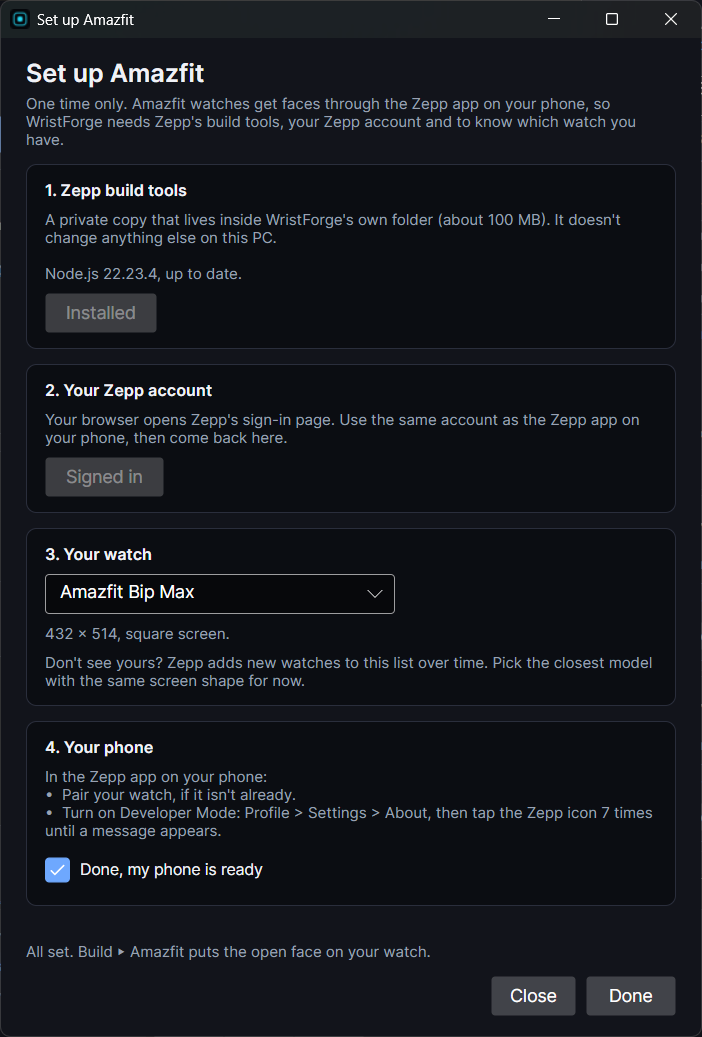
You can change your watch or account later in Build, then Devices…, on the Amazfit tab.
Put the face on your watch
- Open Build, then Build… and pick Amazfit.
- Press Build for Amazfit. When the build finishes, a code appears.
- On your phone, open the Zepp app, tap the scan icon and point it at the code. The face installs on your watch in a few seconds.
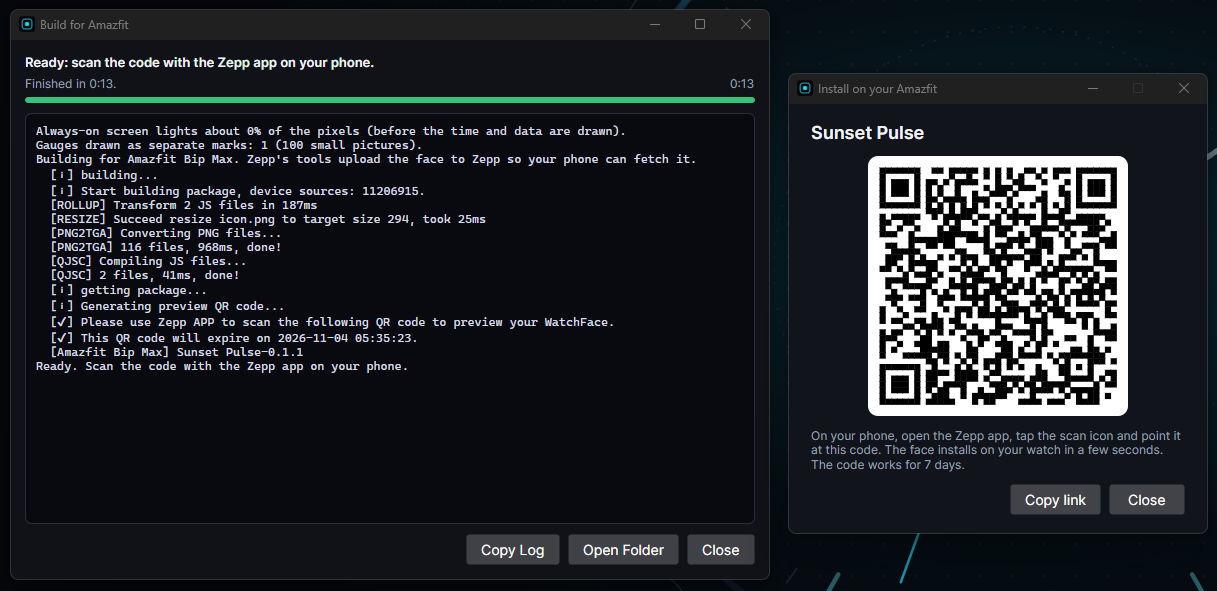
The code works for 7 days. If you close it, Build, then Devices…, then Amazfit shows the last one again.
What works on Amazfit
| Works | Notes |
|---|---|
| Analog Clock, Digital Clock, Date Text | The second hand sweeps smoothly while the screen is on. 12 or 24 hour follows the watch. |
| Battery Level, Step Count, Heart Rate | Read live from the watch. |
| Weather, Weather Sprite | Current temperature, conditions, forecast, sunrise and sunset. |
| Moon Phase | Worked out on the watch from the date. |
| Progress Arc, Progress Circle, Progress Bar, Segmented Arc | Including pie and liquid circles. |
| Tick Ring, Shape, Image, Text | Your own fonts come along too. |
| Ambient Mode | Each object's ambient dot works the same way. |
| Color Styles | The wearer picks a style in Zepp's face editing (press and hold the face). |
| Complications | The wearer picks what each slot shows from Zepp's list, also in face editing. |
A few things don't come alive on Amazfit yet. Timeline animations, Gyro tilt and the wearer's own photo in a Photo Slot stay as they look in the editor, like a still picture. Notification Count isn't available to Amazfit faces, so the build leaves it out. The build log lists anything like this, and the rest of the face works as normal.
To publish your face for other Amazfit owners, see Publishing on the Zepp Store.