Getting Your Face Onto a Real Watch
See it on your wrist in a minute while you work, then share it through Face Hub or publish it yourself.
About 7 minutes
Preview and the Simulate tab get you most of the way, but a real watch is the only place to check how the screen dims in ambient mode and how live data looks. WristForge builds real Wear OS apps, and Build, then Build… is where every kind of build lives.
First time: build tools
Building for a watch needs Java and the Android SDK. You don't need to install them yourself: the first time you build, WristForge offers to download them. You can also check or repair them any time in WristForge Hub, then Build tools.
Pair your watch once
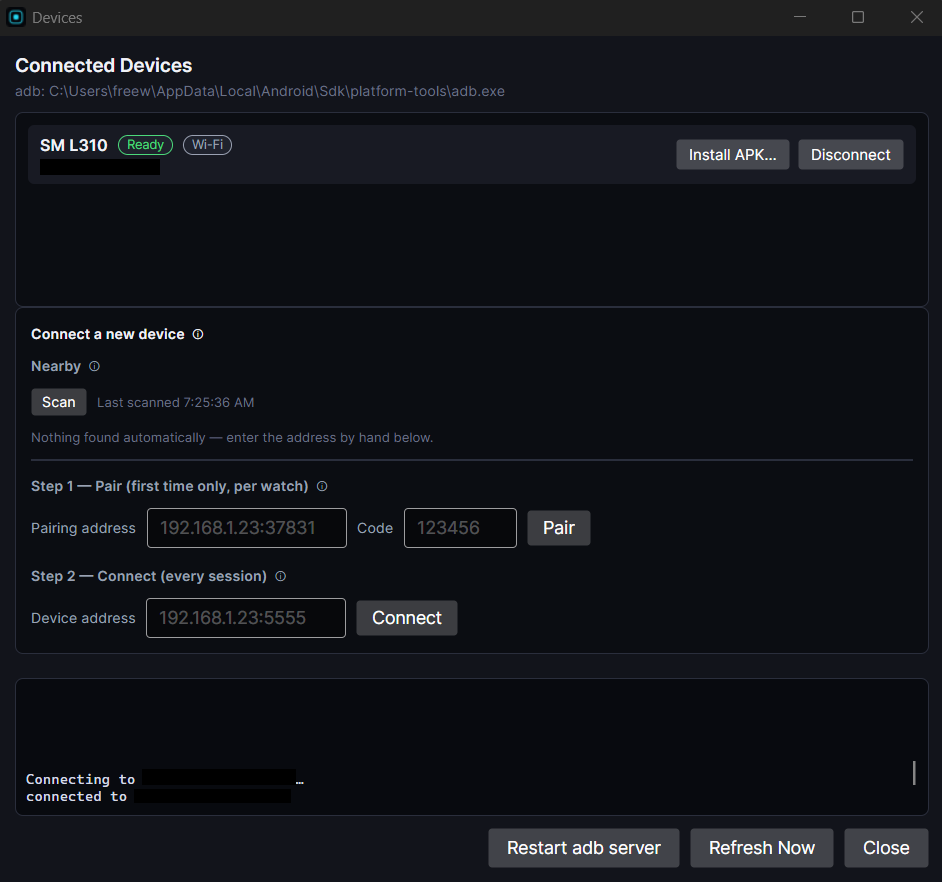
Build, then Devices… pairs a watch over Wi-Fi or USB. You only do this once per watch.
The four kinds of build
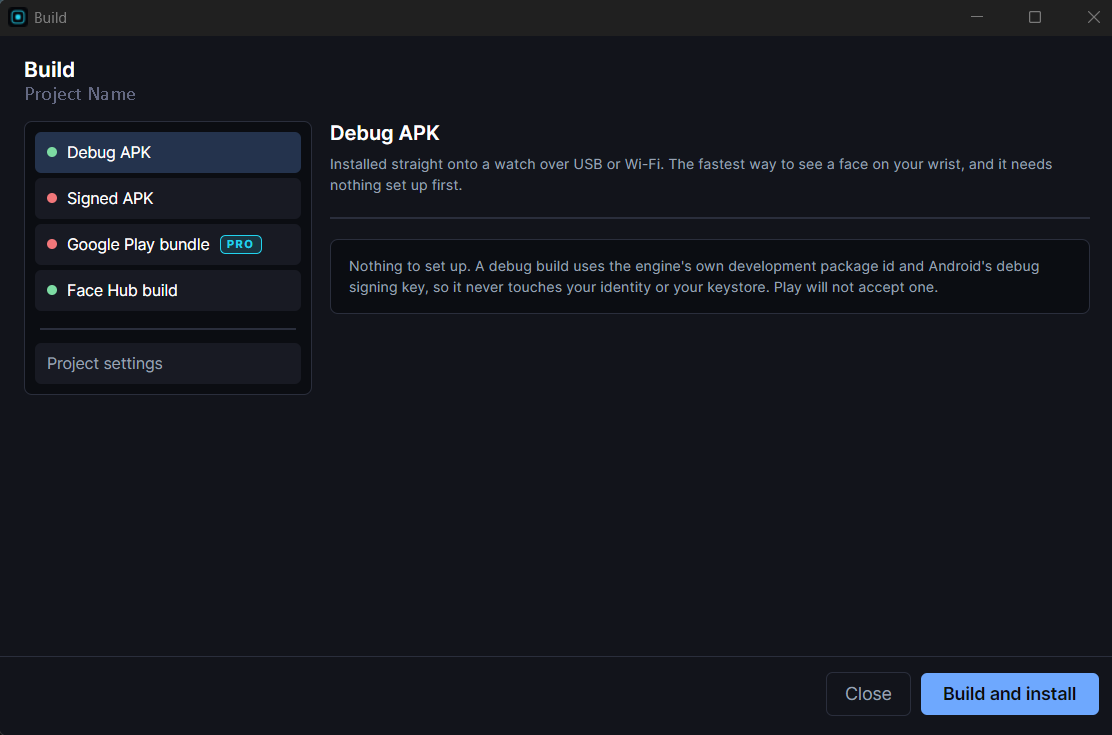
Open Build, then Build… and pick one:
| Build | What it's for |
|---|---|
| Debug APK | Installs straight onto your paired watch. The fastest way to see your face on your wrist while you're working. Needs nothing set up first. |
| Signed APK | A release build signed with your own key. Sideload it or give it to someone. Keys live in Build, then Signing Keys…. |
| Google Play bundle | The .aab file Google Play requires for a store listing. Part of WristForge Pro. See Publishing Your Face on Google Play. |
| Face Hub build | One .zip, ready to upload to Face Hub on the WristForge site. |
Sharing on Face Hub
Face Hub puts your face on other people's watches with no Play account, no fee and no store listing:
- Build a Face Hub build. It writes a .zip next to the build output; everything the site needs (package name, version, validation) is inside it.
- On the WristForge site, go to Creator, then Watch faces, then New. The first time, you accept the Creator Terms.
- Add a name, description, category, preview image and price (free, or a price in WristForge coins), and upload the .zip.
- Your face goes to review. Once approved it appears in Face Hub, and people install it straight to their watch.
You can change a face's price later from its page in your creator area.
Check the face in ambient mode on a real watch, run Window, then Problems…, and make sure Build, then Timeline time-lapse (test builds) is off. See Watching and Testing the Timeline.