Animating with Property Tracks
Keyframe opacity, position, scale, rotation or tint across the day, something Watch Face Studio and Facer can't do.
About 8 minutes
A window turns something on or off for part of the day. A property track goes further: it animates a value (opacity, position, scale, rotation or tint) smoothly across the day, with its own easing between keyframes. Watch Face Studio's timeline only controls visibility, and Facer has no timeline at all.
Adding a track
In the Timeline window, select an object's row and pick a property from the + track… list: opacity, position x, position y, scale, rotation or tint. The track appears under the object's row with two starting keyframes. Drag keyframes to move them, and set each one's easing into the next.
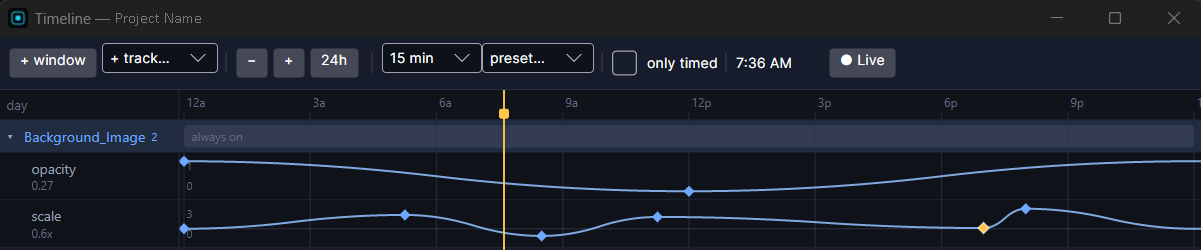
Position, scale and rotation are offsets from where you placed the object. Rotation of 15 degrees at noon means 15 degrees from its original angle, so the track keeps working if you move the object later.
It's real Watch Face Format
Nothing here is a workaround. Watch Face Format itself can animate position, size, opacity, scale, rotation and tint on images, text, shapes and groups. Property tracks are a timeline over exactly that, so everything you animate runs on the watch.
When several things change the same value
If a Tint track, a Color Style and a pulsing glow all affect the same object, WristForge combines them into one value before building, so they work together instead of fighting. A slow opacity fade and a pulse on the same object both keep working.
A per-second pulse freezes in ambient, since the screen barely updates. A property track keeps going, because a slow time-of-day curve hardly changes from one minute to the next. See Ambient Mode for what belongs in ambient at all.
Tracks animate right in the Scene, not only in Preview. See Watching and Testing the Timeline.