Publishing on the Zepp Store
Package your face for the Zepp Store and send it to Zepp for review.
About 6 minutes
The Zepp Store lives inside the Zepp app, and it's where Amazfit owners find new faces. To publish there you need a free Zepp developer account and the Faces plan or above in WristForge. Putting a face on your own watch is free and doesn't need any of this; see Amazfit Watch Faces.
Zepp only offers paid listings to some companies, so plan on your face being free on the Zepp Store. It's a great way to get your work in front of Amazfit owners.
1. Create the face in Zepp's console
- Go to console.zepp.com and sign in with your Zepp account. It's the same account you used when you set up Amazfit in WristForge.
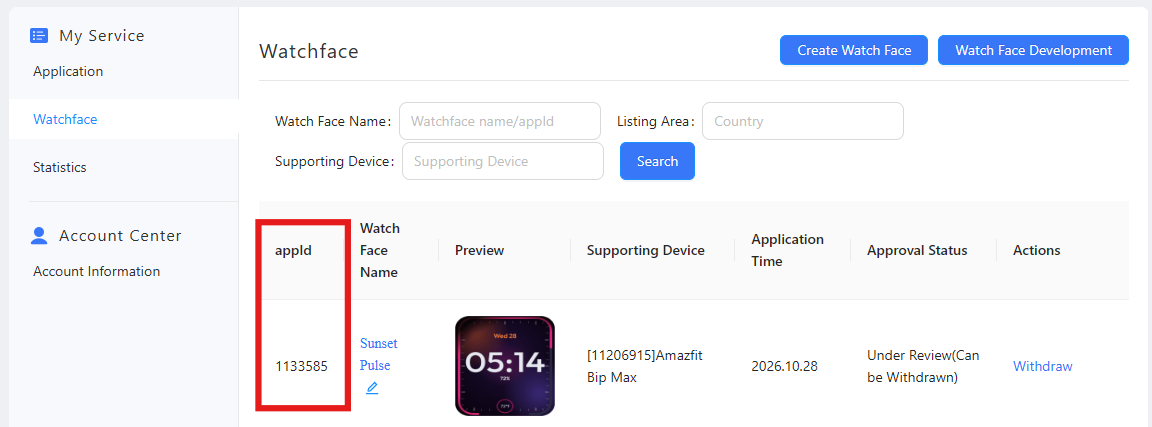
- Open Application Services, then Watchface and create a new watch face.
- Zepp gives the face an App ID, a number. Copy it.
2. Add the App ID to your project
- In WristForge, open Build, then Build… and click Project settings at the bottom of the list.
- Paste the number into zepp app id. It's saved with your project.
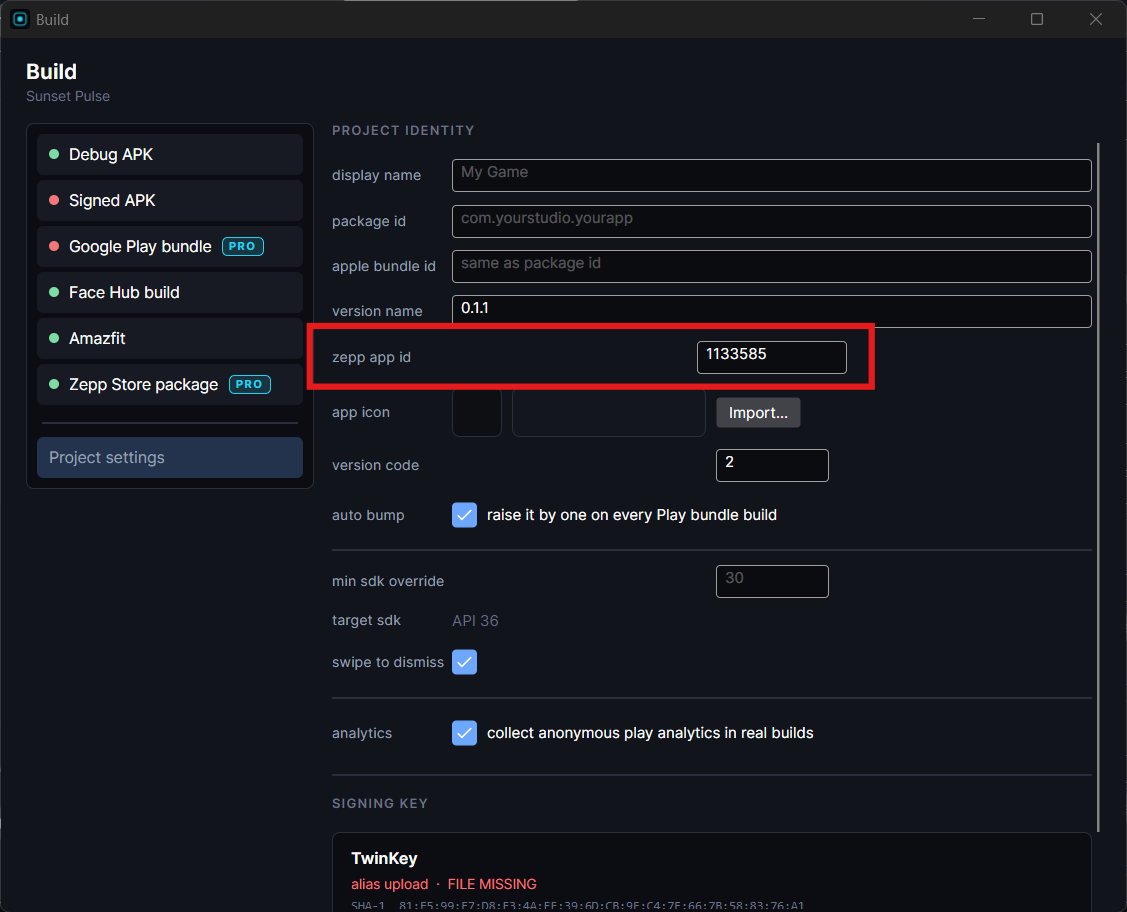
Once the App ID is set, the face you install on your own watch carries it too, so your copy matches the store version.
3. Build the package
- In Build, then Build…, pick Zepp Store package.
- Press Build Zepp Store package.
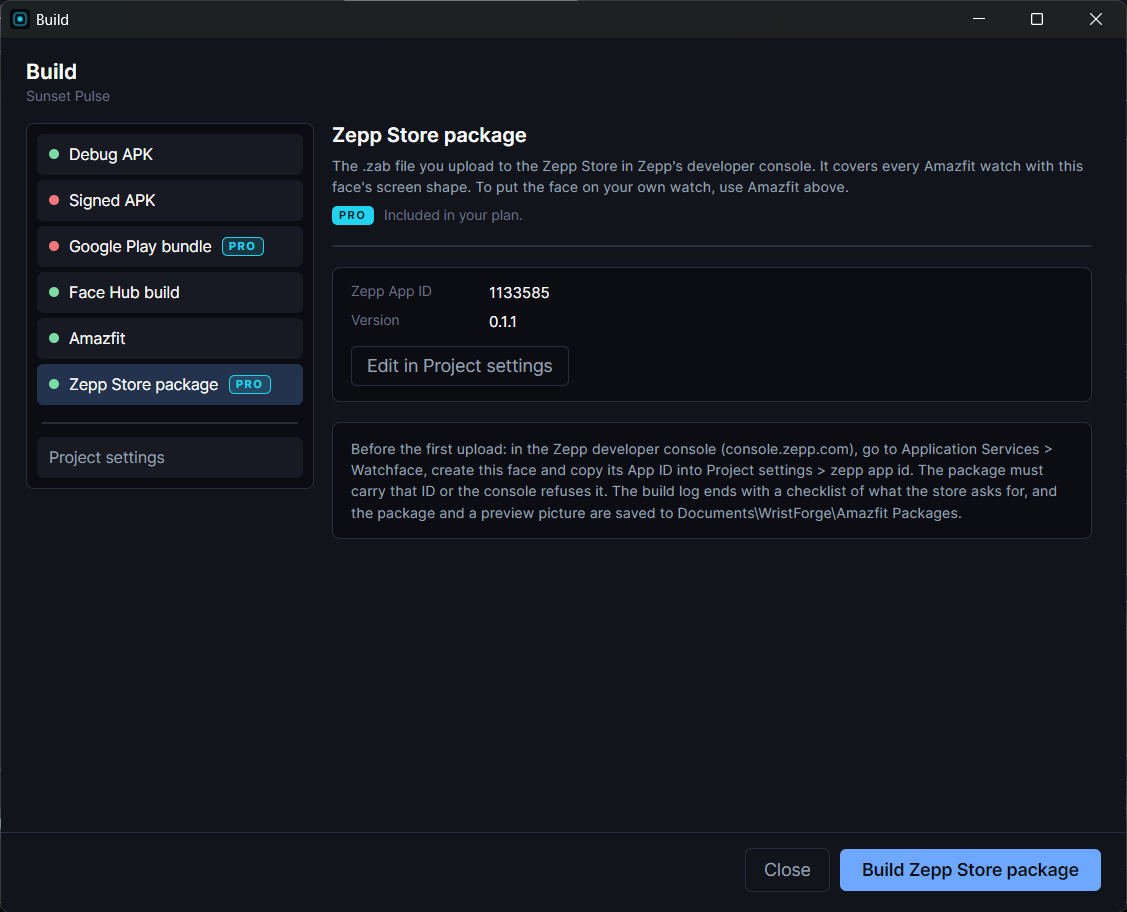
WristForge saves two files to Documents\WristForge\Amazfit Packages: the .zab package to upload, and a preview picture you can use for the listing. One package covers every Amazfit watch with your face's screen shape. The end of the build log has a short checklist of what to do in the console.
4. Submit it for review
- Back in the console, open your face and choose to submit a new version.
- Upload the .zab. Its App ID has to match the face in the console, which is why step 2 matters.
- Choose the countries and a category.
- Add the name, description and preview picture for each language you want.
- Click Submit for Approval.
Zepp reviews faces in 1 to 5 working days. Once approved, your face shows up in the Zepp Store.
Updating your face
Raise the version in Project settings, build the Zepp Store package again and upload the new .zab in the console. Zepp reviews each new version the same way.
Put the face on your own Amazfit first and check it with the screen on and in always-on mode. Run Window, then Problems… while the Amazfit layout is showing, so nothing gets cut off in a rounded corner.