ReleaseOctober 30, 2026 · 12 min read
WristForge 0.1.12: Make Smartwatch Apps for Wear OS and Apple Watch Without Coding
WristForge 0.1.12 is out. Make a smartwatch app without coding, then build it for Wear OS and Apple Watch from one project. Here is what's new.
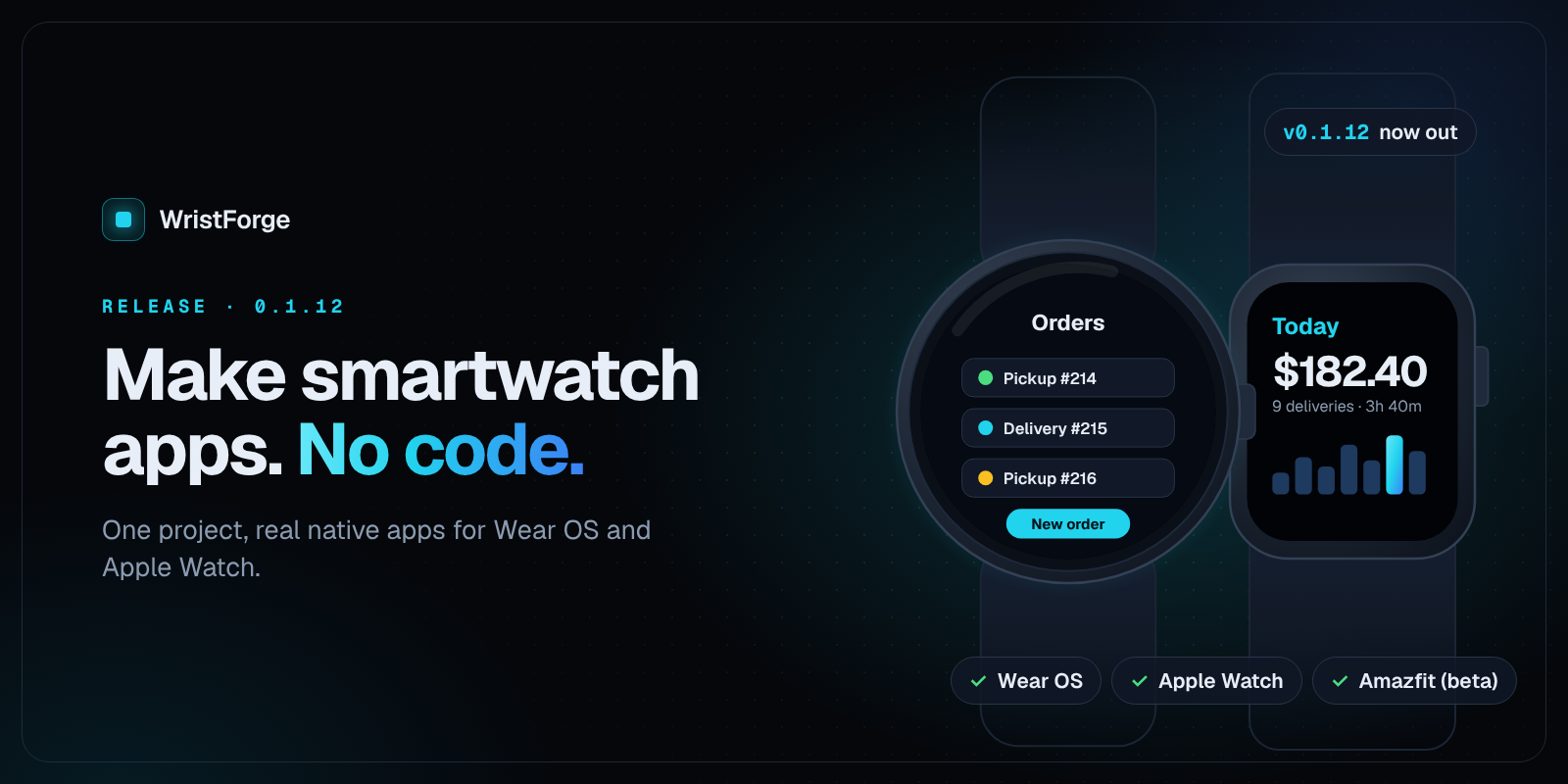
WristForge 0.1.12 is out, and it makes smartwatch apps. The App project kind is now open to everyone, so you can make a watch app without coding and build it as a native app for Wear OS and Apple Watch from one project. Amazfit apps are in beta too.
Until now, WristForge was mostly known as a watch face maker. Watch faces are still here and still free to build. This release adds the other half: apps that do one job well on the wrist, like a counter, a shift tool, a tracker for your business, or a screen that shows a number from your own server.
What is a WristForge app project?
When you click New project in WristForge Hub, you pick what you are making: a watch face, an app, or (later) a game. Each kind uses the same editor, with the tools that don't apply put away so the menus stay short.
A watch face is the screen you see when you raise your wrist: the time, your complications, maybe some animation. It follows strict platform rules and can't hold its own screens or logic.
An app is a program the wearer opens. It has screens, buttons, variables that remember things, and actions that run when something is tapped. It can fetch data from the internet, read steps and heart rate, send notifications, and put its own values on the watch face as complications.
App projects hide the game-only parts of the editor (physics, tile maps, dialogue), so what you see is what an app needs.
Apple does not allow third-party watch faces on Apple Watch, so no tool can make one. WristForge faces are for Wear OS and Amazfit. On Apple Watch, WristForge makes apps.
What kind of watch app can you build without coding?
A good watch app is a few small screens that the wearer looks at for a second or two at a time. Some ideas that fit the App project well:
- A tracker for your work. Our own Dash Tracker, built in WristForge and live on Google Play, tracks delivery earnings, miles and dollars per hour from the watch.
- A tool your staff wear on shift. A shift timer with an ongoing activity, a checklist, or a screen that pulls the next order from your system.
- A screen for your own data. Point the app at your server or any web API and show the numbers you care about, with the last good reply kept for when the watch is offline.
- A small utility. A tap counter that remembers its number, a reminder that repeats every X minutes, a settings screen with a slider.
The Your First App tutorial builds that tap counter from scratch, so you see the whole loop in one sitting. You can also see what others have made on the Made with WristForge page.
Which features come with WristForge apps?
Here are the parts of 0.1.12 you will reach for most. Every name below is what you will see in the editor.
One project, both watches
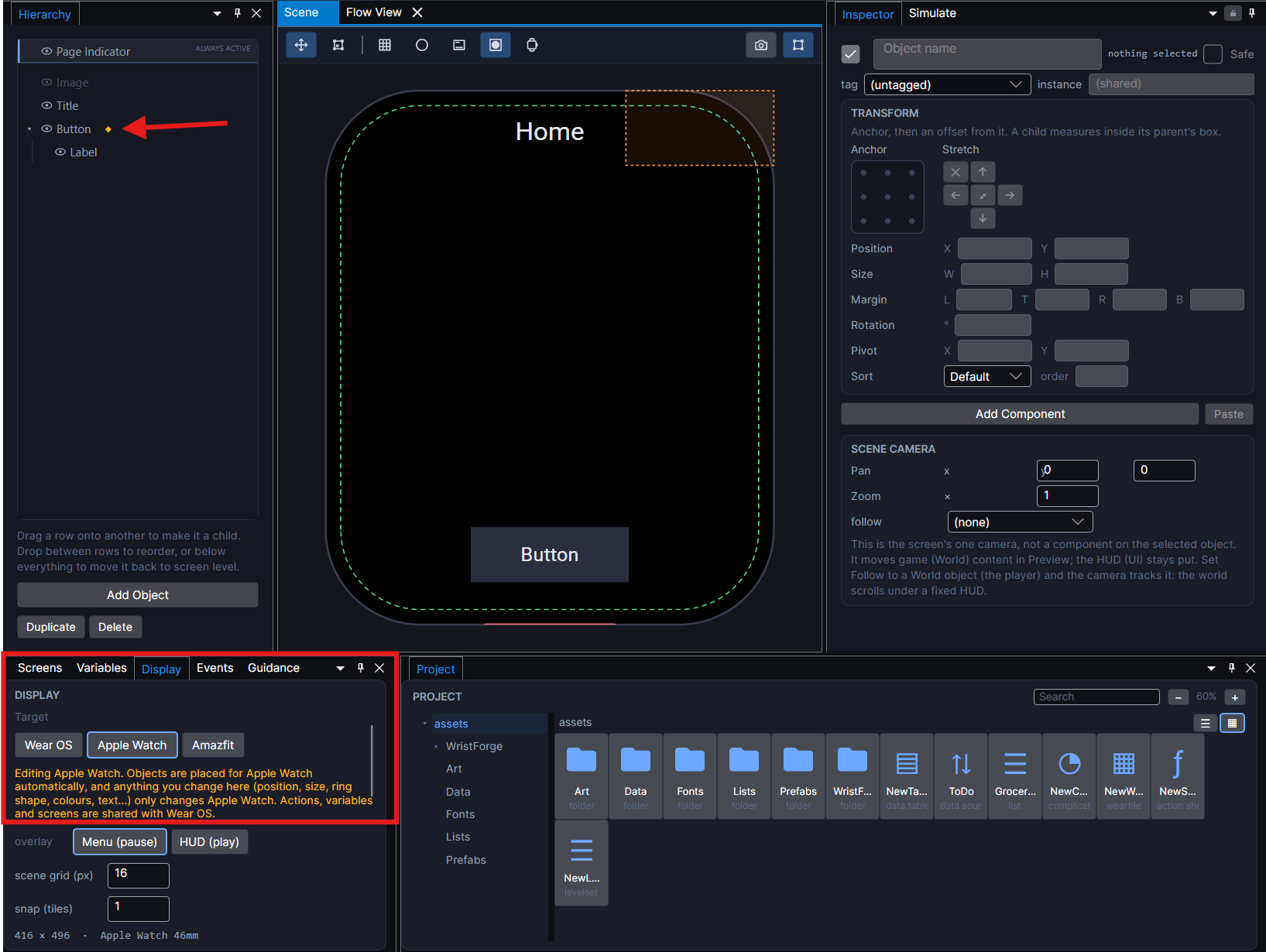
Wear OS watches are mostly round and Apple Watches are rectangles. You don't make two apps. In the Display tab, the Wear OS and Apple Watch buttons switch which watch's layout the Scene shows.
- Anything you haven't moved by hand on the other watch is placed for it automatically.
- Moving or resizing an object while viewing Apple Watch only changes it there. An amber diamond in the Hierarchy marks objects with their own Apple Watch layout, and right-click reverts it.
- Actions, variables and screens are always shared. Position, size, colours and text can differ per watch.
Ready-made app parts
Add Object has an App group with pieces shaped the way watch apps look: App Button, List Row, Toggle Row, Section Header, Title Text, Body Text, Caption Text and a Sign In Form. Drop one in and it is an ordinary object you can change. App buttons already give a short haptic tick, so a tap feels like a tap.
For input, there is an Input Field that opens the watch's keyboard (for a name, a PIN or an odometer reading) and a Slider for settings like volume or text size. Long content goes in a Scroll group, and a Layout can fill itself from a List, one row per entry. See Showing a List.
Fetch data from the internet, no code
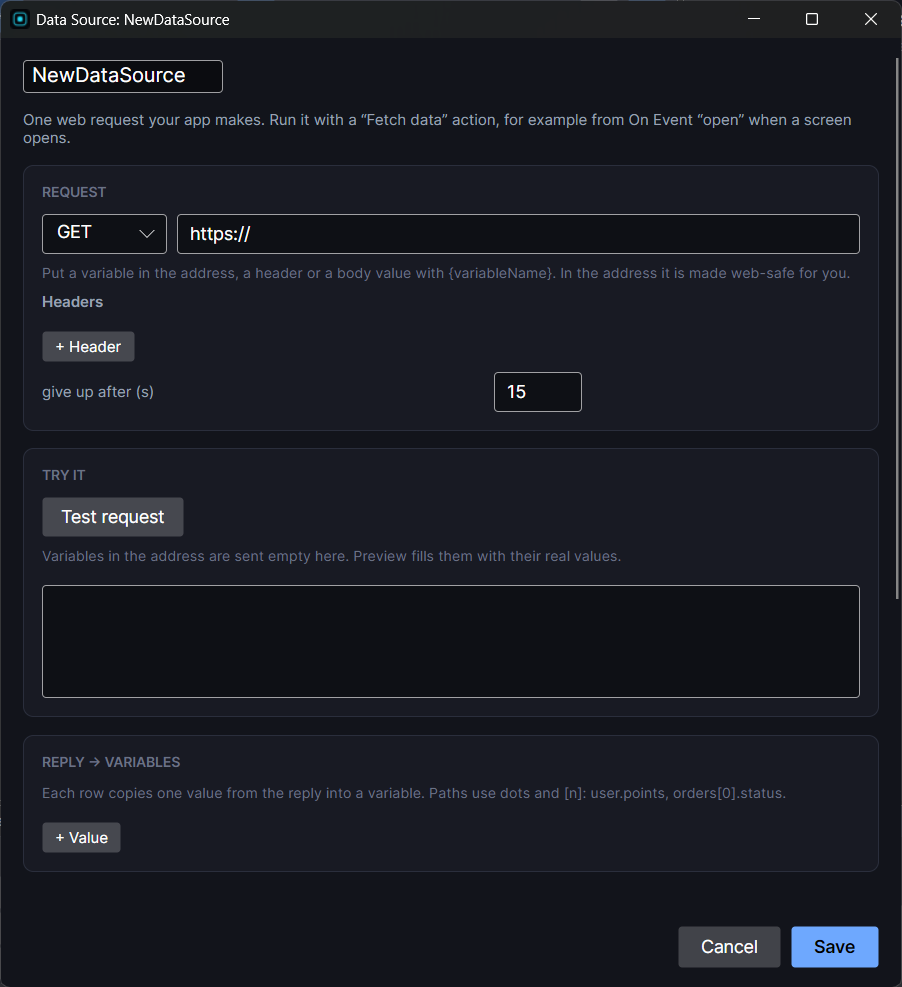
A Data Source is one web request: an address, a method, and what to do with the reply. You click Try it, the editor sends the request for real, and every value in the reply shows up as a chip. Click the ones you want and map them into variables or a List. To make one, right-click in the Project panel and choose New data ▸ Data source; its window opens straight away, with Request, Try it, Reply → variables, Reply → list and Status sections. Then run it from any button or screen event with the Fetch data action.
- It works for real in Preview, so you can build against your live server before you ever touch a watch.
- A status variable tells you if the request is loading, loaded, failed, or offline and showing the last good reply.
- GET, POST, PUT, PATCH and DELETE are all there, so you can send changes back too.
The full walkthrough, with a free practice server to follow along, is in Fetching Data from the Internet.
Sign in and secrets
The Sign In Form gives you an email box, a password box and a Sign in button, ready to point at your own login address. Mark a value as secret and it is stored encrypted on the watch, in the Android Keystore on Wear OS and the Apple Keychain on Apple Watch. Password boxes use each watch's own secure keyboard.
Complications, Tiles and Smart Stack widgets
The fastest way to use a watch app is not to open it. Open Window ▸ Complications… to put one of your app's values on the wearer's watch face, and Window ▸ Wear Tiles… to build a glanceable card. On Apple Watch, the same tile design becomes a Smart Stack widget. A successful Fetch data refreshes them, and Update complication pushes a new value right away. See Complications and Tiles.
Watch features, notifications and purchases
- Steps, heart rate, motion and weather: click { } on a Bind Text and pick a reading from the Watch section. The Watch Features guide lists where each reading works.
- Notifications: Schedule notification shows a reminder some seconds from now, even if the app is closed. On Wear OS, Start ongoing activity keeps a running timer or shift one tap away. Push notifications from your server work on Wear OS today, through your own Firebase project. See Notifications and Ongoing Activities.
- In-app purchases: sell a one-time unlock or a consumable through Google Play Billing and StoreKit. WristForge takes no cut. See In-App Purchases.
A heads-up before store review
When you start a store build, WristForge checks for the things Google Play, Apple or Zepp reviewers tend to reject, like heart rate or location used without a privacy policy, and tells you what to change. You can fix it first or build anyway.
Are WristForge apps real native apps?
Yes. The Wear OS build is Kotlin and Jetpack Compose, and the Apple Watch build is SwiftUI, each built the way that watch expects. There are no web views. Your app talks to your own servers directly, and nothing passes through WristForge while it runs.
How do Wear OS and Apple Watch builds work?
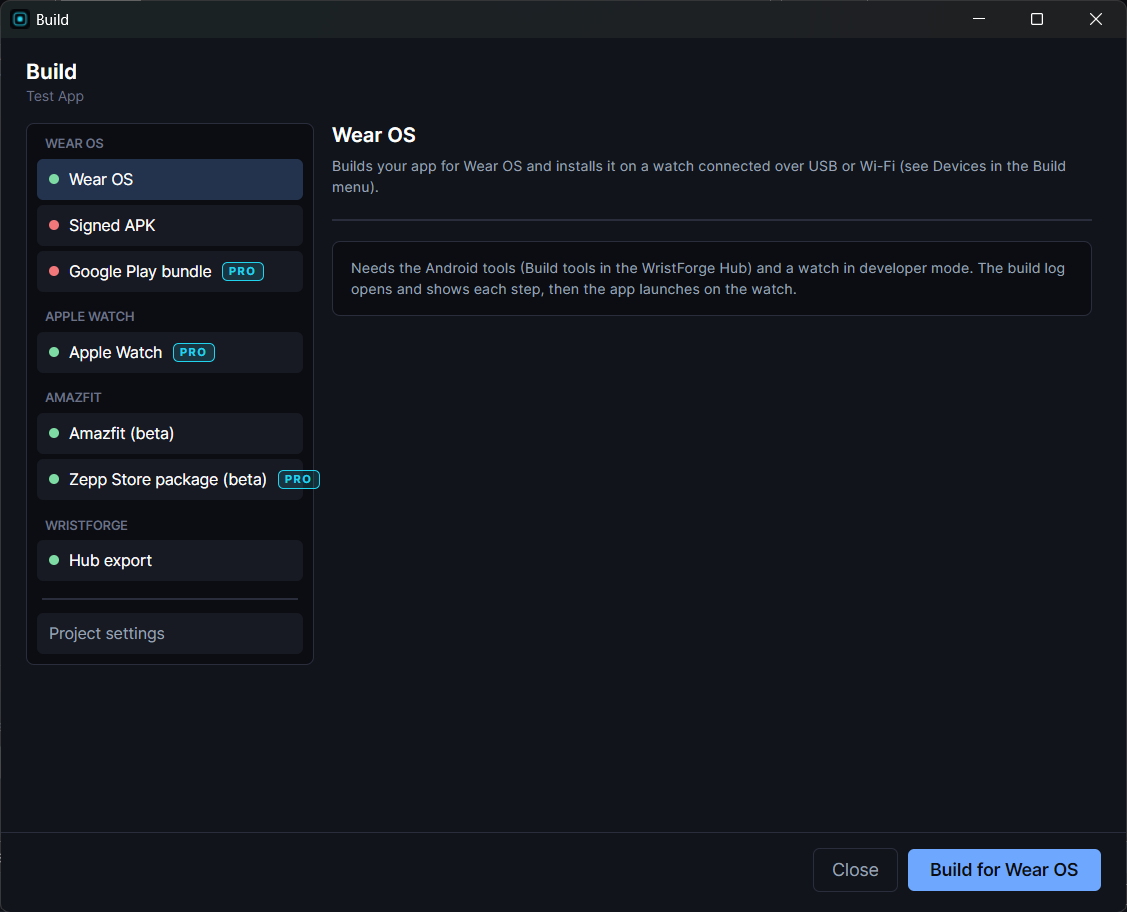
Open Build ▸ Build… and pick a target. The list is grouped by platform.
Wear OS
- Wear OS: builds your app and installs it on a watch you paired from Build ▸ Devices…, over USB or Wi-Fi. The Devices window walks you through turning on wireless debugging.
- Signed APK: a release build signed with your own key, to sideload or hand to a tester.
- Google Play bundle: the .aab you upload to your own Google Play listing.
Apple Watch
- Apple Watch: generates the Apple Watch version of your app as an Xcode project. You open it in Xcode on a Mac to build and run it on your watch, or to submit it to the App Store. Apple requires that last step to happen on a Mac.
Amazfit (beta)
- Amazfit (beta): build, then scan the code it shows with the Zepp app on your phone, and the app appears in the watch's app list.
- Zepp Store package (beta): the .zab file you upload in Zepp's developer console.
The Wear OS builds need the Android build tools. You install them once from Build tools in the WristForge Hub.
How to make your first smartwatch app (step by step)
- Download WristForge. Get the free WristForge Hub from the download page and install the editor from it. You don't need an account to start building.
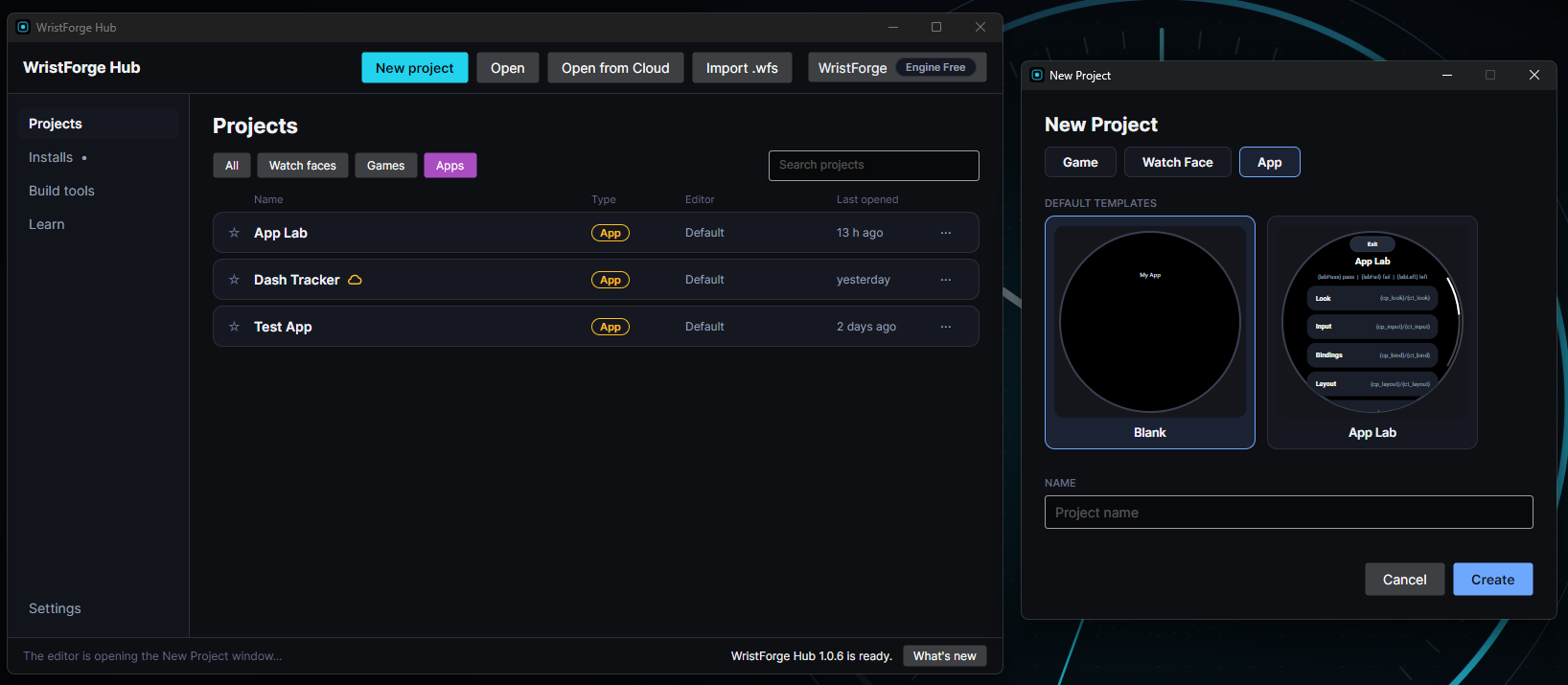
- Create an App project. In the Hub, click New project, pick App, choose Blank, type a name and click Create. The blank app opens on a Home screen with a title and three menu rows. (The App Lab template is a tour of every app feature, one per screen, if you'd like to poke around first.)
- Make a variable. Open Window ▸ Variables…, click + Variable and name it, for example,
count. Leave saved ticked so it survives closing the app. - Show it and change it. Add a Title Text, give it Bind Text and set its format to
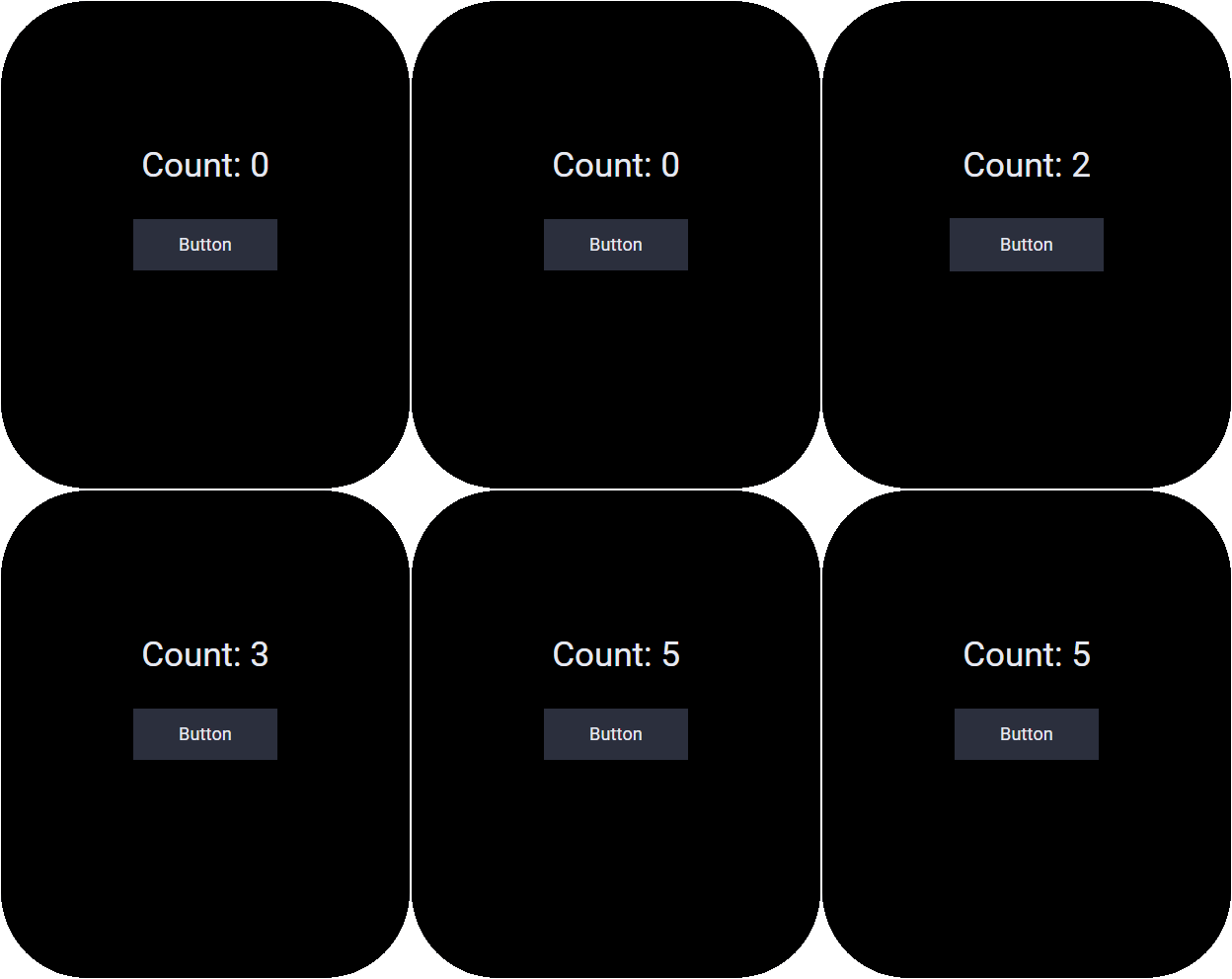
{count}. Add an App Button and give its Tappable an Add to variable action. - Try it in Preview. Press F5, tap the button with your mouse and watch the number climb. Nothing you do in Preview changes your project.
- Fit both watches. In the Display tab, switch to Apple Watch and nudge anything that needs it.
- Put it on your watch. Pair your Wear OS watch from Build ▸ Devices…, then Build ▸ Build…, pick Wear OS and build. It installs and opens on the watch.
From there, add more screens with Screens and Navigation. Give every screen past the first its own Back button, because swiping right on Wear OS closes the app.
How do you publish a watch app on Google Play or the App Store?
Google Play. Build a Google Play bundle, then upload it to your own listing in the Google Play Console. You need a Google Play developer account, and Google has its own review and testing rules. Publishing on Google Play walks through them in order, and How to Publish a Watch Face on Google Play covers the same console from the watch face side.
App Store. Build for Apple Watch, open the Xcode project on a Mac, and upload it from Xcode with your Apple Developer account, the same as any Apple Watch app.
Zepp Store (beta). Build a Zepp Store package and upload it in Zepp's developer console. See Publishing on the Zepp Store.
Whatever you publish sits on your own developer account, under your own name.
How much does it cost to make a watch app with WristForge?
Building is free. Publishing apps comes with Pro.
Free gets you the complete editor with every component and window, unlimited projects, Preview, and a signed APK you can sideload onto your own Wear OS watch, forever. You can also put an app on your own Amazfit watch for free.
Pro ($7 a month, or $59.99 a year) adds, for apps:
- Google Play bundles of your watch apps.
- Apple Watch builds, ready to open in Xcode.
- Zepp Store packages of your apps (beta).
- Cloud projects, so you can save from the editor and open on any computer, and cloud saves for the apps you ship.
Pro also includes everything in the Faces plan. Local sales tax or VAT is added at checkout where it applies. The pricing page has the full comparison.
The Apple Watch target is a Pro feature, even for testing on your own watch. You will also need a Mac with Xcode and an Apple Developer account, because Apple requires them for any Apple Watch app. Wear OS builds for your own watch need nothing but the editor.
What's next for WristForge?
- Games. The game side of the editor is in development. When it ships, watch games will build for Wear OS and Apple Watch from one project, with their own plan.
- A Mac editor. WristForge runs on Windows and Linux today, with Mac planned.
- AI credits. A monthly allowance of AI credits is planned for Pro.
If you are new here, What is WristForge? is the full tour of the editor, faces included.
Frequently asked questions
Do I need to know how to code to make a smartwatch app?
No. You arrange objects on a canvas, set things in the Inspector and pick actions from a list. Connecting an app to your own server means pasting in a web address and clicking the values you want. There is no scripting and no expressions to type.
Can I make an Apple Watch app without Swift?
Yes. WristForge writes the SwiftUI app and the Xcode project for you. You can design it and generate the Xcode project on Windows or Linux. Building and publishing then happen in Xcode on a Mac with an Apple Developer account, and the Apple Watch target needs WristForge Pro.
Is WristForge a Wear OS app builder?
Yes. An App project builds a native Wear OS app in Kotlin and Jetpack Compose. You can install it on your own watch for free, share a signed APK, or build a Google Play bundle with Pro.
Can I build a watch app for my business?
Yes. That is one of the main reasons the App side exists: a tracker, a shift timer, or a screen that shows data from your own system. Data sources talk to your server directly, values you mark as secret are stored encrypted on the watch, and the app ships under your own developer account and name.
Does it work on Amazfit watches?
Amazfit (Zepp OS) apps are in beta. You can put an app on your own Amazfit for free by scanning a code with the Zepp app, and package it for the Zepp Store with Pro.
Can I still make watch faces?
Yes. Watch faces for Wear OS and Amazfit work the same as before. Start with How to Make a Wear OS Watch Face Without Coding, or browse every Face Hub watch face on the web for ideas.
Make your first watch app today
WristForge 0.1.12 is free to download. Grab the Hub from the download page, create an App project, and follow Your First App to get a working counter on your wrist. The rest of the app guides are in Learn.