Screens and Navigation
Add screens, move between them with transitions, and give every screen a way back.
About 8 minutes
Most watch apps are a handful of small screens: a home screen, a detail screen or two, and settings. Each screen should do one thing, because the wearer is looking for a second or two at a time.
Add a screen
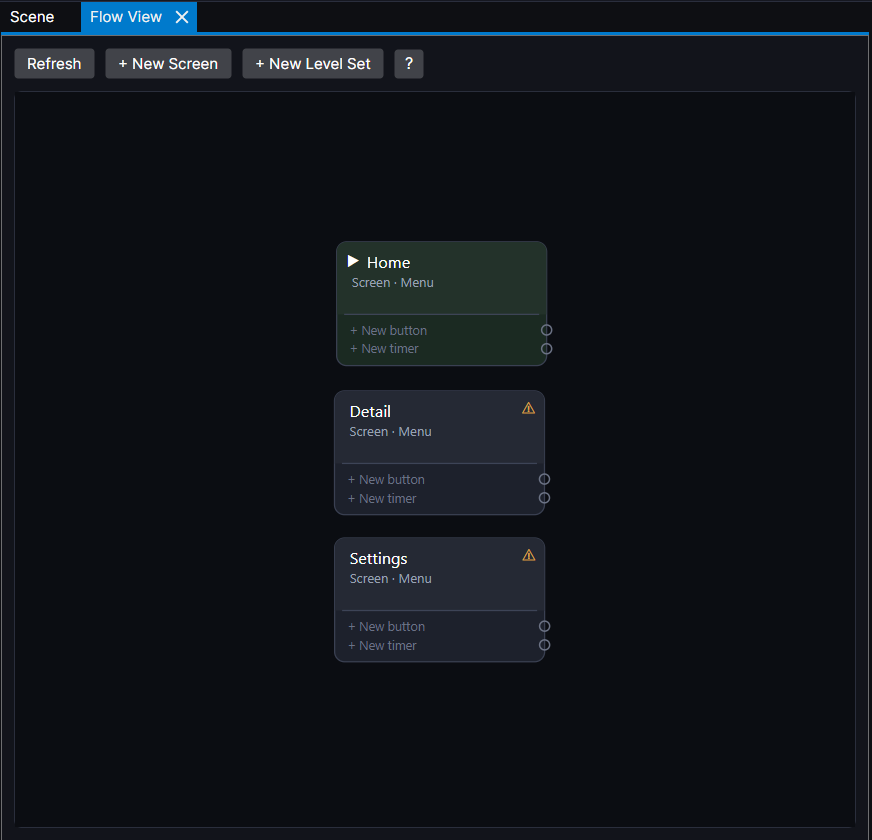
Open Flow View and click + New Screen, or right-click in the Project panel. Give it a name like settings. Every screen has its own Hierarchy and its own screen variables.
The app opens on the start screen, marked ▶ Start screen in Flow View. To change it, right-click another screen in Flow View and choose Set as start screen.
Go to another screen
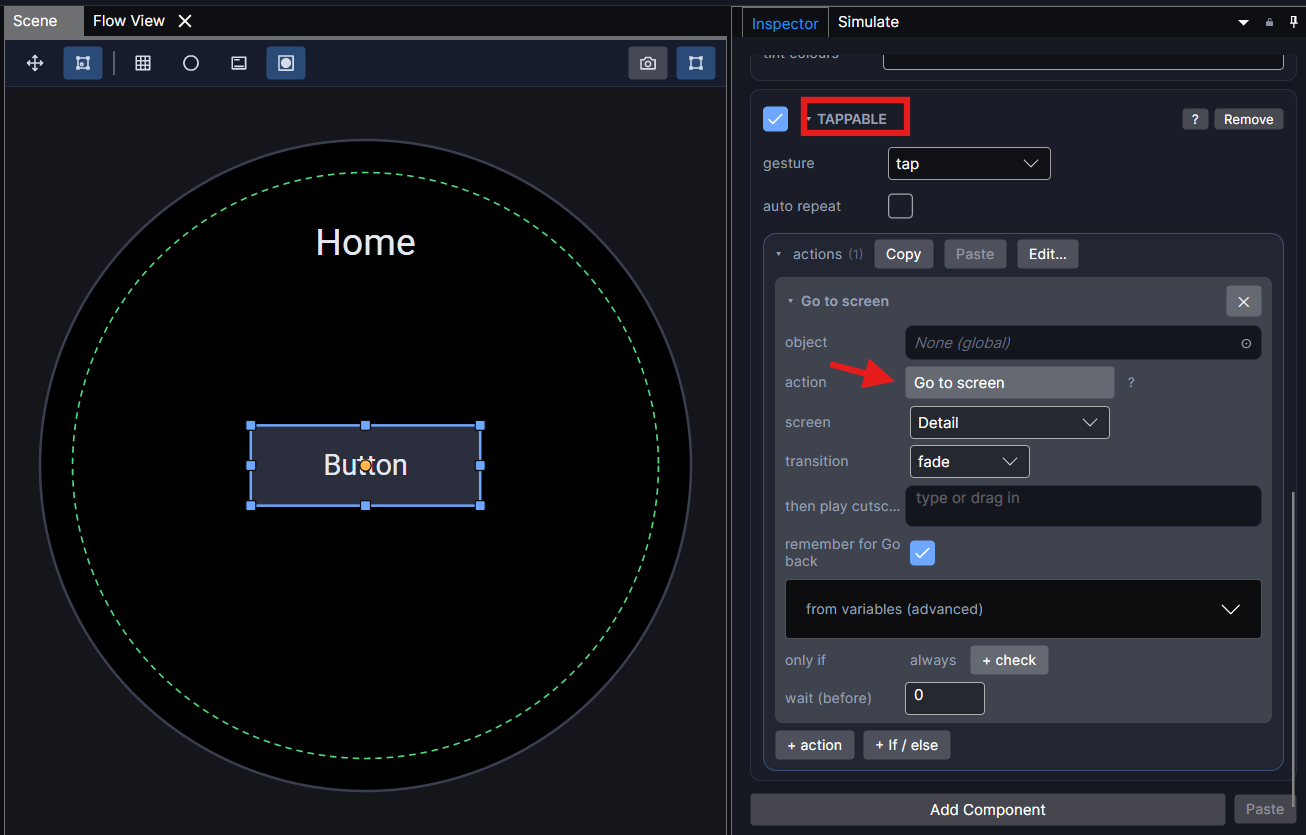
On a button's Tappable, add the action Go to screen and pick the screen. Choose a transition:
- Fade: a soft cross-fade. Good for most moves.
- Slide: the new screen comes in from a side. Good for drilling into detail.
- Scale: the new screen grows in. Good for a pop-up feel.
Going back
WristForge keeps a history of the screens you went to.
- Go back returns to the previous screen. Put it on a Back button or an arrow.
- Clear history forgets the history, so Back can't return to screens you've finished with. Use it after a sign-in or a finished setup, then Go to screen home.
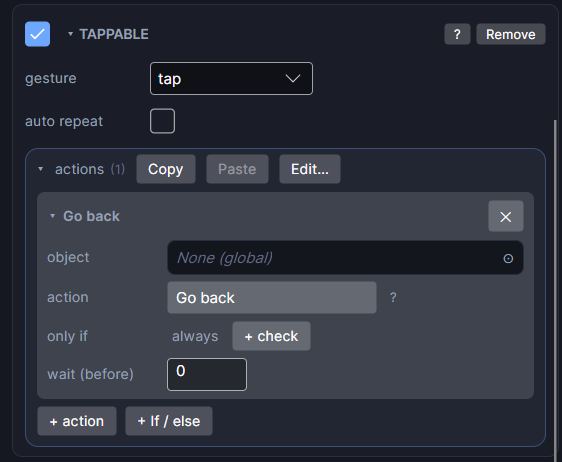
Swiping right doesn't go back a screen. On Wear OS it's the watch's own gesture for leaving the app, so it closes your app from any screen. Give every screen past the first its own Back button.
For a screen that must always return to the same place (a confirmation, a settings page), use Go to screen with the home screen instead of Go back. It works no matter how the wearer got there.
Run actions when a screen opens
Add an On Event component to any object on the screen and set its event to open. Its actions run every time the screen appears. This is the place to refresh things: read the time, fetch data, update a complication.
Send your own events
Send event broadcasts a name, like refresh. Every On Event listening for that name runs its actions. Use it to run the same group of actions from several buttons without repeating them.
Keep each screen small
- One main action per screen, large enough to hit with a fingertip (about 48 pixels or more).
- Keep text inside the round edge. The Scene shows the safe area; anything outside it can be cut off on a round watch.
- Long content goes in a Scroll View (Add Object), which scrolls with a swipe or the crown.
Showing Data covers how to display variables, dates and lists on your screens.