Notifications and Ongoing Activities
Remind the wearer later with local notifications, and show a running timer on the watch face while your app works in the background.
About 7 minutes
Local notifications
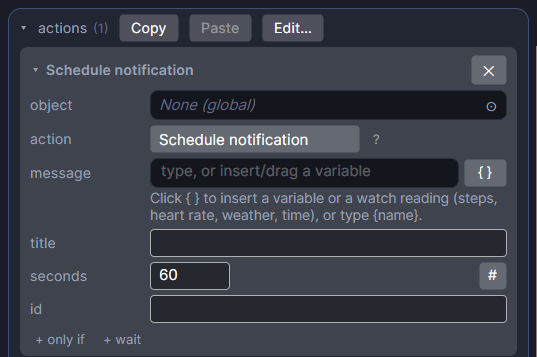
Schedule notification (in the Notifications group) shows a notification some seconds from now, even if the app is closed.
- id: a name for this reminder. Scheduling again with the same id replaces the pending one instead of adding a second. That is how you build "remind me 2 hours after my last entry": reschedule with the same id every time.
- title and message: what the wearer sees. Variables are filled in when you schedule, not when it fires.
- seconds: how long from now. It can come from a variable, so a setting like "remind me every X minutes" works.
Cancel notification drops a pending one by id. Tapping a notification opens your app.
The first time, Wear OS asks the wearer to allow notifications. If they say no, nothing shows, so don't make your app depend on them.
In Preview, pending notifications show in the Preview header so you can check the timing.
Ongoing activities (Wear OS)
An ongoing activity tells the watch your app is busy in the background: a running timer, a workout, a shift. The watch shows your app's icon on the watch face and puts your app at the top of Recents, so the wearer can jump back in with one tap.
- Start ongoing activity: give it an id and a message like "Shift running". Turn on elapsed timer to show a ticking time counting up from now. Starting again with the same id updates it.
- End ongoing activity: removes it. Always end it when the work is done.
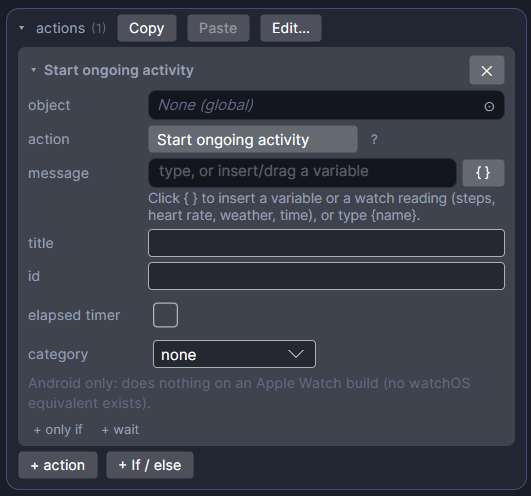
Not every watch face shows the icon; the Recents entry always appears. Apple Watch has no equivalent, so these actions do nothing there.
To reach the wearer when something happens on your server (a new order, a message), use Push Notifications instead.