Complications and Tiles
Put your app's numbers on the watch face and in the Tiles carousel (Apple Watch Smart Stack), and keep them up to date.
About 10 minutes
The fastest way to use a watch app is not to open it. A complication puts one value on the wearer's watch face. A Tile is a full glanceable card the wearer swipes to from the watch face; on Apple Watch the same design becomes a Smart Stack widget.
Both read your app's variables. They show whatever the app last saved, even when the app is closed.
Complications
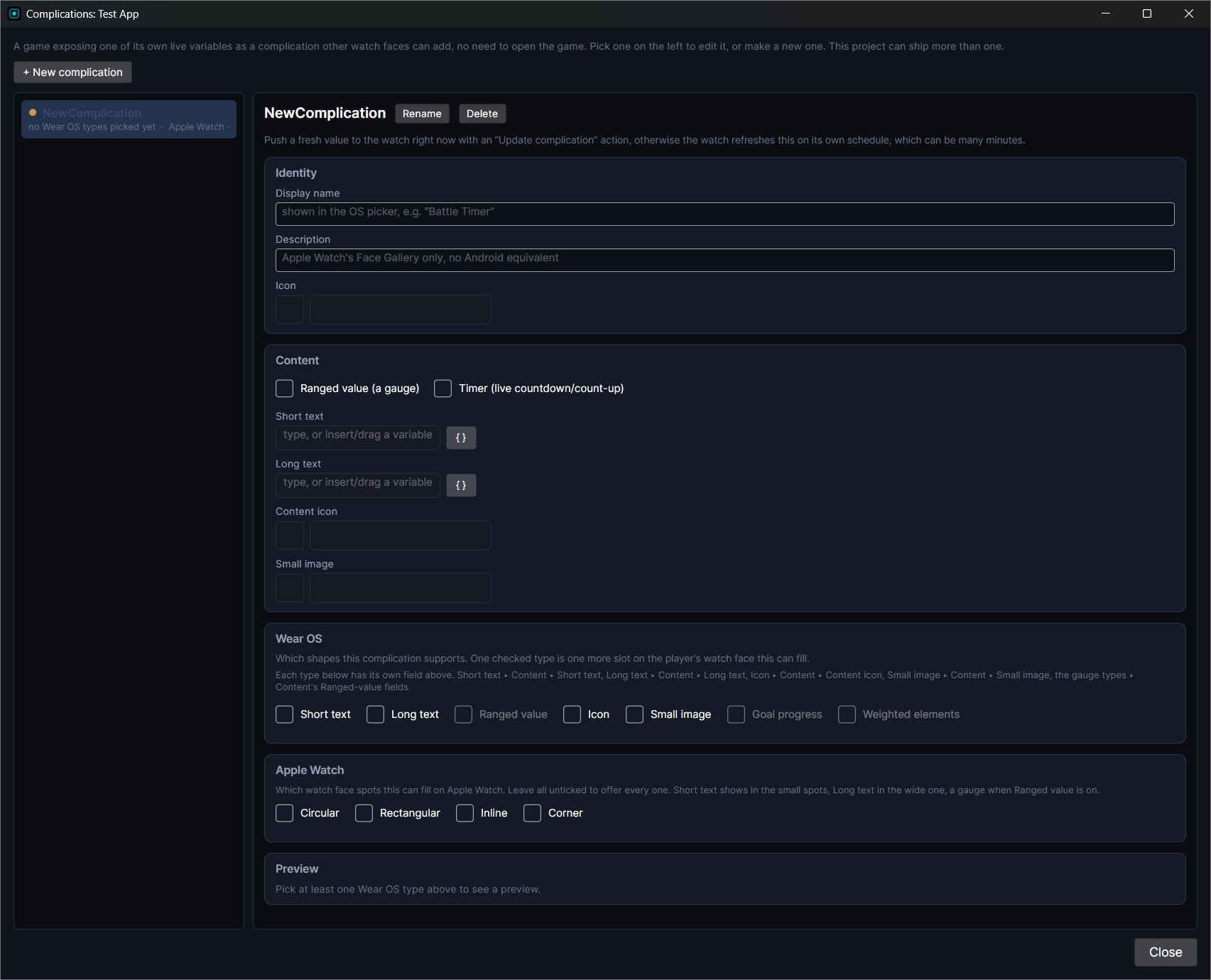
Open Window, then Complications… and click New.
- Display name: what the wearer sees when picking a complication.
- Short text: a few characters for small slots, like
{todayEarn}or{steps}. - Long text: a line for wide slots, like
Today {todayEarn}. - Ranged value: a value with a min and max, drawn as a ring or gauge. Min and max can be numbers or variables.
- Timer: counts up or down from a time stored in a variable.
- Icon and small image: for slots that show pictures.
- Wear OS and Apple Watch: which kinds of slot it offers on each. On Apple Watch, leave every family unticked to offer all four (Circular, Rectangular, Inline, Corner).
Tapping a complication opens your app.
Tiles
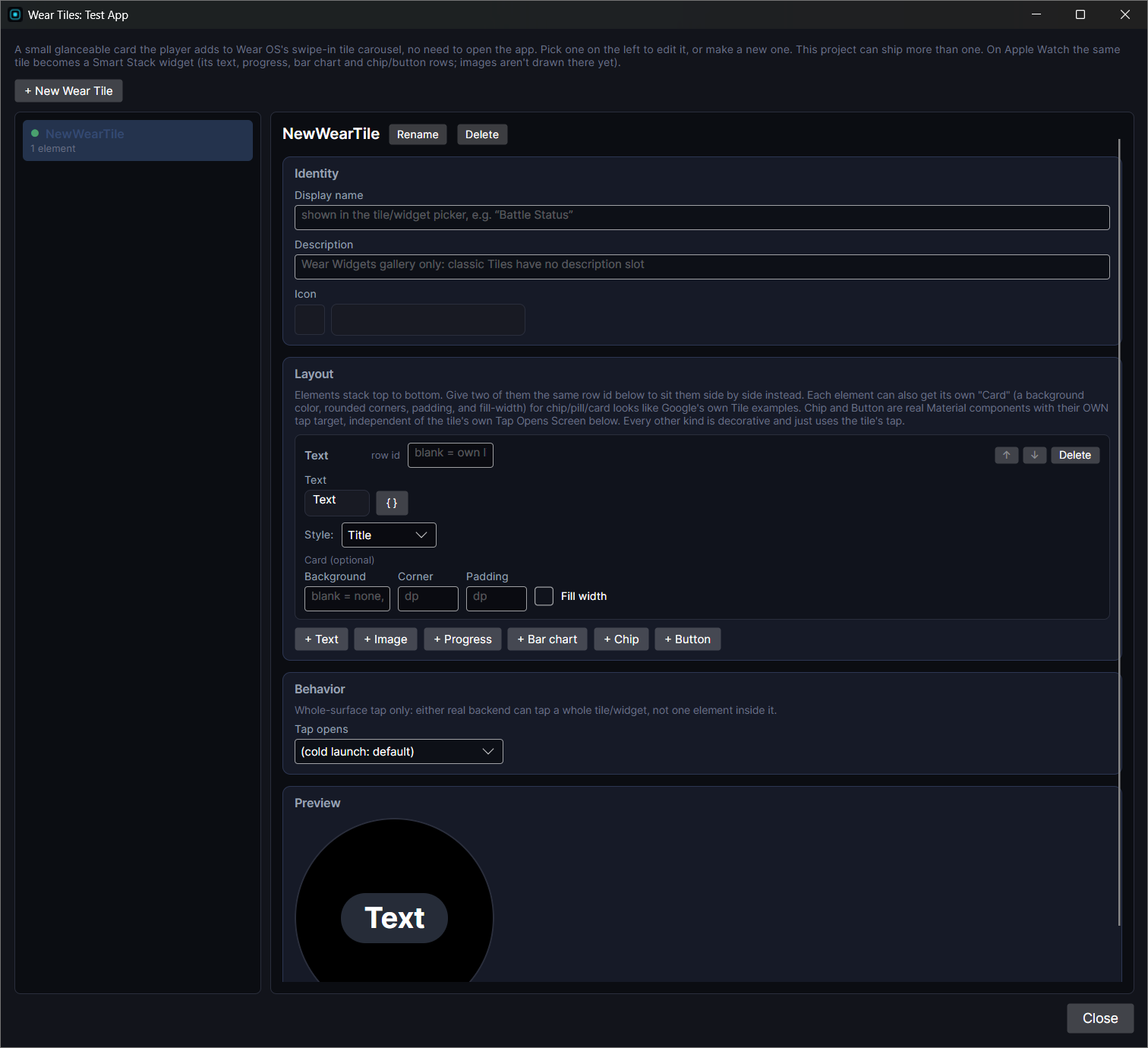
Open Window, then Wear Tiles… and click New. A tile is a short stack of rows:
- Text: Title style is large and bold and sits in a soft bubble; Body is smaller grey text. A Body line at the top becomes a coloured header.
- Image, Progress (a ring), Bar chart (a small week graph).
- Chip and Button: tappable, each can open a different screen.
- Rows can sit side by side by giving them the same group.
Tapping anywhere else on the tile opens the screen picked in Tap opens. The preview on the right shows the tile on a round watch with your current Preview values.
Keeping them up to date
The watch redraws complications and tiles on its own schedule, which can be many minutes. To push a new value right away, add Update complication after you change a variable:
- With a complication picked, it refreshes that one.
- With nothing picked, it refreshes every complication and tile in the app.
A successful Fetch data refreshes them all for you.
Complications and tiles read saved values, because your app may not be running when the watch asks. Tick saved on every variable they show.
Testing
- Build to your watch.
- Long-press the watch face, edit it, and pick your app's complication for a slot. For a tile, swipe to the end of the tiles and add yours.
- Change the value in the app and check that the face and tile follow within a few seconds.
On Apple Watch, long-press the face, tap Edit, and pick your app in a complication spot. For the tile, scroll the Smart Stack, tap Edit and add your app's widget. Images on tiles don't show on Apple Watch yet.