GuideOctober 28, 2026 · 11 min read
Face Hub: browse, install and publish Wear OS watch faces
Face Hub is a no-ads home for Wear OS watch faces. Browse the whole catalog on the web, install from your watch or phone, or publish your own for free.
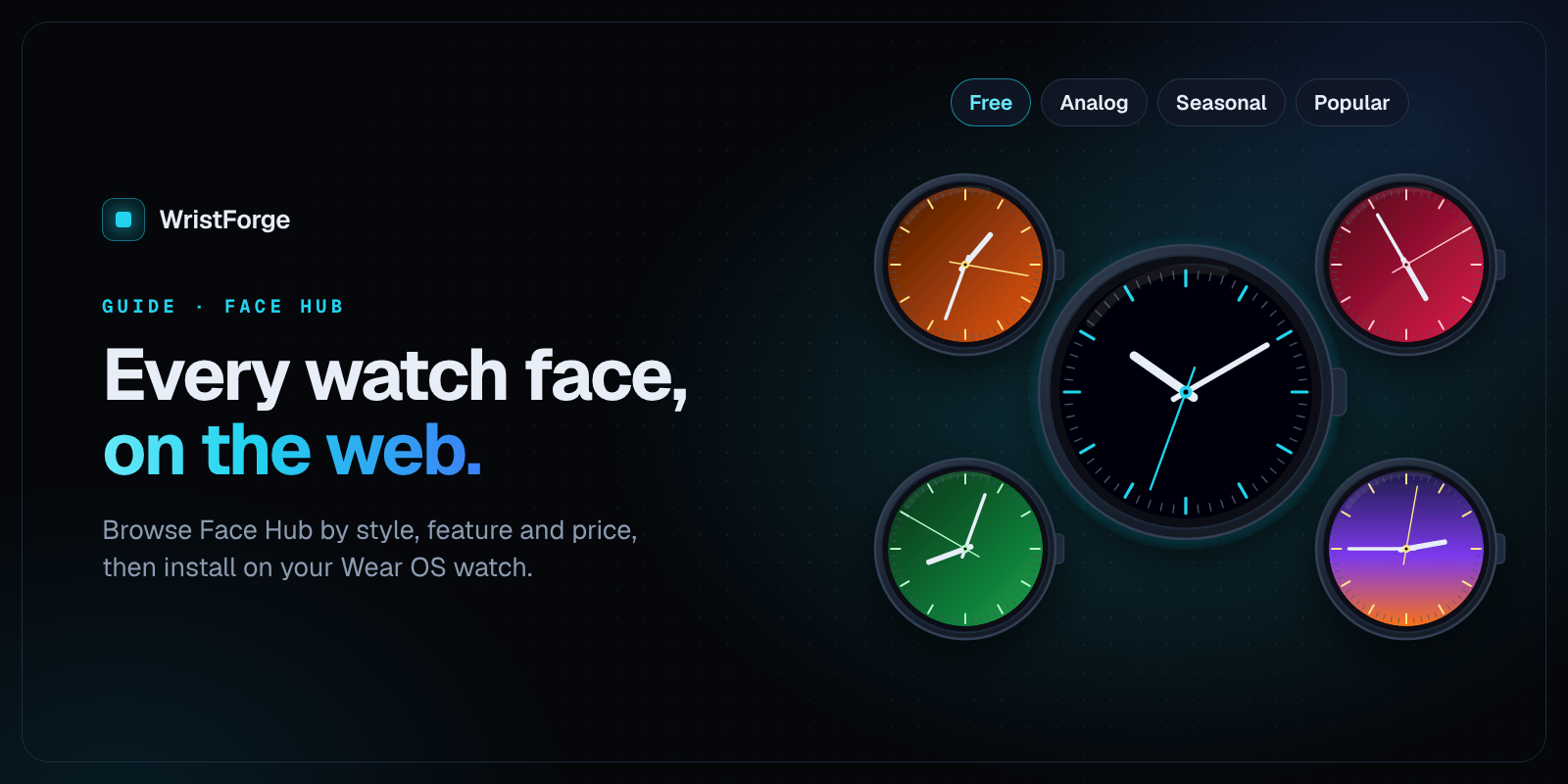
Face Hub is the WristForge app for finding and installing Wear OS watch faces, and now the whole catalog is on the web too. You can browse every Face Hub watch face at wristforge.app/watch-faces by style, by feature, by what is popular and by what is free, then install it from your watch or your phone in a few taps.
This guide covers what Face Hub is, how to browse it on the web, how to install a face, how free and paid faces work, which watches it supports, and how creators publish their own faces.
What is Face Hub?
Face Hub is a watch face app for Wear OS with two connected pieces: an app that runs right on your watch, and a companion app for your phone. Either one works on its own.
- The watch app installs straight from Google Play onto your watch. Browse, buy and wear a face without touching a phone. Most watch face apps make you start on a phone; Face Hub does not.
- The phone app is there for when a bigger screen and a keyboard help: real search, reading a description before you buy, and browsing your library at a glance. Tap install on the phone and the face lands on your paired watch.
Whichever you use, it is the same WristForge account, the same coin balance and the same library of faces you own.
A few things Face Hub does on purpose:
- No ads, anywhere. No banners between faces and no "watch this to unlock" screens.
- Pricing you can hold in your head. Plenty of faces are free, and the rest you buy once with coins and keep.
- Feature badges you can trust. Every badge on a face (heart rate, weather, steps and so on) is read from what the face actually does when it is built, not typed in by the designer.
Every face in Face Hub was made in WristForge, a free visual editor for watch faces and watch apps. New faces are added regularly, from the WristForge team and from community creators.
Browse Face Hub watch faces on the web
Until the catalog came to the site, the only way to look through Face Hub was on a watch or in the phone app. That made it hard to show someone a face, or to browse on a bigger screen. Now every face has its own page, and the catalog has a few ways in.
Search and sort the whole catalog
/watch-faces shows every face. Use the search box to look by face name, style, creator or feature, and sort by Popular, Newest or Most liked. As of late October 2026 the catalog holds 59 faces, and 43 of them are free.
Browse by style
Each style has its own page:
Looking for something for the time of year? The Seasonal page is the place to start, and our cozy and spooky seasonal faces roundup picks a few favourites.
Browse by feature
Want weather on your face? Your heart rate? Your own photo? Each feature has its own page, and a face only shows up there if WristForge found that feature in it when it was built:
- Weather, Heart rate, Steps, Battery and Moon phase
- Complications, for faces with slots you fill with data from your other apps
- Custom colors, for faces whose palette you can change on the watch
- Your photo, for faces that use a photo you pick
- Custom always-on, for faces with a designed always-on look
Top, new and free
- Top ranks faces by installs, recent installs and likes from Face Hub, so the list moves as tastes do.
- New lists the newest faces first.
- Free lists every face you can install and keep without spending a coin.
What is on a face's page
Every face page shows:
- The previews, including the always-on look when the face has one, so you can see what it looks like dimmed before you spend anything.
- The price (Free, or a number of coins), the creator, and a Staff pick badge where there is one.
- Install and like counts.
- What's on this face, the feature list detected from the build.
- Links to similar faces by style and feature, and more faces from the same creator.
- How to install it.
You can like, share and comment on any face once you are signed in. Likes and comments are the same ones you see in the app, so a comment on the site shows up in Face Hub too. If something looks wrong, such as art that is not the creator's to use, the Report button sends it to us.
How to install a watch face from Face Hub
You do not need an account to look around. You will be asked to sign in the first time you buy a face, install a paid face, or like one.
From your watch
- Install Face Hub from Google Play on your watch.
- Scroll through the faces, one large round preview at a time, and tap the one you want.
- Tap Get. A free face installs straight away. A paid face spends your coins first.
- When you see On your watch, it is done. Long-press your watch face to switch to it or customize it, if it is not already showing.
Signing in on the watch uses a short device code: the watch shows a code and a QR code, you approve it on your phone or computer, and the watch signs itself in. Nothing to type on your wrist.
From your phone
- Open Face Hub on your phone and find the face. The phone app has a Search tab with Style chips (Analog, Digital, Hybrid), Shows chips for features like heart rate or weather, and Price chips for Free, Coins or faces you already own.
- Tap Get. The phone sends the face to your paired watch over Bluetooth.
- In most cases it appears on your watch with nothing to do there. If Face Hub has not been allowed to activate faces automatically, you will see a one-time nudge: press and hold your current watch face, then pick the new one. That happens once per watch, not once per face.
Sometimes the watch finishes installing but the confirmation does not reach the phone in time. Check your watch face picker before trying again: the face is very likely already there. More fixes are in Installing isn't working.
Where did my face go?
Wear OS watches only keep a small number of pushed faces installed at once. When you add a new one at that limit, the oldest one is removed to make room. The face is not gone: it stays in Recently worn and Owned in Face Hub, and reinstalling a face you own is one tap and free. See Why did a watch face disappear?
Free and paid faces
Many faces on Face Hub are free to install and keep, with no trial timers and no watermark. Paid faces are priced in coins.
- You buy coins in packs through Google Play in the Face Hub app.
- Buying a face is a one-time thing. Once it is yours, it stays yours, even if your balance later hits zero, and reinstalling it never costs again.
- Spending coins needs an internet connection at the moment you tap Get.
- Your coin balance belongs to your WristForge account, so it is the same on your watch, your phone and the site.
WristForge subscribers get more. Every paid WristForge plan unlocks every face WristForge itself makes. Faces by other creators are theirs to price, so those are bought separately. See pricing.
A Face Hub Premium subscription is planned for once the catalog is bigger. Until then, every face is either free or bought once. Details are on the Face Hub Premium help page.
Which watches work with Face Hub?
Face Hub installs faces with Google's Watch Face Push, which needs a watch on Wear OS 6 or newer. You can check your version on the watch in Settings, under System, then About.
What that means for the two most common watches:
- Samsung Galaxy Watch. Samsung's One UI 8 Watch update is based on Wear OS 6. Galaxy Watch models that have that update can run Face Hub.
- Google Pixel Watch. Pixel Watches that have been updated to Wear OS 6 can run Face Hub.
If your watch is on Wear OS 4 or 5, Face Hub cannot install faces on it yet, but a WristForge face that its creator has published on Google Play can still run there, since those faces support Wear OS 4 and newer.
Face Hub is a Wear OS app. Apple does not allow third-party watch faces on Apple Watch, so there is no Apple Watch version.
Publish your own watch faces on Face Hub
Every face in the catalog was built in WristForge, and you can put your own there too. Publishing to Face Hub is free, and you do not need a Google Play developer account, the one-time Google fee, or a 12-tester closed test before anyone can install it.
How publishing works
- Build the face in WristForge. The editor is free. If you have never made one, start with Your First Watch Face or our guide to making a Wear OS watch face without coding. Already have faces in Watch Face Studio? Bring them across.
- Test it on your wrist. Send it to your own watch through Face Hub and live with it for a day.
- Make a Face Hub build. In the editor, choose Build, then Build…, then Face Hub build. It writes one .zip with everything the site needs inside it.
- Submit it. On the WristForge site, go to Creator, then Watch faces, then New. The first time, you accept the Creator Terms. Add a name, description, category, preview image and price (free or a price in coins), and upload the .zip.
- Review. We check every new face before it goes live.
- Live on Face Hub. Wearers find it, install it and like it. Send updates from the editor whenever you improve it, and change the price later from your creator area.
The full step list, with screenshots, is in Getting Your Face Onto a Real Watch.
What the review checks
The review is mostly about other people's work. A face is rejected for art you do not have the rights to, other companies' logos and brands, or a copy of someone else's face. Original work goes through. Feature badges are not part of what you fill in: WristForge reads them from the face itself when it is built.
Who owns a published face?
You do. Publishing gives Face Hub permission to list and install your face; the design and the art stay yours. Face Hub is not exclusive, so you can also publish the same face on Google Play under your own developer account. A Google Play bundle needs a paid WristForge plan, and Google pays you directly for Play sales with no cut to us. See Publishing on Google Play and our guide to publishing a watch face on Google Play.
Can I earn money from Face Hub?
Coins you earn stay in Face Hub to spend on faces, and they have no cash value. We may open a small, invite-only partner program later for designers whose work does really well. There is no application and no date yet.
Face Hub FAQ
Is Face Hub free?
Yes. The app is free, has no ads, and many faces are free to install and keep. Paid faces are bought once with coins.
Do I need a phone to use Face Hub?
No. The watch app installs from Google Play on the watch and works on its own, including signing in with a device code. The phone app is optional.
Do I need an account?
Not to browse. You sign in when you buy a face, install a paid face, like a face or comment.
Why does Face Hub need Wear OS 6?
Face Hub installs faces with Google's Watch Face Push, which arrived in Wear OS 6.
Can I see the always-on look before I buy?
Yes. Face pages on the web show the always-on preview when a face has one, and the apps have an Active and Always-on toggle on the preview.
I bought a face and it disappeared from my watch. Is it lost?
No. Your watch only keeps a few pushed faces at once and removes the oldest. Reinstall it from Recently worn or Owned in Face Hub, free.
Find your next face
Browse the full catalog at /watch-faces, start with the Top or Free lists, and get Face Hub on Google Play to put one on your wrist. Want to see your own design there? Download WristForge for free and publish it.