Watch Features: Steps, Heart Rate, Weather and More
Read the wearer's steps, heart rate, motion and local weather, track distance, listen for a spoken answer, and keep the screen awake.
About 8 minutes
These actions read what only a watch knows. Each one asks the wearer for permission the first time it's needed, and only the permissions your app actually uses are added to the build.
Watch faces show these readings with their own components (Heart Rate, Step Count, Weather). Apps and games read them into variables with the actions below, so you can use them in conditions, maths and your own layouts.
Show a reading
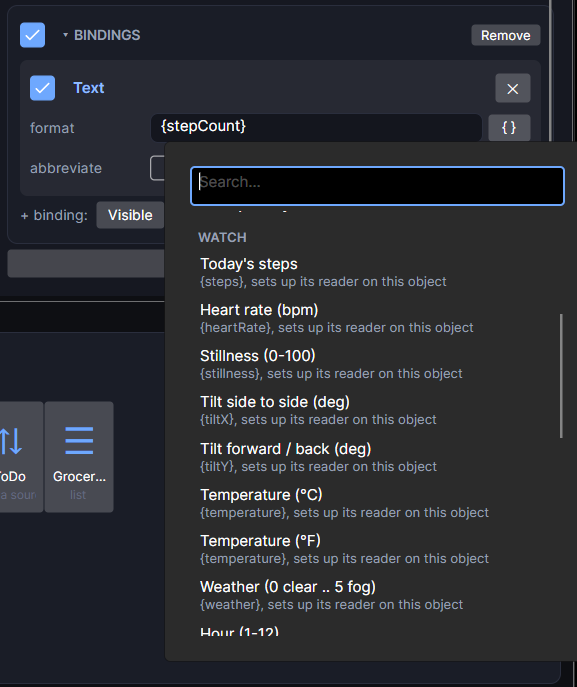
Select a text object, add Bind Text, click the { } button and pick a reading from the Watch section (steps, heart rate, weather, the time). That's all: it sets up the reading for you and the text keeps itself up to date.
The Simulate panel
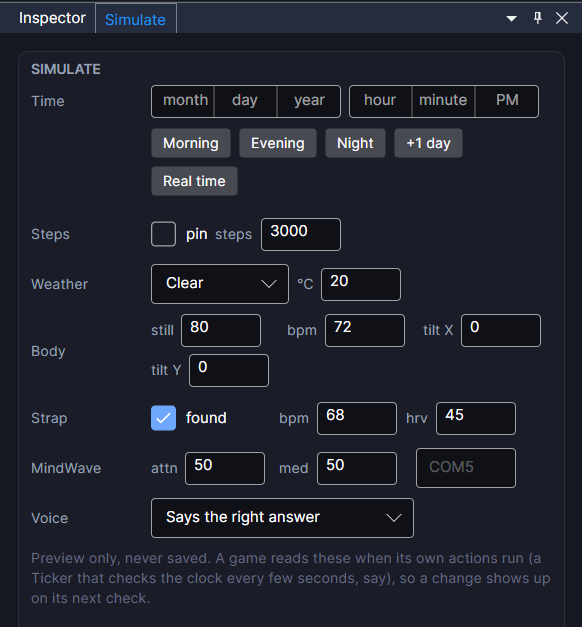
Preview has no sensors, so the Simulate tab (next to the Inspector; reopen it from Panels ▸ Simulate) decides what the actions read:
| Action | Simulate row |
|---|---|
| Get today's steps | Steps. Type a number (it pins itself), or untick pin for a made-up count that grows through the day |
| Read sensor | Body: still, bpm, tilt X and tilt Y |
| Get weather (real) | Weather: the condition and °C. (no signal) acts like a watch that couldn't fetch |
| Get local time of day | Time, plus Morning, Evening, Night and +1 day |
| Bluetooth sensor | Strap: found, bpm and beat timing |
| Listen for answer | Voice: what the watch "hears" |
Steps
Pick Today's steps from { } ▸ Watch. (Under the hood that's the Get today's steps action, if you want to read it yourself.)
Wear OS only reports steps to an app from the moment the app starts listening. On the first day the number counts up from when your app first asked; from the next day on it matches the watch's own count. Apple Watch matches from the start.
Heart rate and motion
Read sensor reads one sensor into a variable:
- Stillness: 0 to 100, how still the wrist is held.
- Tilt: side or forward tilt in degrees.
- Heart rate: beats per minute. It reads 0 until the first beat comes in.
The sensor switches on with the first read and off a few seconds after the last, so read it from a Ticker every 0.1 to 0.5 seconds while a screen needs it. Heart rate is Wear OS only for now.
Weather
Get weather fills three variables: the condition (0 clear, 1 cloudy, 2 rain, 3 snow, 4 storm, 5 fog), the temperature in Celsius, and whether it's real.
- Real uses the wearer's local weather from MET Norway's free service. The watch asks for approximate location once. The variables fill in as soon as the first reading arrives, and the last reading is kept between launches.
- Island is made-up weather that changes daily and follows the seasons, the same for everyone.
Show "Weather data: MET Norway" somewhere in your app; it's the condition for using their data. Use {temp:F} to show Fahrenheit.
Distance
Start distance tracking adds the distance travelled into a decimal variable, in miles or kilometres, until Stop distance tracking. It keeps counting with the screen off or the app closed, with a "Tracking distance" notice showing. Preview counts as if driving at 25 mph. Wear OS only for now.
Actions you add yourself
The next three aren't readings, so they aren't in the { } menu. They're actions: put them on a button (its Tappable) or on an On Event set to open so they run when the screen appears. Click + action, then pick the action from the list (the group it's in is shown below).
Listening for an answer
Listen for answer (in Variables) asks the wearer a question out loud and checks what they say. A quiz app says "What's K in the NATO alphabet?", then listens for "kilo".
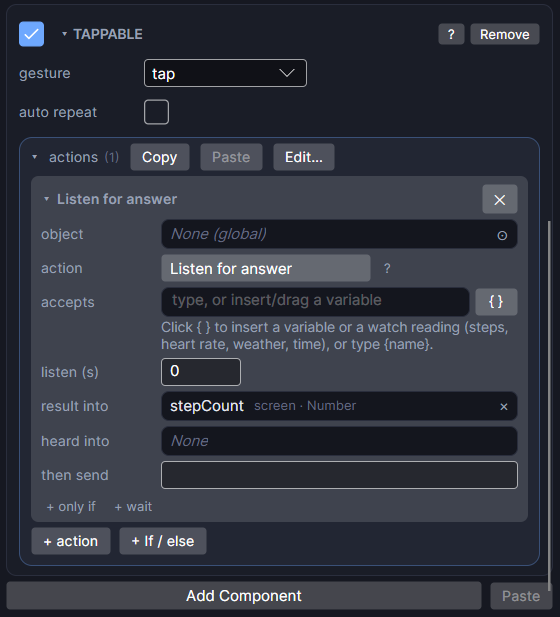
- Add Listen for answer to the button or On Event that asks the question.
- accepts: the right answers, separated by
|, likekilo|letter k. - result into: a Number variable. It reads 1 for a right answer, 0 for something else, -1 if nothing was heard and -2 if the watch can't listen.
- heard into (optional): a Text variable that gets what the watch thought it heard, like
kiloorkill oh. Show it after a wrong answer ("You said: {heard}") so the wearer knows why it didn't count. - then send: an event name, like
answered. Add an On Event for it and use only if on the result to say "Correct" or try again.
To test in Preview, set Voice in the Simulate tab to a right answer, a wrong one or silence. Apple Watch apps can't listen without a tap, so there it always reports -2: give every listening screen another way to answer, like buttons.
Bluetooth sensors (beta)
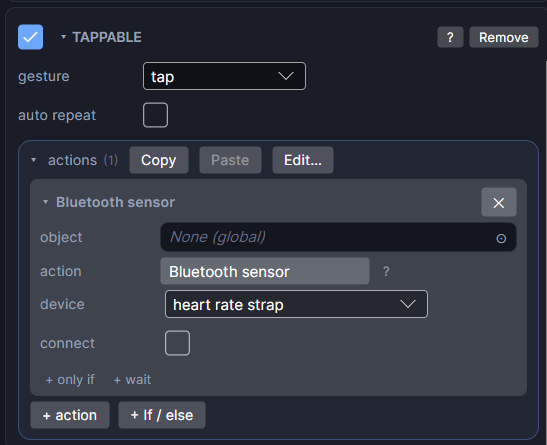
Bluetooth sensor (in Variables) connects a Bluetooth heart rate strap or a NeuroSky MindWave headset, and Read sensor reads it. Bluetooth Devices covers which devices work, every value you can read and how to test without one.
Keep awake
Keep awake (in Screens & flow) keeps the watch running through a long session, like a timer, a workout or a meditation, so timers and haptics keep going.
- Add Keep awake with keep awake ticked where the session starts, like the Start button.
- Add it again with keep awake unticked where the session ends. It costs battery.
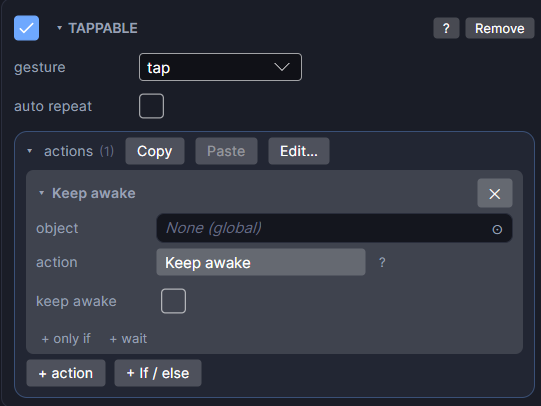
On Wear OS the screen stays on until the wearer leaves the screen. On Apple Watch the app keeps running with the wrist down for up to an hour. Preview ignores it.
Store reviewers check permissions. Location, health and microphone access each need a reason in your store listing, so use these actions only where the app really needs them.