GuideOctober 28, 2026 · 12 min read
How to Publish a Watch Face on Google Play
How to publish a watch face on Google Play: Watch Face Format rules, developer account, testing, store listing assets and review, step by step.
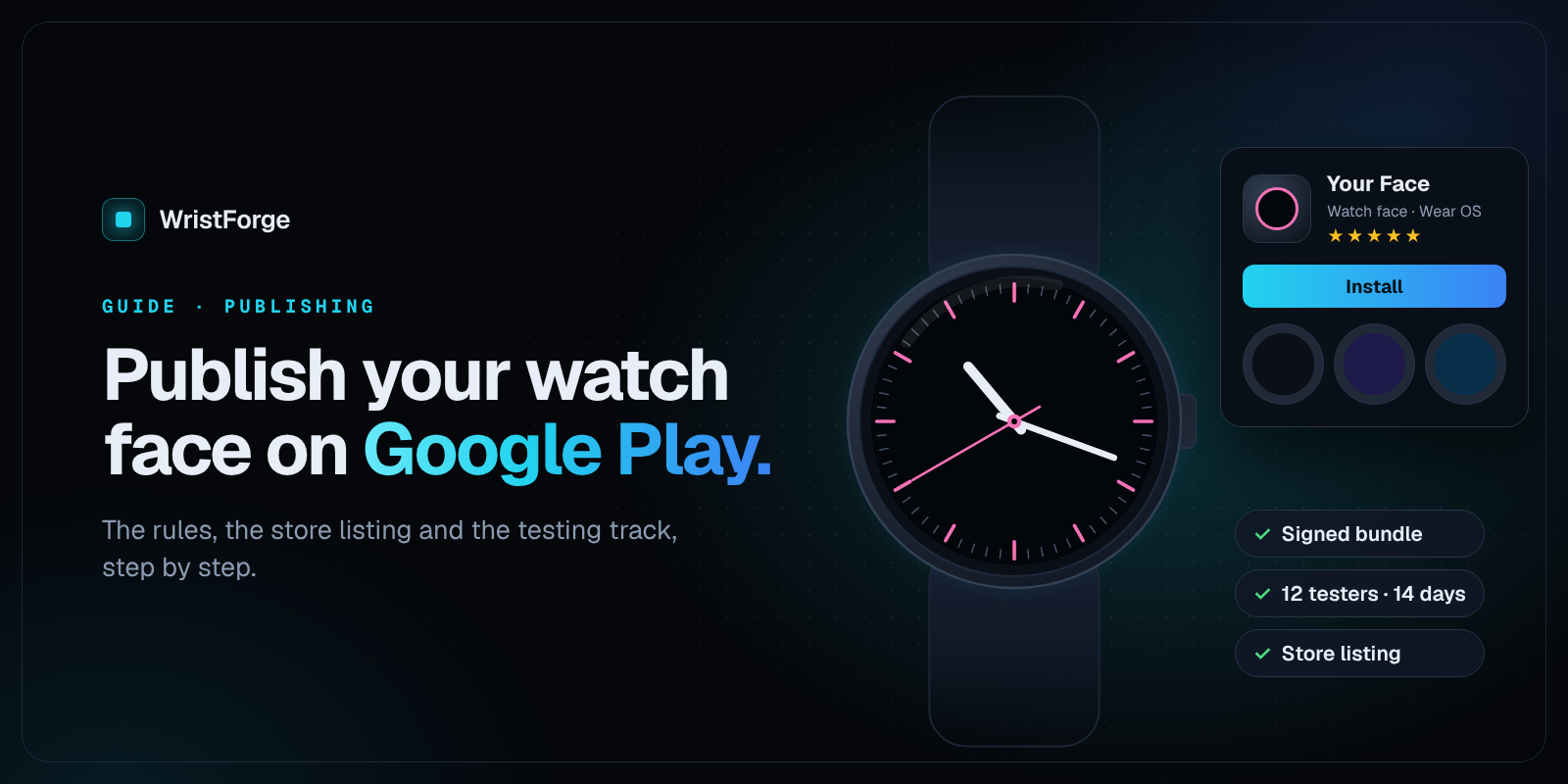
If you want to know how to publish a watch face on Google Play, the short version is: build it in Watch Face Format, sign it, set up a Play Console listing for Wear OS, pass Google's testing and review rules, and roll it out. The long version has more steps than most people expect, and a few of them (the testing period for new accounts, identity checks) take days, so it pays to start early.
This guide covers Google's current requirements, checked against Google's own help pages in October 2026, and then shows how WristForge produces the file you upload. If you haven't made your face yet, start with how to make a Wear OS watch face without coding.
What Google Play requires for watch faces in 2026
Your face must use Watch Face Format
Watch Face Format (WFF) is Google's format for Wear OS watch faces: a description of the face that the watch draws itself, with no app code inside. Google moved Play to WFF in stages:
- January 27, 2025: no new code-based ("legacy") watch faces can be published on Play.
- January 14, 2026: legacy faces can no longer be updated on Play, and can't be installed from Play on any Wear OS device.
Google's announcement on the Android Developers Blog has the full detail. In practice: any face you publish today has to be WFF.
The package can only hold the watch face
A WFF bundle is resource-only. Its manifest declares android:hasCode="false", and Google's setup guide says the bundle containing the face must be completely separate from any bundle with Wear OS app logic. Google Play won't accept one upload that mixes the two. If you also make a watch app, it gets its own package and listing.
Target API level
Google Play sets a minimum target API level for Wear OS. Since August 31, 2026, new Wear OS apps and updates must target Android 15 (API level 35) or higher, according to Play Console Help. A watch face is published as an app, so this applies to it too.
Wear OS quality guidelines
Every Wear OS submission is reviewed against Google's Wear OS app quality guidelines. The watch face rules include:
- The face shows the time of day clearly.
- It has an always-on (ambient) mode that lights no more than 15 percent of the screen's pixels.
- It has no more than 8 complication slots.
- Assets stay within a memory budget of 10 MB in ambient mode and 100 MB in interactive mode.
- Content fits the screen, isn't cut off by the edges and doesn't overlap.
- The wearer can install, set and customize it (including adding complications) without a crash.
- You tag the face with categories that describe it accurately.
Step 1: Create your Google Play developer account
You publish through Google Play Console. Signing up costs a one-time registration fee of US$25, and you must be at least 18. You choose between two account types:
- Personal: for individuals. Google may ask for a government ID and a credit card in your legal name. Your contact email and phone are verified with a one-time code, and you verify access to an Android device through the Play Console mobile app before you can publish.
- Organization: for businesses. You need a D-U-N-S number, and your organization's name and address must match your Dun & Bradstreet profile.
Verification can take a few days, and the fee isn't refunded if your details don't check out. Google explains the fee and verification on its registration page and lists the information each account type needs.
For a personal account, Play shows your legal name, country and developer email, and your full address once you sell anything. Organization accounts show the legal name, address, email and phone. Plan for this before you sign up.
Step 2: Know the 12 testers for 14 days rule
If you have a personal account created after November 13, 2023, you can't go straight to production. Google requires a closed test with at least 12 testers who stay opted in for at least 14 days in a row. Once you meet that, you click Apply for production on the Play Console dashboard and answer some questions about your test.
Organization accounts don't have this requirement. Google's testing requirements page has the details.
Line up testers early: friends, family, a Discord or a subreddit for your style of face. Each tester needs a Wear OS watch to try the face properly.
Step 3: Build and sign your watch face bundle
Google Play wants an Android App Bundle (.aab), signed with your upload key. Here's how that works in WristForge.
Set the project identity
Open Build, then Build…. The Project identity card shows:
- display name: what wearers see in the watch's face picker and on Play.
- package id: the permanent ID, like
com.yourstudio.midnightdigital. Once you upload to Play, it can never change. Use a name you control. - version name: the version wearers see, like
1.0.0.
Click Edit in Project settings to change them. There's also a version code, the number Google uses to tell uploads apart. Every upload must have a higher one than the last. Leave auto bump on and WristForge raises it each time you build for Play.
Create a signing key
- In the Build window, pick Google Play bundle and click Choose or create a key….
- In Signing Keys, click Create key, choose where to save it and set a password of at least 6 characters. Already published elsewhere? Use Import existing.
- Click Use for this project.
WristForge creates a 2048-bit RSA key, which meets Google's minimum for upload keys.
Copy the key file somewhere safe and write down the password. With Play App Signing, which is the default for new apps, Google holds the key that signs what wearers download, and your key is the upload key. If you lose it, you can request an upload key reset in Play Console, but it's a support process you don't want in the middle of an update.
Build for Google Play
Click Build for Google Play. When it finishes, the log shows where the .aab was written. WristForge's watch face bundles target API level 36, above Play's current Wear OS minimum.
An .aab can't be installed on a watch directly, because Google repackages it for each device. To check the release build on your own watch first, build a Signed APK with the same key.
The Google Play bundle needs the WristForge Faces plan (Pro includes it). Everything else stays free: Debug APKs, Signed APKs and Face Hub builds. See pricing.
Step 4: Prepare your store listing assets
Google's listing rules for watch faces are stricter than for phone apps. Here's what you need, from Google's preview assets guide and the Wear OS quality guidelines:
| Asset | Requirement |
|---|---|
| App icon | 512 x 512 px, 32-bit PNG, up to 1024 KB |
| Feature graphic | 1024 x 500 px, JPEG or 24-bit PNG with no transparency |
| Wear OS screenshots | 1 (square), at least 384 x 384 px, no transparent background or masking |
| Short and full description | List the main features, and mention complications if your face has them |
For a watch face, Google also asks that:
- Screenshots show only the face, with no watch frame, hand, added text or background. If the face is customizable, show more than one variation, such as each Color Style.
- The icon shows the round face, centered and scaled to touch the edges of the icon, with nothing added.
- The description doesn't use the old name "Android Wear".
In WristForge, press F12 (or the camera button on the Scene header) to save a PNG of the face. Take shots with Preview running so values look real, and use the Simulate tab to set a classic time like 10
. The area outside a round face comes out transparent, so place each shot on solid black before you upload.Step 5: Set up the listing in Play Console
- Click Create app. Choose App, not Game: Google publishes watch faces as apps. Then choose free or paid. Choose carefully, because a free app can't be changed to paid later. You'd need a new package id.
- Fill in the store listing: name, descriptions, icon, feature graphic and screenshots. Pick a category and tags that describe the face.
- Go to Test and release, then Advanced settings, then Form factors. Add Wear OS, upload a Wear OS screenshot and accept the Wear OS terms. Without this, your listing won't reach watches.
- Complete the App content section:
- Privacy policy: required for every app, even one that collects nothing. A short page stating the face collects no data is enough.
- Data safety: required for every app on a closed, open or production track. A WFF face contains no code, so you can declare that it collects and shares no data.
- Content rating: answer the questionnaire, or the face shows as "Unrated".
- Target audience and Ads: answer for your face.
For a paid face, you also set up a payments profile and tax details in Play Console.
Step 6: Test, then release
- Upload your
.aabto a testing release on the Wear OS track, the dedicated track Play Console uses for watch releases. - Install the face from Play on your own watch and check it, ambient mode included.
- If your account needs it, run the 12-tester closed test for 14 days, then Apply for production.
- On the Production page, choose Wear OS only from the form factor dropdown and create a new release with your .aab.
- Check the Preview and confirm screen, fix any errors, and click Start rollout to production. A first release goes to everyone in your chosen countries; rollout percentages only apply to updates.
Google then reviews the face against the Wear OS quality guidelines. You can follow the status in Play Console. If it isn't approved, you get an email listing the issues. Fix them and submit again.
Updating your face
Make your changes, build for Google Play again with the same signing key, and upload the new .aab as a new release on the Wear OS track. With auto bump on, the version code goes up by itself.
Checklist: before you click Start rollout
- The face is built in Watch Face Format (every WristForge face is)
- Package id is final and under your own name
- Signing key backed up, password written down
- Tested on a real watch, including ambient mode
- Ambient mode lights no more than about 15 percent of the screen
- No more than 8 complication slots
- Nothing cut off at the round edge
- Window, then Problems… shows nothing you haven't checked
- Play developer account verified (identity and device)
- 12 testers for 14 days done, if you have a newer personal account
- Icon 512 x 512, feature graphic 1024 x 500
- Square Wear OS screenshots, at least 384 x 384, on black, no frames
- Privacy policy link, Data safety, content rating, target audience, ads
- Wear OS form factor added and terms accepted
- Free or paid decided for good
The alternative: list it on Face Hub
Google Play isn't the only way to get your face onto other people's watches. Face Hub is WristForge's own watch face catalog, and it skips most of the steps above:
- In Build, then Build…, pick Face Hub build. It writes one .zip with everything the site needs, validated with Google's own Watch Face Push validator.
- On the WristForge site, go to Creator, then Watch faces, then New, accept the Creator Terms the first time, add a name, description, category, preview image and price (free, or a price in WristForge coins), and upload the .zip.
- After review, the face appears on Face Hub and people install it straight to their watch.
No Play developer account, no registration fee and no 14-day test. You can publish the same face on both, too: the Face Hub build uses its own package name, so they never clash. See every Face Hub watch face on the web for how the catalog works.
FAQ
How much does it cost to publish a watch face on Google Play?
Google charges a one-time US$25 registration fee for a Play Console developer account. In WristForge, building the Google Play bundle needs the Faces plan. WristForge takes no cut of what you earn on Play.
Do I need 12 testers to publish a watch face?
Only if you have a personal developer account created after November 13, 2023. Then you need a closed test with at least 12 testers opted in for 14 days in a row before you can apply for production. Organization accounts don't.
Can I still publish a watch face made with the old code-based libraries?
No. New legacy faces stopped being accepted on January 27, 2025, and since January 14, 2026 legacy faces can't be updated or installed from Play. Faces must use Watch Face Format.
Do I need a privacy policy for a watch face?
Yes. Google requires a privacy policy link for every app, even one that collects no data. For a WFF face, a short page saying it collects nothing is enough. You also complete the Data safety form.
Why can't I install my .aab file on my watch?
An Android App Bundle is a publishing format, not an installable file. Google builds the installable version for each device. To test the same release build yourself, build a Signed APK with the same key in WristForge.
Can I put my watch app and watch face in one listing?
No. Google requires the watch face bundle to be separate from any bundle with Wear OS app code, and Play won't accept an upload that combines them. Publish them as two apps.
Ready to publish?
Publishing on Google Play takes some setup, but you only do most of it once. Download WristForge, build your face, and pick your route: Google Play for the widest reach, or Face Hub to share it today. Step-by-step help for every part of the editor is in Learn, including Publishing Your Face on Google Play.