Leaderboards and Cloud Save
Set up ranked, resetting leaderboards on your dashboard, send scores from your game, and keep player progress in the cloud.
About 8 minutes
Leaderboards let players compare scores; cloud save keeps a player's progress safe when they reset or change watches. Both are tied to the player's free WristForge account and run from your Games dashboard on the WristForge site.
- Your project needs its package id linked to your account: build for a watch while signed in to the editor, or click Link to my account in Project settings.
- Online services need WristForge Pro.
How players sign in
Scores and saves belong to the player's free WristForge account, so the player signs in first, on a screen you build: a QR code they scan with their phone. See Signing Players In. The watch remembers them from then on.
Players who don't sign in can still play. Their scores just aren't sent. Nothing is sent from Preview, because Preview has no real account.
Leaderboards
1. Create a board on the dashboard
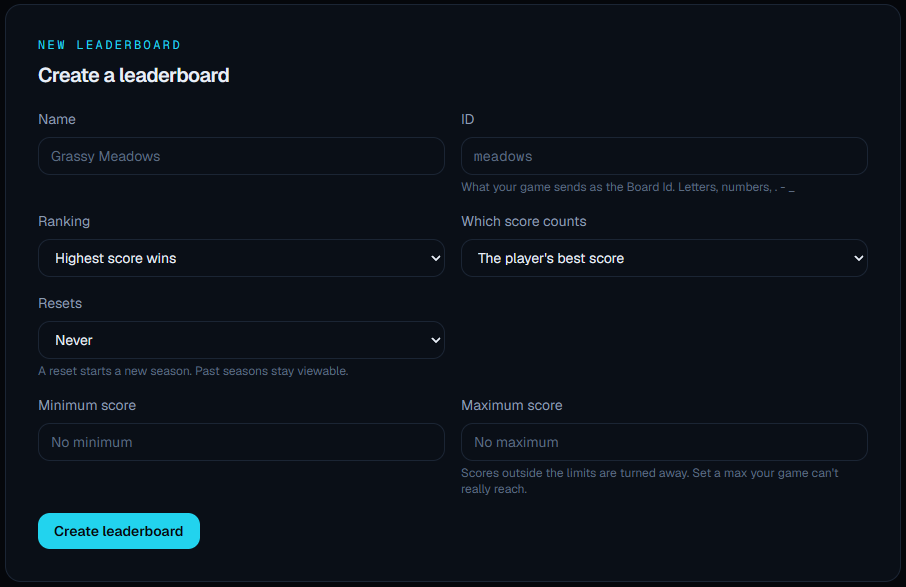
Open Dashboard, then Games, click your game and open the Leaderboards tab. Fill in the form:
- Name: what players see, like
Grassy Meadows. - ID: what your game sends as the Board Id, like
meadows. It can't change once created. - Ranking: Highest score wins, or Lowest score wins for times and strokes.
- Which score counts: the player's best, their latest, or all their scores added up.
- Resets: Never, Every week or Every month, with the day and hour (in UTC). A reset starts a new season; past seasons stay viewable on the dashboard.
- Minimum score and Maximum score (optional): scores outside them are refused, which stops obvious cheats.
2. Send scores from your game
Add the action Report score where a round ends, like the On Event of your results screen:
- Board Id: the ID from the dashboard.
- Amount: a number, or a variable such as
score.
Once a game has any boards set up, a Board Id that doesn't match one is refused. The dashboard lists those under Scores sent to boards you haven't set up, each with a Set up link, so a typo is easy to spot.
3. Show the board in your game
Get leaderboard fetches the top 50 of a board's current season into a List, best first. Make the List in Window ▸ Lists as a Data Object list with runtime only ticked. Show it with a Layout (or Grid Layout) that fills from the list and a row template, as in Showing Data. In the row's List Entry, the field position is the rank, name is the player's name and score is their score. Preview has no account, so the list stays empty there; test it on a watch.
4. Look after the board
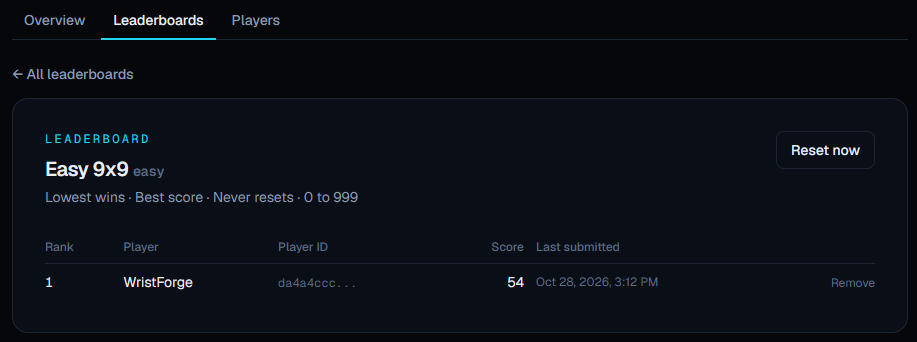
Click a board on the dashboard to see its standings by season: rank, name, player ID, score and when it was last submitted. From there you can:
- Remove an entry (a cheat or a test score). Removed scores are hidden, never deleted.
- Reset now to start a new season early.
- Change the settings, or delete the board.
A history at the bottom lists every reset and removal, and who made it.
Cloud save
Cloud save copies the player's saved Project variables (the ones with Saved ticked) and saved Lists to their account, and back, for the current save slot. See Saving Data.
- Save to cloud uploads them. Put it where the player's progress changes in a way worth keeping: the end of a level, after a purchase, on a "Save" button.
- Load from cloud downloads them and replaces what's on the watch.
Both can report how it went in status into (1 working, 2 done, 3 nothing saved yet, 4 failed or not signed in) and send an event when they finish.
Neither runs on its own in the background; you decide the moments.
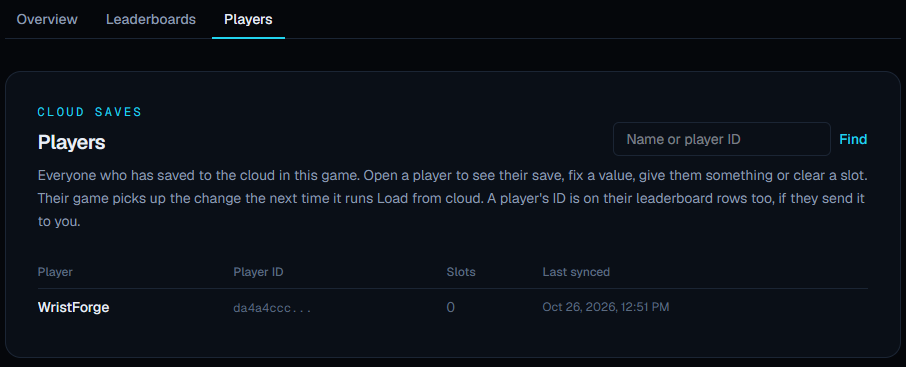
Your game's dashboard page shows how many players have a cloud save and when one last synced. What's inside each save stays private to the player.
A screen that's already showing keeps its old values until it next opens. Put Load from cloud on its own loading screen and go to the next screen when its event arrives. Signing Players In walks through one.