GuideOctober 28, 2026 · 10 min read
How to Import a Watch Face Studio Project (.wfs) into WristForge
Import a Watch Face Studio project into WristForge: open your .wfs file, see what comes over and what doesn't, and what to check before you ship.
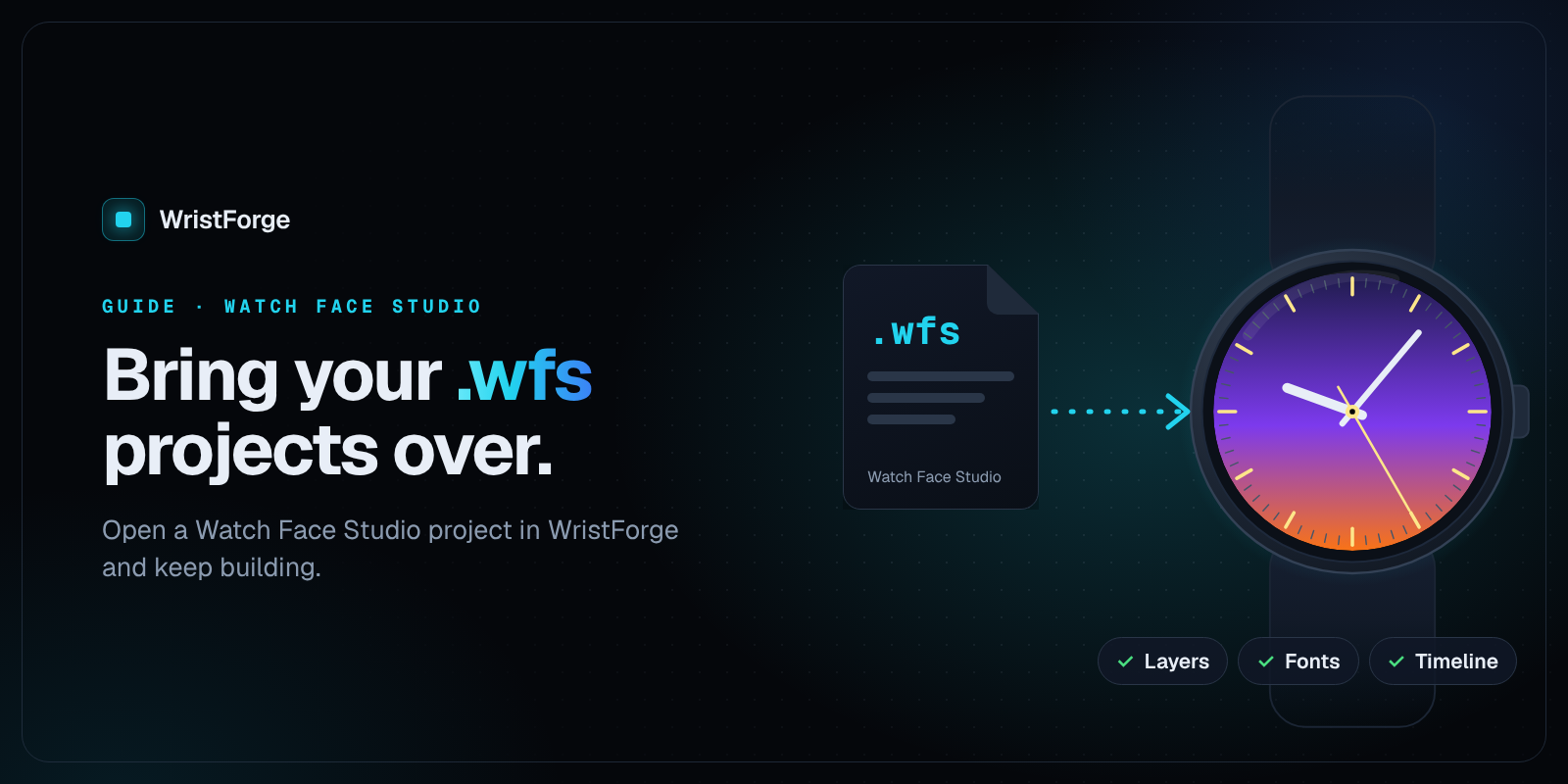
If you've built faces in Samsung's Watch Face Studio and want to try WristForge, you don't have to start over. WristForge can import a Watch Face Studio project (your .wfs file) and rebuild it as a WristForge watch face, layer by layer, in the same order and the same groups you made. This guide covers how to open a .wfs file in WristForge, exactly what the importer brings over, what it doesn't yet, and what to check before you put the face back on a watch.
Watch Face Studio is a good, free tool. If you're looking at WristForge as a Watch Face Studio alternative, it's usually for something it doesn't do, like keyframed animation across the day, a place to share faces, or watch apps. Importing lets you try that with a face you already know.
What is a .wfs file?
A .wfs file is a Watch Face Studio project: the editable source of your face, with every layer, image, GIF and font inside it. It's the file Watch Face Studio saves when you save your project, not the APK or app bundle it builds.
The importer only reads project files. It never reads APKs or app bundles. That's a deliberate choice: a built app could be anyone's face, while a project file is your own work. This tool is for moving your designs, not for lifting someone else's.
Facer and Pujie keep designs in their own clouds, so there's no project file on your computer to import. Watch Face Studio is the one tool whose projects WristForge can open.
How to import a Watch Face Studio project
You'll need the free WristForge editor. Download WristForge (Windows and Linux) and install the editor from the WristForge Hub.
- Open the WristForge Hub.
- Click Import .wfs in the top bar.
- Pick your Watch Face Studio project file (
.wfs). - The editor opens and asks where to create the project folder. Choose a parent folder.
- WristForge creates a normal watch face project named after your face (the app label you set in Watch Face Studio), fills it from your .wfs, and opens it.
The status line says how many layers came in, how many changed and how many aren't supported yet. A full report, wfs-import-report.md, is saved in the new project folder.
The import never writes over an existing project. If a folder with that name already has something in it, the new one is named "Your Face (WFS 2)", and so on. Your original .wfs file isn't changed either.
What comes over from Watch Face Studio
The rule the importer follows is strict one-to-one: every Watch Face Studio layer becomes one WristForge object, in the same order, inside the same groups. It never merges or deletes your layers, even ones it thinks you don't need. Layers you had hidden with the eye icon come over too, still hidden, and folded groups come in folded.
| In Watch Face Studio | In WristForge |
|---|---|
| Groups and complication slot groups | Groups |
| Images | Images (tint and opacity kept) |
| GIFs | Images with a frame animation, split into real frames at the GIF's own speed |
| Digital clock | Digital Clock, with the time format read from your tags |
| Date | Date Text, using the closest date format |
| Text showing battery, steps or heart rate | Battery Level, Step Count and Heart Rate readouts |
| Rectangles and ellipses | Shapes (rectangle and circle) |
| Analog clock and hands | Analog Clock, each hand with its own image, box and pivot. Extra shadow hands become the hand's built-in drop shadow |
| Complication slots | Matching complications, with your own layout pieces placed by hand inside them, plus their default data source and "fixed" setting |
| Edge slot labels | Curved text along the slot's arc |
| Conditional Lines (time windows) | Windows in the Timeline |
| Always-on visibility | Each object's ambient setting |
| Theme color palettes | One Color Style the wearer picks from |
| Image style groups | Image styles on the layer |
| Masks | A group with a Mask |
| Progress bars | Progress Arc or Progress Bar, fed by battery, steps or heart rate |
| Index (tick mark) layers | A group of tick images |
| Gyro motion | A Gyro component |
| Custom fonts | Fonts in your project's assets |
| Background color | The screen's background color |
| Package name and version | Your project's package name and version, with the version code bumped by one |
Rotated groups are handled too: each group's rotation is worked into the layers inside it, so everything stays where you put it.
What doesn't come over yet
The importer tells you about everything it couldn't carry rather than guessing. As of now, these are the usual ones:
- Flavors. Recreate them in Window ▸ Flavors.
- Tag expressions other than time windows. A blink like
[MSEC] < 500 ? 0 : -100, or a layer that changes with battery, steps or weather, comes in showing its base look. - Conditions on 12/24 hour mode and events, and tap actions.
- Text effects and italic, underline or strikethrough styling.
- Curved text outside complication slots comes in straight. Swap it to a Curved Text object to bend it again.
- Arcs drawn on their own (not as progress bars).
- Elliptical progress arcs use the smaller of the two sizes, since WristForge arcs are circular. Counter-clockwise arcs fill from the other end.
- Style groups that switch fonts or hands. Only image layers' styles come over.
- Extra complication types. If a slot accepted several types, they're all switched on, but only the one you had showing in Watch Face Studio keeps your own layout.
Reading the import report
Open wfs-import-report.md from your project folder. It has up to four parts:
- Good to know: things that came over fine but are worth knowing, like your package name being kept or your palettes becoming a Color Style.
- Check these: layers that came over with a change, each named so you can find it in the Hierarchy.
- Not imported yet: anything that has no WristForge equivalent yet.
- Layer by layer: every Watch Face Studio layer, in order, and what it became. If you're ever wondering where something went, the answer is in this list.
The report also spots a common Watch Face Studio workaround: fake text outlines made from several offset copies of the same text. Those copies come over as they are, so the face looks identical, and the report suggests the width and color for WristForge's real text outline. If you like, turn on outline on the main text, delete the copies, and you're down to one layer. See Text.
What to check after importing
Work through the report first, then give the face a quick once-over:
- Open the Timeline with Window ▸ Timeline… (Ctrl+T). Your Conditional Lines are windows here. Scrub the playhead through the day and watch the Scene. See Time of Day Windows.
- Check ambient mode. Click the moon button at the top of the Scene. Your always-on settings came over, but it's worth a look. See Ambient Mode.
- Look at each complication in the Hierarchy. The editor draws sample text in an empty slot, which Watch Face Studio doesn't, so don't be surprised by it.
- Try the Color Style and image styles if your face had palettes or style groups. See Color Styles.
- Run Window ▸ Problems… to catch anything the editor thinks a watch won't like.
- Put it on your own watch with a Debug APK. Preview gets close, but a real watch is the final word. See Getting Your Face Onto a Real Watch.
Updating a face you already sell on Google Play
The import keeps your package name and version name, and bumps the version code by one. That means the WristForge version can ship as an update to your existing Google Play listing instead of a new app.
- In WristForge, open Build ▸ Signing Keys… and choose Import existing. Pick the same keystore you signed with in Watch Face Studio (
.jks,.p12or.keystore). The .wfs only remembers where the key was, not its password, so you'll enter that here. - Build a Google Play bundle. Play bundles are part of a paid WristForge plan; the editor and everything else here is free.
- Upload it to your existing listing as a new release.
If you don't still have the original key, Google Play won't accept the update, so check that before you rebuild. See Publishing Your Face on Google Play and Publish a watch face on Google Play.
Watch Face Studio vs WristForge
Both make real Wear OS watch faces in Google's Watch Face Format. Here's how they compare, without spin.
| Watch Face Studio | WristForge | |
|---|---|---|
| Price | Free, from Samsung | Free editor. Paid plans for Google Play and Zepp Store bundles |
| Runs on | Windows and Mac | Windows and Linux |
| Time of day | Conditional Lines control when a layer is visible | Windows plus keyframed tracks for opacity, position, scale, rotation and tint, with easing |
| Crossfades, invert, mute on time windows | No | Yes |
| Animation | Image sequences, played at a fixed 15 frames per second per Samsung's guide | Frame animations at their own speed, plus Timeline tracks |
| Imports the other's projects | No | Yes, .wfs projects |
| Share faces with other people | Through Google Play | Google Play, or free on Face Hub with no Play account |
| Amazfit watches | No | Yes, through the Zepp app and Zepp Store |
| Watch apps and games | No | Watch apps today, games in development |
For a simple face, Watch Face Studio costs nothing and does the job. WristForge is for a face that changes smoothly through the day, sharing on Face Hub, or building more than faces. For a wider look, see What is WristForge? and Make a Wear OS watch face without coding.
FAQ
Can I open a .wfs file without Watch Face Studio?
Yes. WristForge's importer reads .wfs files directly, so you don't need Watch Face Studio installed to bring a project in.
Does the import change my original .wfs file?
No. It only reads it. Your Watch Face Studio project stays exactly as it was, so you can keep working in both while you decide.
Can I import an APK or a face from the Play Store?
No. The importer only reads Watch Face Studio project files, never built apps. That keeps it about your own work.
Will my face look exactly the same?
Every layer keeps its position, size and order, and the report names every layer that changed, so you know where to look.
Can I export back to Watch Face Studio?
No, import is one way. WristForge builds the face for the watch itself, as a Debug APK, Signed APK, Google Play bundle or Face Hub build.
Does an imported face work on Apple Watch?
No. Apple doesn't allow third-party watch faces, so faces are a Wear OS thing (plus Amazfit through Zepp). Watch apps and games are a different story.
Can I publish my imported face on Face Hub?
Yes, if it's your own design. Make a Face Hub build and submit it from your creator page on the WristForge site. Publishing is free and every face is reviewed first.
Bring one face over and see
Pick a Watch Face Studio project you know well, import it, and read the report. Download WristForge, and when you're ready to go further, make your first time-of-day face with the Timeline.