Analytics
See how many people play, how long and how often, and how far they get, on your dashboard. Anonymous by design.
About 6 minutes
Every real build of your game or app can report anonymous usage to your Games dashboard on the WristForge site: how many people play, how long, how often, and how far they get. There's nothing to set up beyond being signed in.
What you see
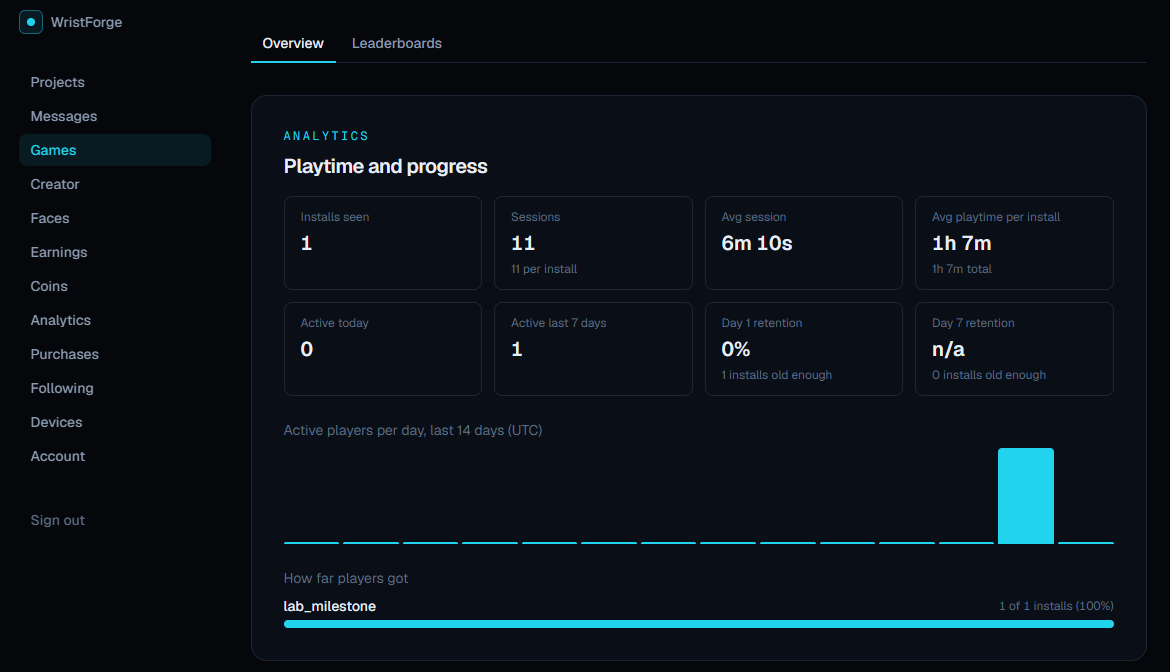
Open Dashboard, then Games and click your game or app. The Analytics section shows:
- Installs seen and sessions, with sessions per install.
- Average session and playtime per install.
- Active today and active in the last 7 days.
- Day 1 and Day 7 retention: how many installs came back.
- A daily chart and your milestones.
The account Analytics page lists every game and app you've linked, with its installs, sessions and milestones, linking to each one.
Getting it on the dashboard
A game or app appears there once its package id is linked to your account. That happens on its own when you build for a watch while signed in to the editor. You can also click Link to my account in Project settings. Data arrives within a minute or two of playing.
Online services like analytics need WristForge Pro.
Milestones
Record milestone marks that this install reached a named point, like level_3_cleared, boss_beaten, finished_setup or first_order. Each name counts once per install, so the list on the dashboard reads as a funnel: how many players got to each step, and where they stopped.
Privacy
- Each install sends a random id, never an account, name, email or location.
- Nothing is sent from Preview.
- Turn analytics off for a project with the analytics checkbox in Project settings.
- Give players a choice with Set analytics opt-out on a settings toggle (1 opts out, 0 opts back in).
Mention the anonymous usage data in your store listing's Data safety section. See Publishing on Google Play.