Passing Wear OS Review
The rules Google Play reviewers check on watch apps, games and faces, and which ones WristForge handles for you.
About 5 minutes
Google reviews every Wear OS app and watch face against a checklist called the Wear OS app quality guidelines. Most rejections come from a short list of things, and the reviewer's email usually names the rule by its ID (like WO-V15). This page lists them in plain words, says which ones WristForge already handles for you, and which ones are on you.
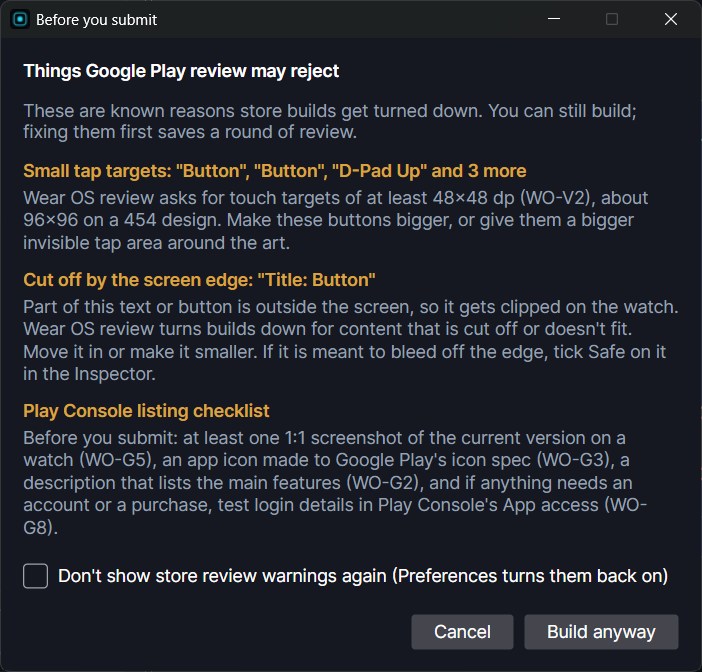
When you start a Google Play build, WristForge looks over your project and shows a Before you submit window with anything a reviewer is likely to flag. You can still build; fixing them first saves a round of review, which can take days.
Handled automatically
You don't need to do anything for these. Every WristForge Wear OS build does them.
| Rule | What Google asks | What WristForge does |
|---|---|---|
| WO-V15 | Show your app icon at 48x48dp on a black background while the app starts | The startup screen shows your project icon at 48dp on black |
| WO-V8 | Show a scroll bar while a list is scrolling | Scrolling lists draw a scroll bar |
| WO-P1 | Target a recent Android version | Builds target Android 16 (API 36), above what Google Play requires |
Things to check in your project
These depend on how you build your screens. The Before you submit window warns about the ones it can spot.
| Rule | What Google asks | How to pass |
|---|---|---|
| WO-V13 | A black background on every screen | Set each screen's background to #000000. Put your color in cards, buttons and art. |
| WO-V2 | Touch targets at least 48x48dp | About 96x96 on a 454 design. Make small buttons bigger, or add a bigger invisible tap area. |
| WO-V14 | Text at least 12sp for important text, 10sp for the rest | About 24 and 20 on a 454 design. |
| WO-V16 | Nothing cut off by the round edge, nothing overlapping | Fix anything the Guidance panel flags in red or orange. |
| WO-V3 | People can always leave a screen | If you turn swipe to dismiss off, give every screen a Back or Close button. |
| Crown | Scrolling lists scroll with the crown or bezel | One scrolling list per screen, and don't use the crown for something else on that screen. |
| WO-P6 | No typing a username or password on the watch | Sign people in from the phone, or with a code shown on the watch. |
| WO-V4 | Anything that keeps running in the background shows an ongoing activity | Use Start ongoing activity when tracking starts, and End ongoing activity when it stops. |
| WO-P2 | The app installs, opens and works without crashing | Test the release build on a real watch before you upload it. |
Your Play Console listing
Reviewers check the listing too.
- Screenshots (WO-G5): at least one 1 screenshot of the current version, taken on a watch. Press F12 in Preview for a clean snapshot.
- Icon (WO-G3): made to Google Play's icon spec: 512x512, no rounded corners or frames added by you.
- Description (WO-G2): list the main features.
- App access (WO-G8): if anything needs an account or a purchase, give the reviewer test login details in Play Console under App content, App access.
- Declarations: heart rate, location and the microphone each need a privacy policy link and the matching declaration in Play Console. WristForge reminds you when your project uses them.
Watch faces
Watch faces have their own rules on top of the ones above.
| Rule | What Google asks |
|---|---|
| WO-V12 | The time is shown clearly, in ambient mode too |
| WO-P7 | Ambient mode lights no more than about 15% of the pixels |
| WO-P10 | No more than 8 complication slots |
| WO-G4 | The store icon is your face as a centred circle that touches the edges of the image |
| WO-G6 | If the face can be customized, the screenshots show more than one look |
| WO-G9 | Tag it as a watch face in Play Console |
| WO-G11 | The face's files stay under 10 MB |
For the full publishing steps, see Publishing on Google Play.
If you get rejected anyway
- Read the email for the rule ID (WO-something) and the screenshot Google attaches.
- Fix it, then build again. WristForge raises the version number for you, and Play needs a higher one for every upload.
- In Play Console, upload the new build and reply to the rejection saying what you changed.
Rules are applied unevenly. An update can be turned down for something the first version got through with, so it pays to fix everything on this page before the first upload.