GuideNovember 7, 2026 · 3 min read
How to Make a Custom Galaxy Watch Face Without Coding
Design your own Samsung Galaxy Watch face on your computer, turn on developer mode, and install it on your watch the same day. No code needed.
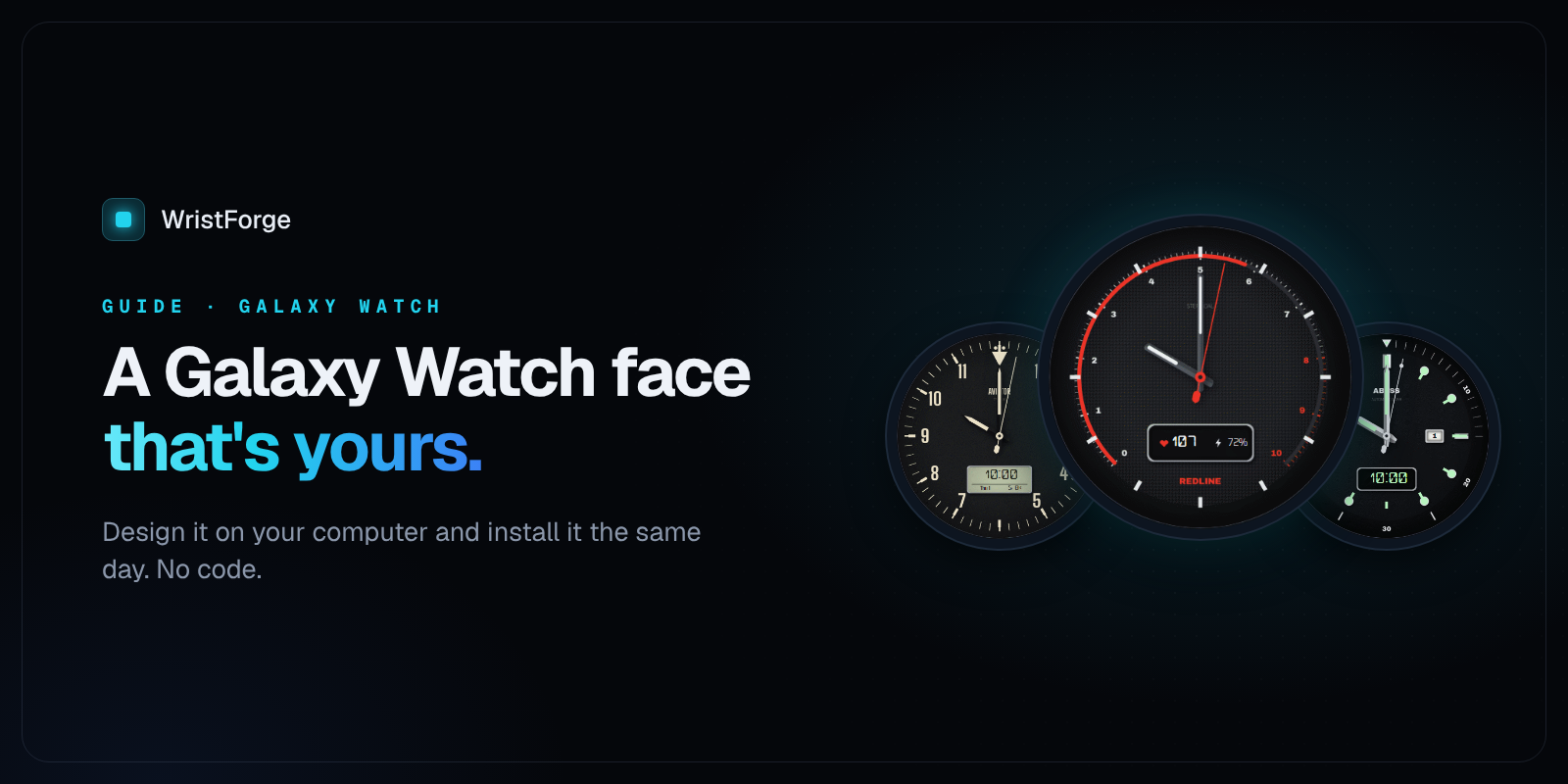
Samsung's Galaxy Watch comes with plenty of faces, but none of them are yours. The good news: you can design your own Galaxy Watch face on your computer, without writing any code, and have it on your wrist the same afternoon.
This guide uses WristForge, a free watch face editor for Windows, Mac and Linux. It builds Google's Watch Face Format, which is what Galaxy Watch 4 and newer run.
What you need
- A Galaxy Watch 4 or newer (Watch 4, 5, 6, 7, 8, Ultra and Classic models all run Wear OS).
- WristForge, free. Download it here.
- Your watch and computer on the same Wi-Fi.
1. Start a face
Open WristForge Hub, click New project and pick Watch Face. Choose a template (Analog, Digital, Fitness, Hybrid, Big & Bold) or Blank.
The Scene in the middle is a round watch screen, just like your Galaxy Watch. The Hierarchy on the left lists every object, and the Inspector on the right changes whatever you select.
2. Design it
Use Add Object to place what you want:
- Analog Clock or Digital Clock, which follows the wearer's 12 or 24 hour setting
- Date Text
- Battery Level, Step Count, Heart Rate and Weather
- Progress arcs, rings and segmented gauges for goals like steps
- Complications, so you can pick data from your other apps right on the watch
- Your own images, shapes, text and fonts
Then the parts that make it feel like a Galaxy Watch face:
- Color Styles, so you can switch colors from the watch's face settings
- Wrist-tilt parallax, so layers shift as you move your arm
- A Timeline to change the face through the day, like a sky that goes from sunrise to night. See Time-of-Day Windows.
3. Design the always-on look
Galaxy Watches can keep the face on all the time in a dimmed mode. Click the moon (Ambient) at the top of the Scene. Each object has a dot in the Hierarchy: filled shows in always-on, hollow hides. Keep it simple: the time, maybe the date, on black.
4. Test it in Preview
Press F5. The time ticks and sample data fills in. Use the Simulate tab to try 23
, a low battery or always-on mode, and make sure nothing gets cut off at the round edge.5. Turn on developer mode on your Galaxy Watch
You only do this once.
- On the watch, open Settings, then About watch, then Software information.
- Tap Software version several times until it says developer mode is on.
- Go back to Settings, open Developer options, and turn on ADB debugging and Wireless debugging.
6. Put it on your watch
- In WristForge, open Build, then Build…. The first time, it offers to download the Android tools it needs. Say yes.
- Pair your watch from Build, then Devices….
- Pick Debug APK and build. It installs straight onto your watch.
- Long-press your current face, swipe to the end and pick yours.
If anything goes wrong, Getting Your Face Onto a Real Watch covers the details.
7. Share it (optional)
- Face Hub: publish free, with no Google Play account. Other Galaxy Watch owners on Wear OS 6 or newer can install it from Face Hub on their watch.
- Google Play: build a Google Play ready .aab and sell it under your own name. See How to Publish a Watch Face on Google Play.
Already made faces in Watch Face Studio?
Samsung's Watch Face Studio is popular with Galaxy Watch designers. WristForge opens .wfs projects directly, so you can bring them over. Here's how.
Bonus: Amazfit too
The same project can build an Amazfit version of your face. Click the Amazfit target, adjust the layout for its screen, and build. Amazfit guide.
WristForge isn't affiliated with Samsung.